
Watch: Trivia (7:08) · All videos
Fill the round
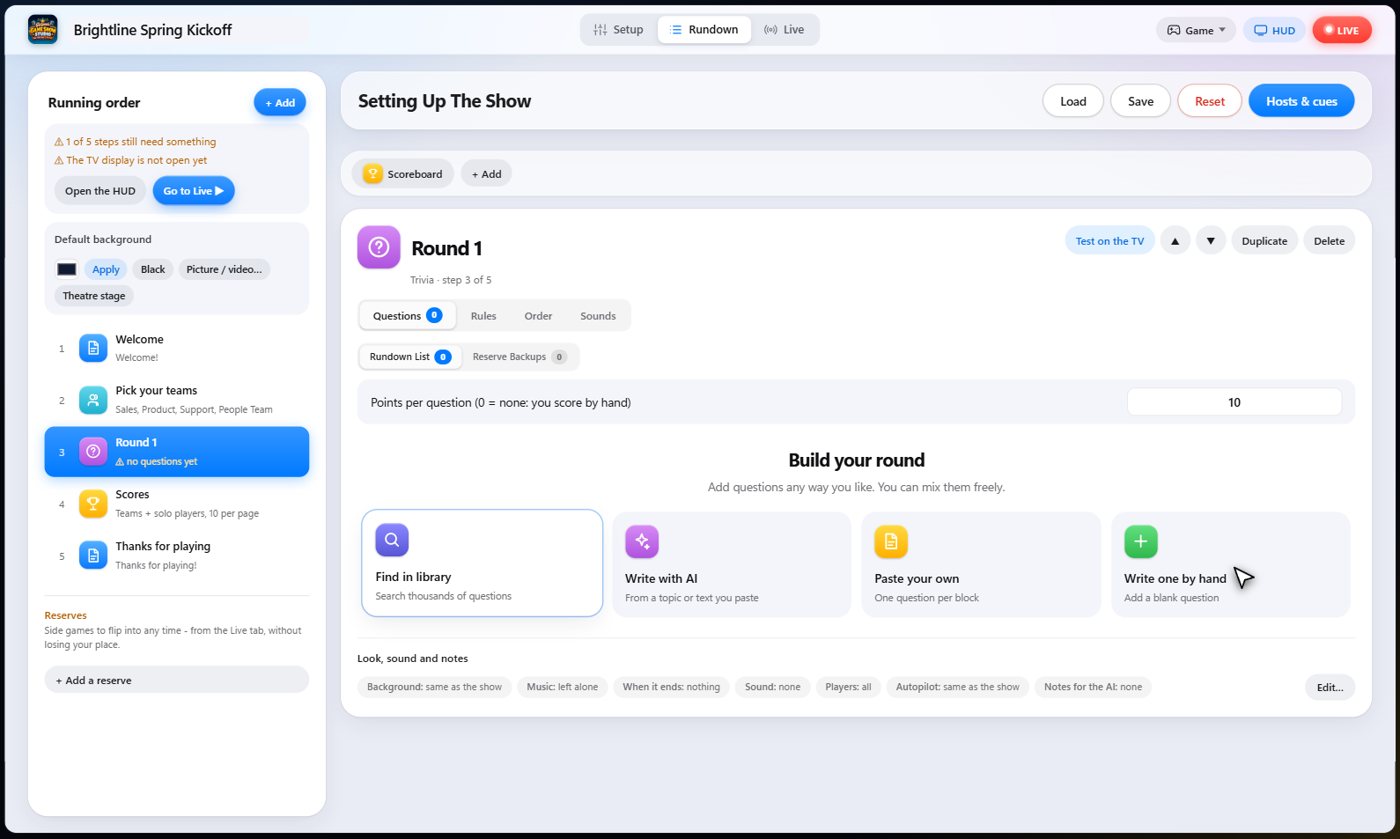
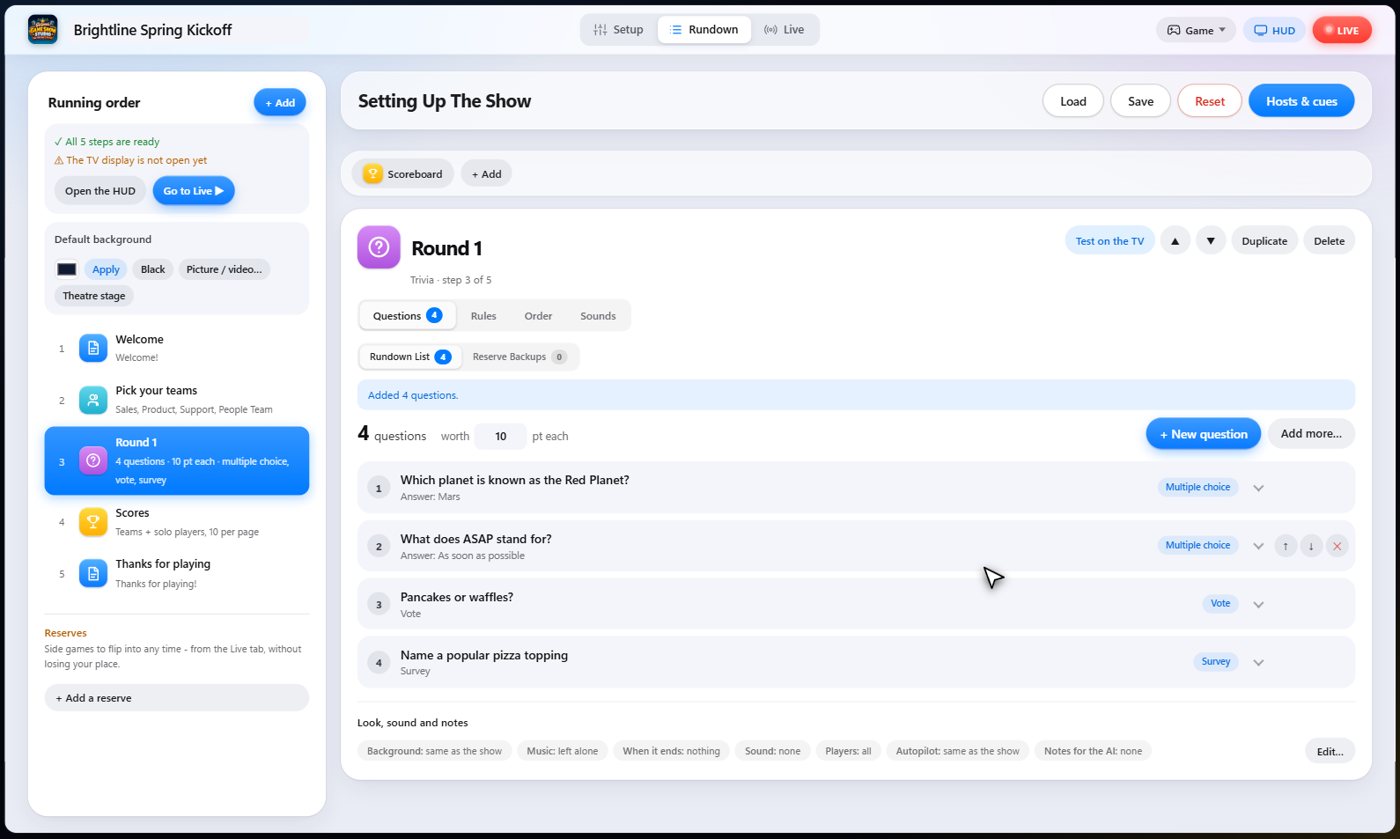
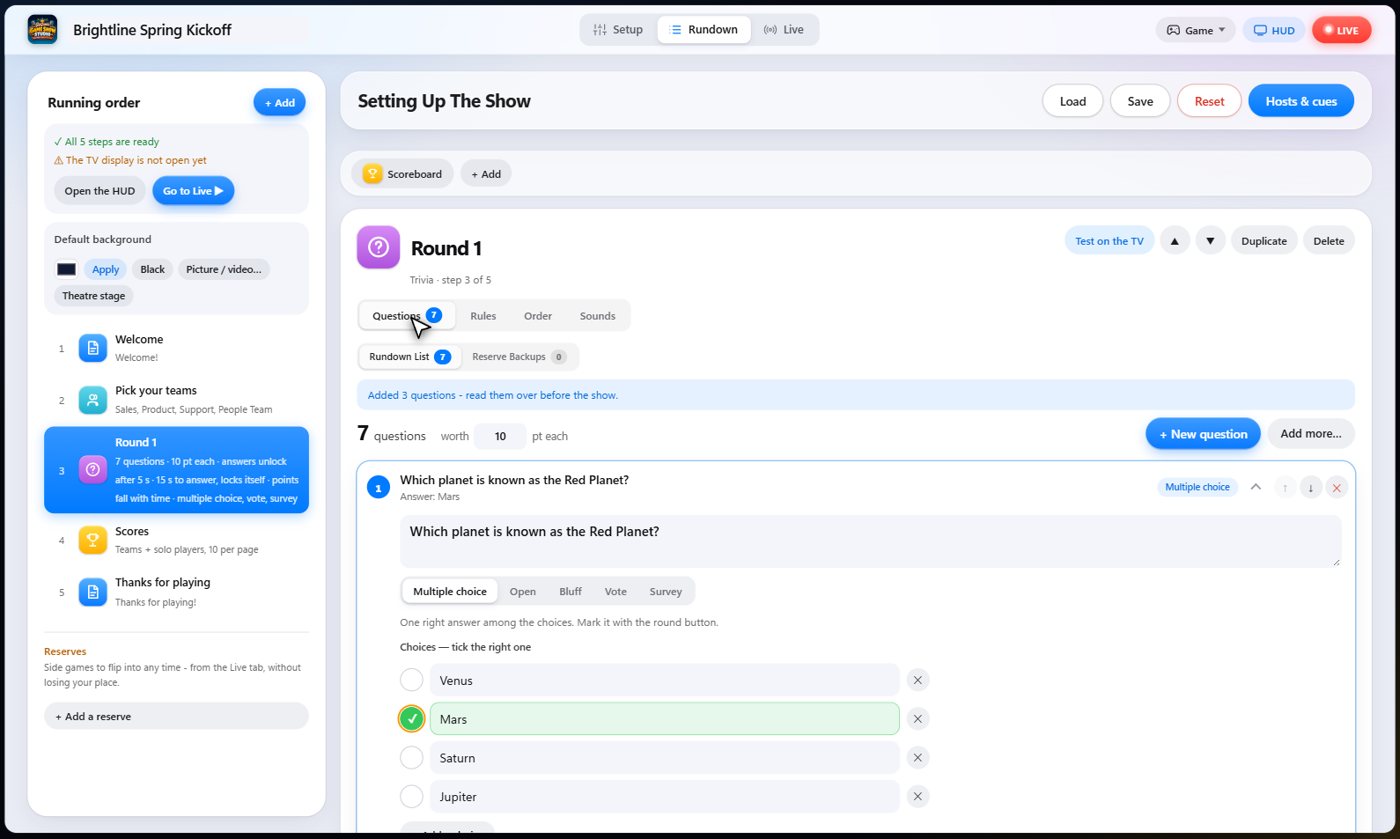
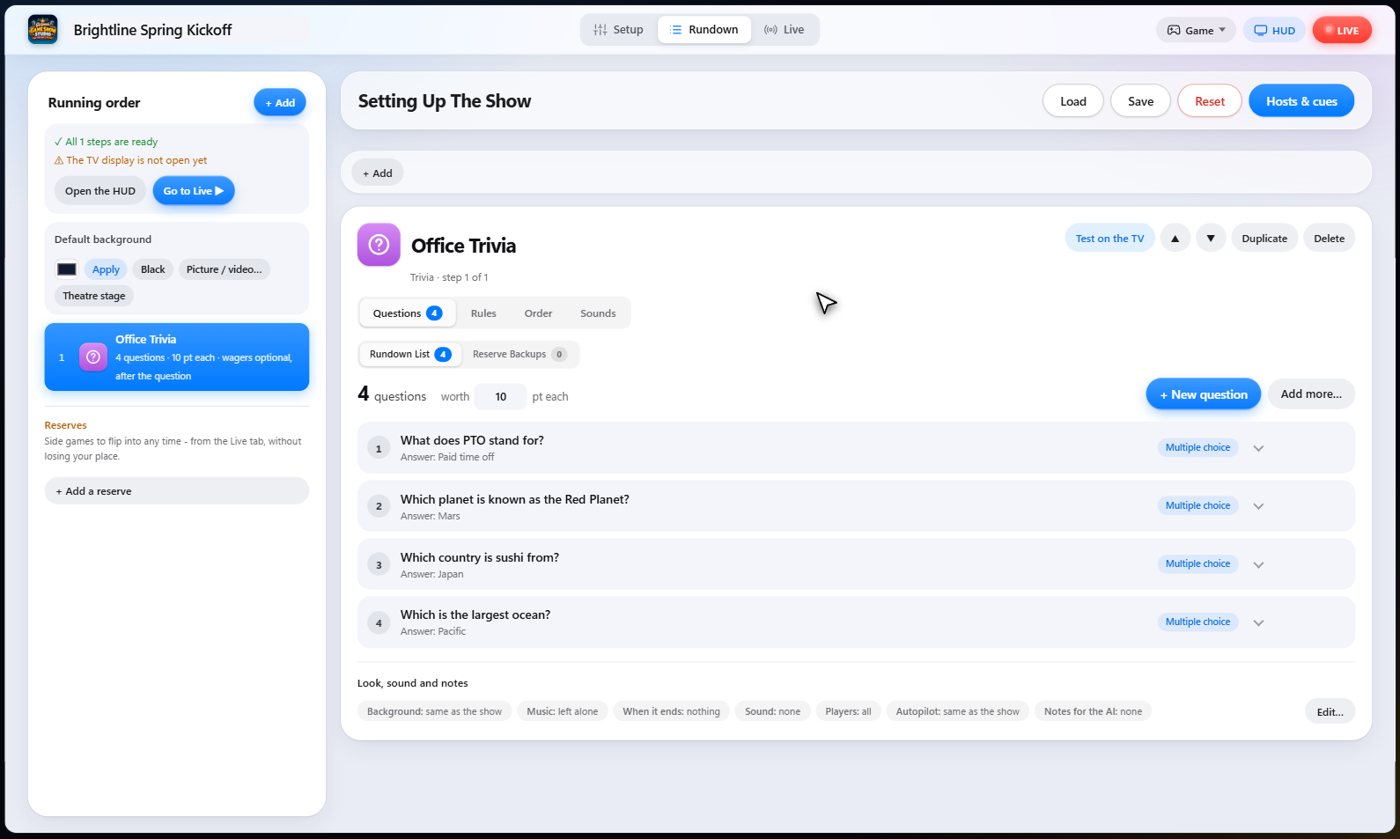
Trivia is one step in your Rundown. When you add it, it starts empty, with four ways to fill it: find questions in the library, write them with AI, paste your own, or type one by hand. You can mix them in the same round.
Paste your own
Give it one question per line: the question, the right answer, and the wrong ones. It adds them exactly as you wrote them, so nothing is reworded.
Write with AI
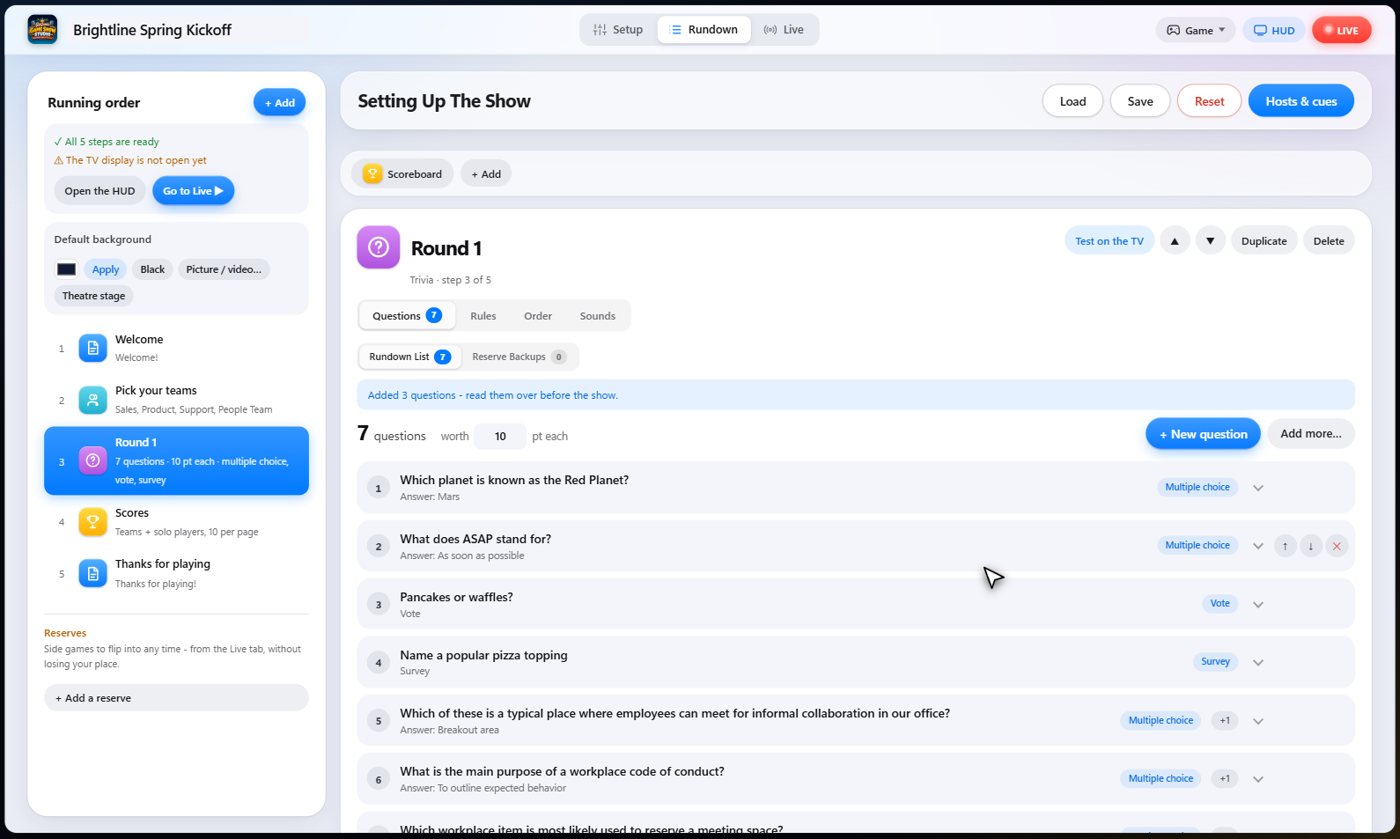
Give it a topic, how many questions and a level, and it writes them in a few seconds. You can even paste your own text, and it only uses facts from that. Read the questions over before the show.
Search the library
The library has thousands of ready-made questions. Search by topic, tick the ones you want, and add them. Your own saved questions work the same way.
Five kinds of question
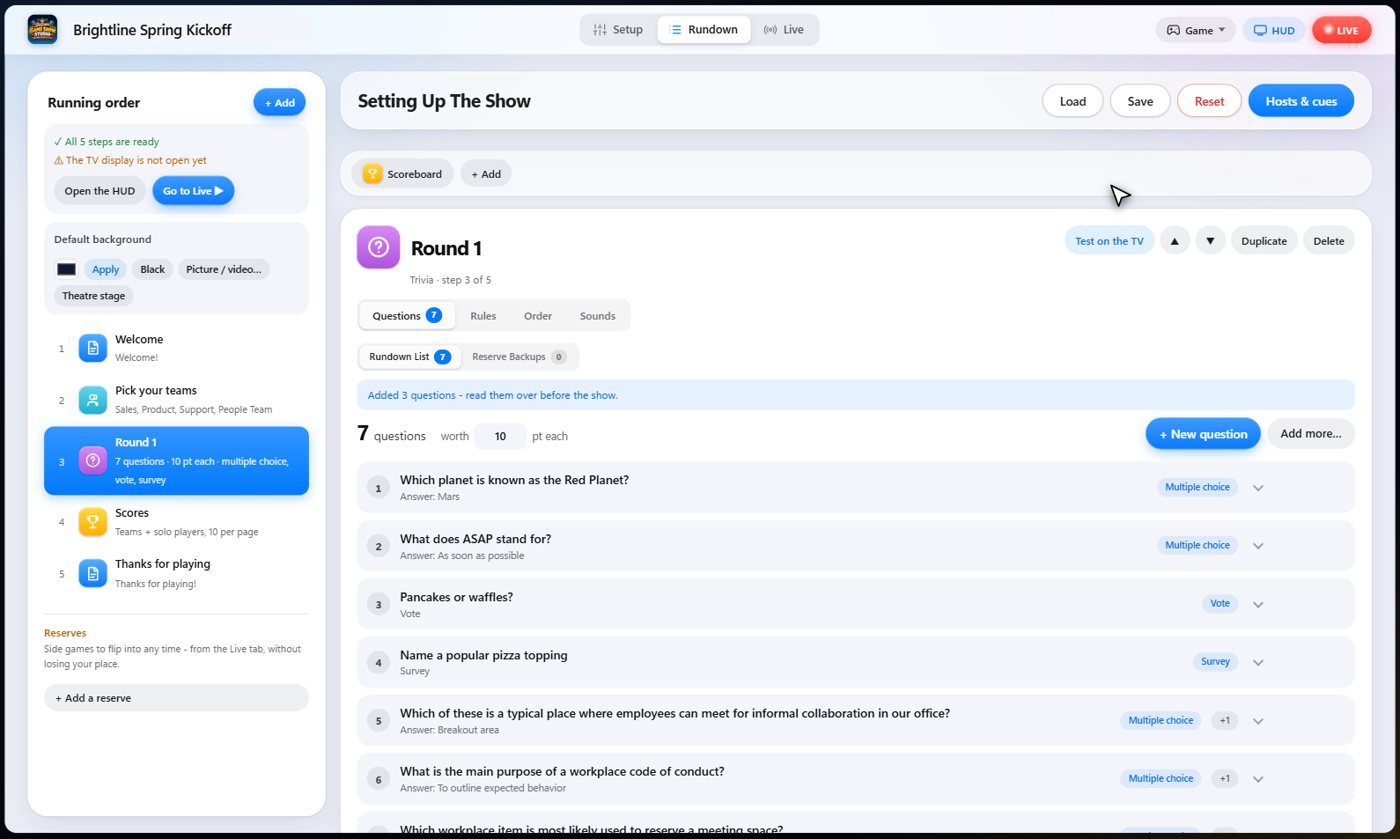
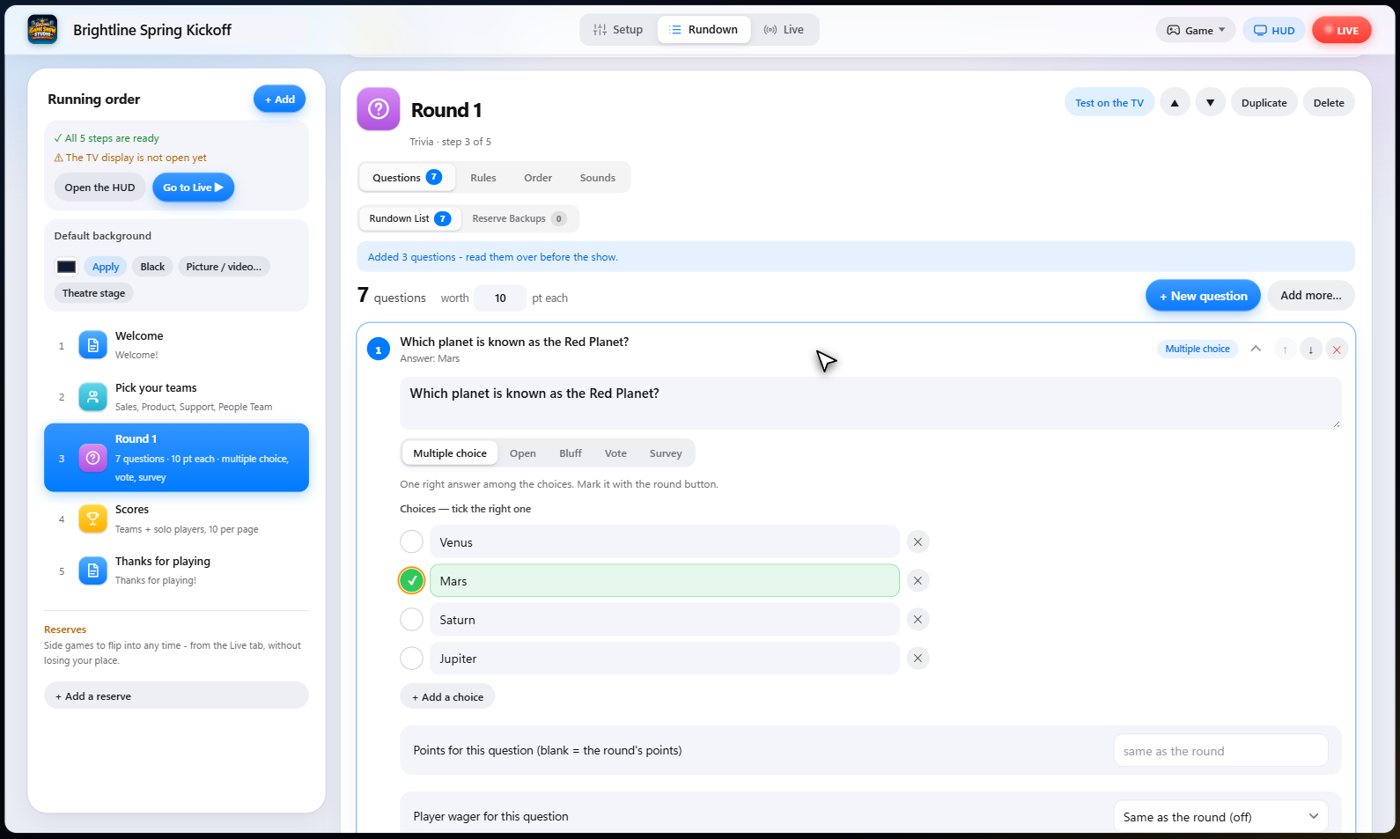
Open any question to edit it. There are five kinds: multiple choice; open questions; bluff, where players write fake answers; majority vote; and Survey Says, where answers are ranked. You can add a picture, a background, music or a fun fact for the cohosts to mention to any question. Survey Says and Majority Rules also have game templates of their own that fill whole rounds with those kinds.
How the round runs
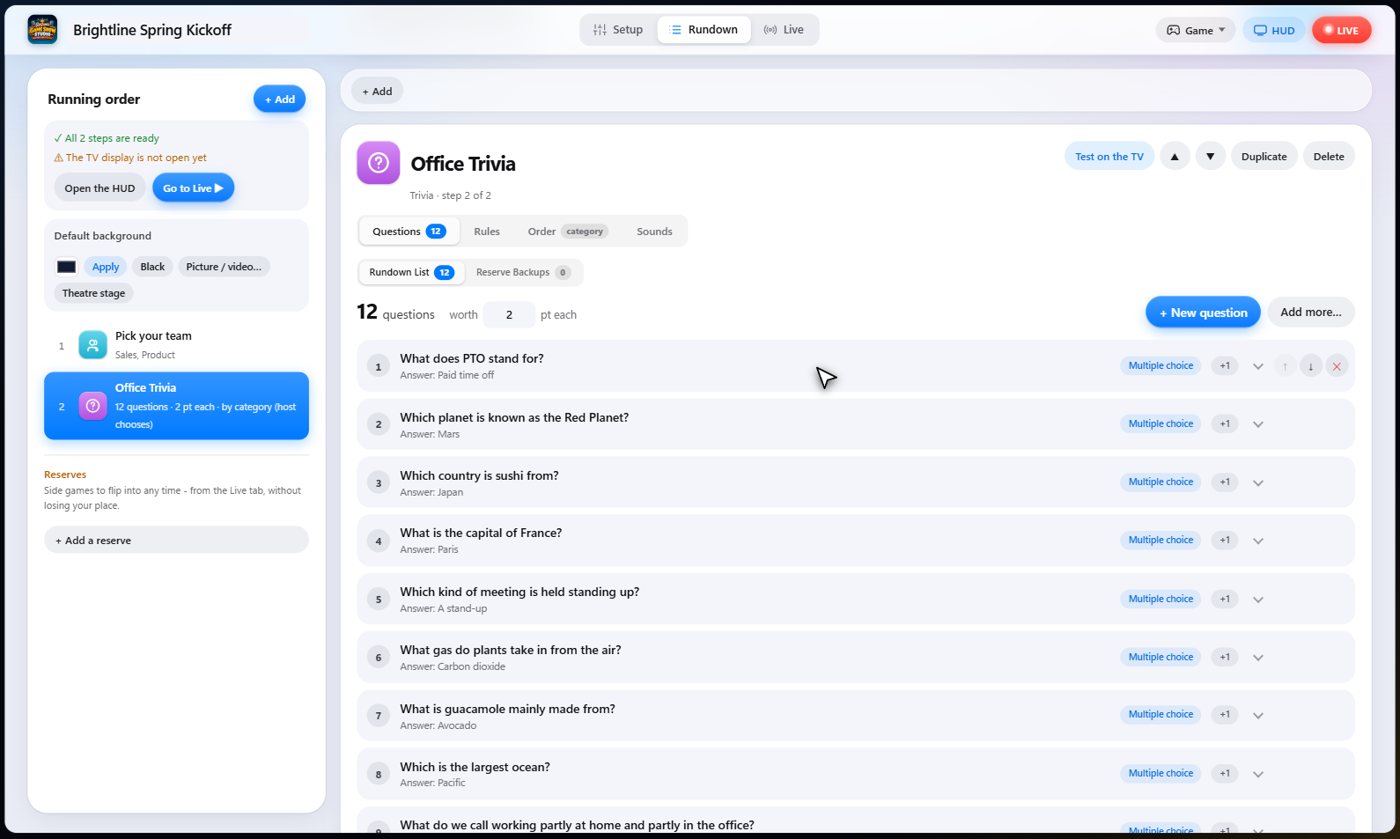
Choose one at a time, which asks a question, shows the answer and moves on. Or choose all the questions first, then all the answers, and players can even go back and change their answers before they submit. Set the points for each question, or leave it to the round.
Reserve backups
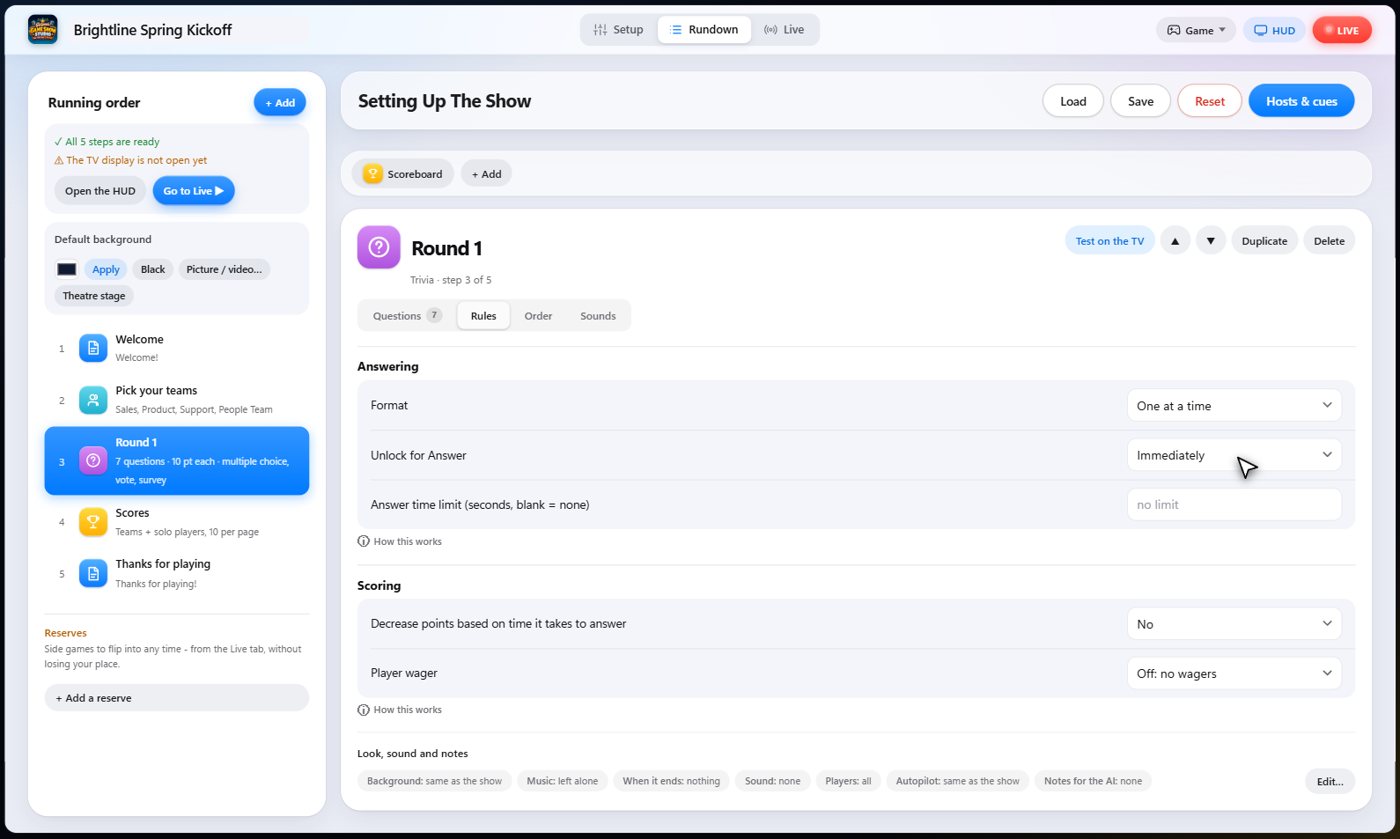
Above the questions, a second list holds Reserve Backups. These are spare questions that are never asked on their own. During the game, a reserve can replace the question that is open, or be added after the reveal, if a question falls flat.
Timing and points
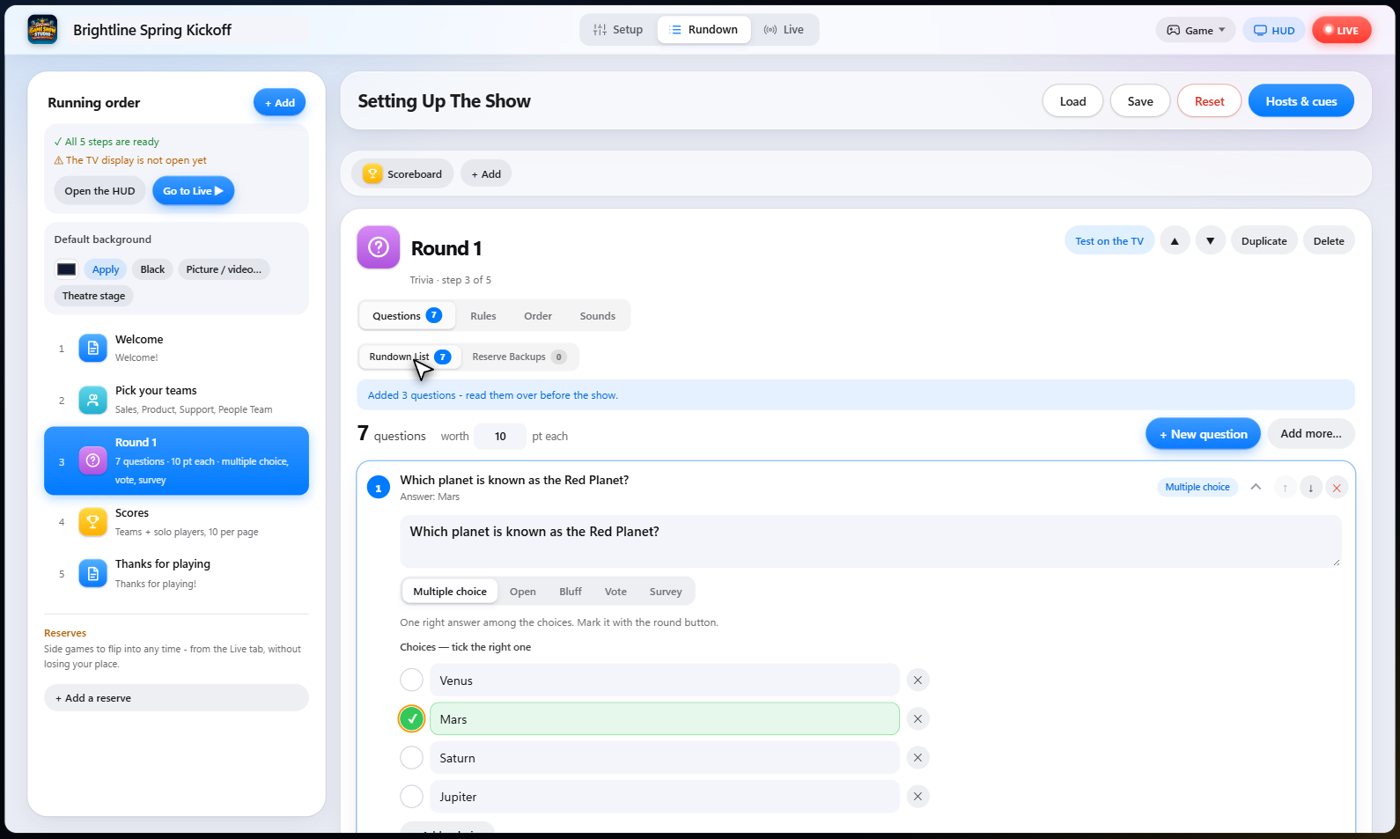
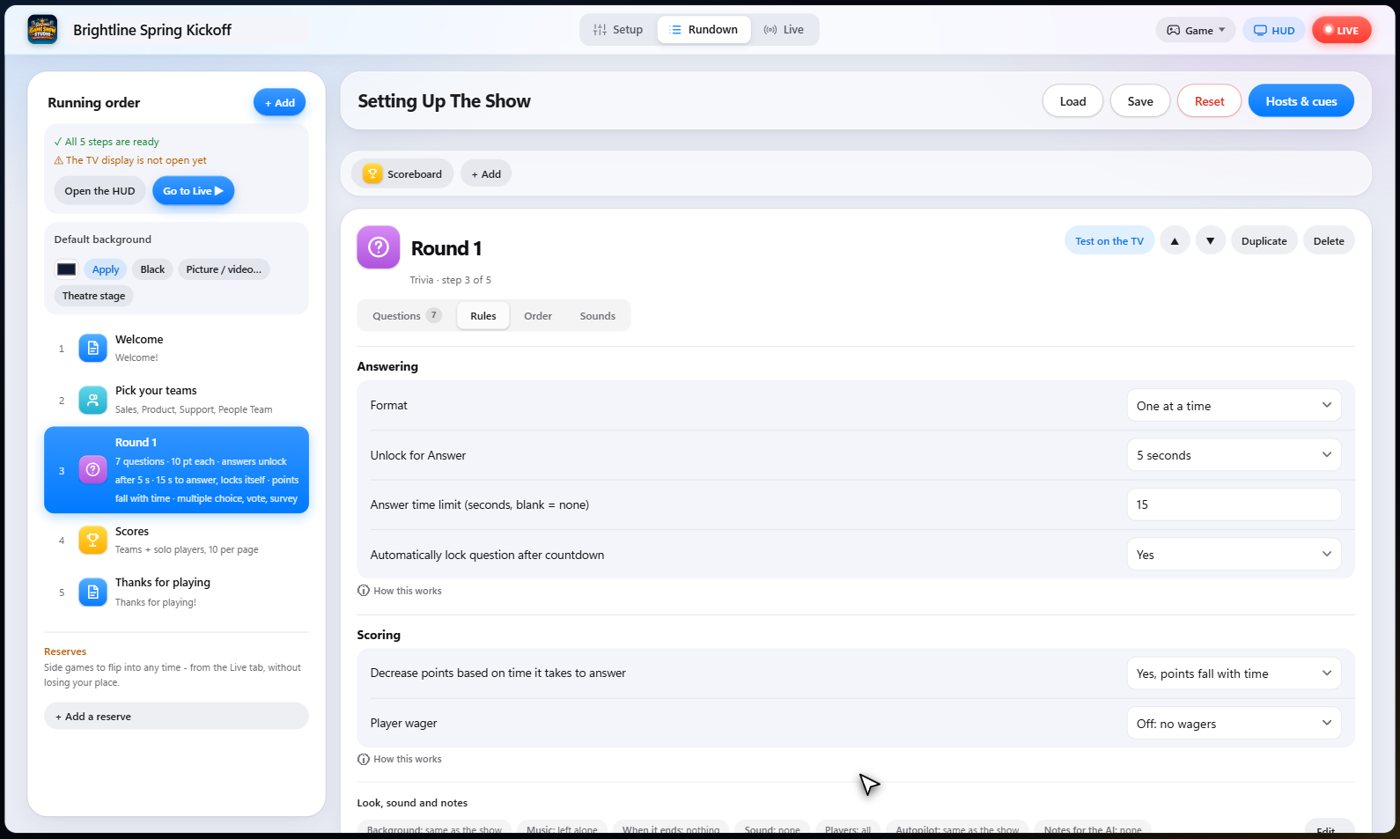
Unlock for Answer holds the phones back for a moment when a question goes up, so the room can read it first. Choose immediately, a number of seconds, automatic, which works it out from how much there is to read, or manual, where you open the phones yourself. The answer time limit gives every question a countdown that starts when the phones open, and Automatically lock question after countdown closes each question by itself when the time is up. To reward quick thinking, Decrease points based on time it takes to answer gives full points for an answer the moment the phones open, and the points fall steadily to a fifth as the time runs out. A wrong answer still earns nothing.
Tip The decay and the time limit work together: set the limit first, and the points fall across it.
Player wagers
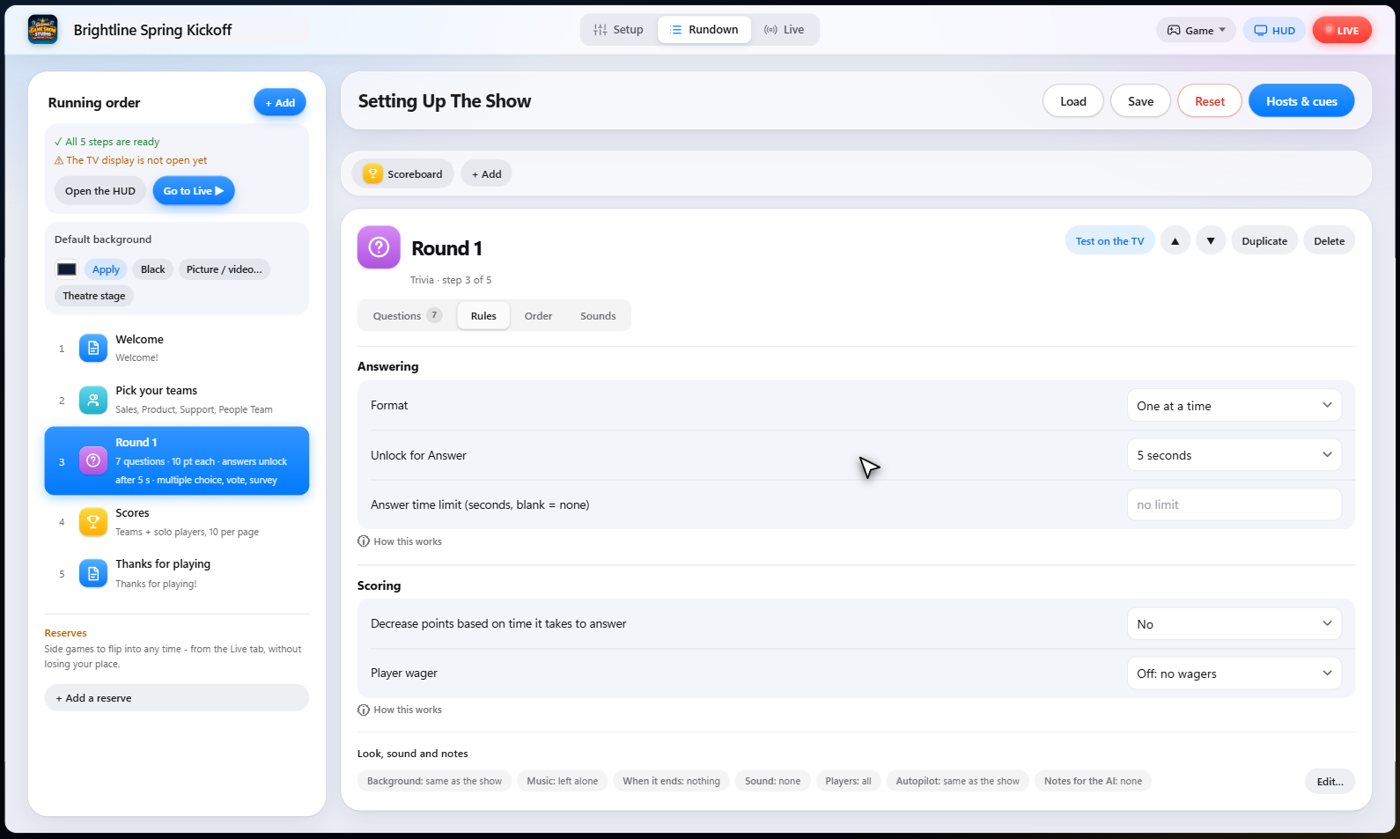
Players can also wager points (the Wagers sections further down this guide go into it in full). Under Player wager, choose Off, Optional, where players may wager, or Required, where a player with no wager cannot answer. Then choose the wager point: with the question displayed, where players see the question but not its choices, or before the question, where they wager on the category alone.
Sound effects
The Sounds tab picks the sound effect for each moment of the round: when a question goes on the TV, when wagers open, when the answers lock, and when the answer is revealed, one sound if someone got it and another if nobody did. Choose a sound from the library, choose none, or leave the default.
Run it
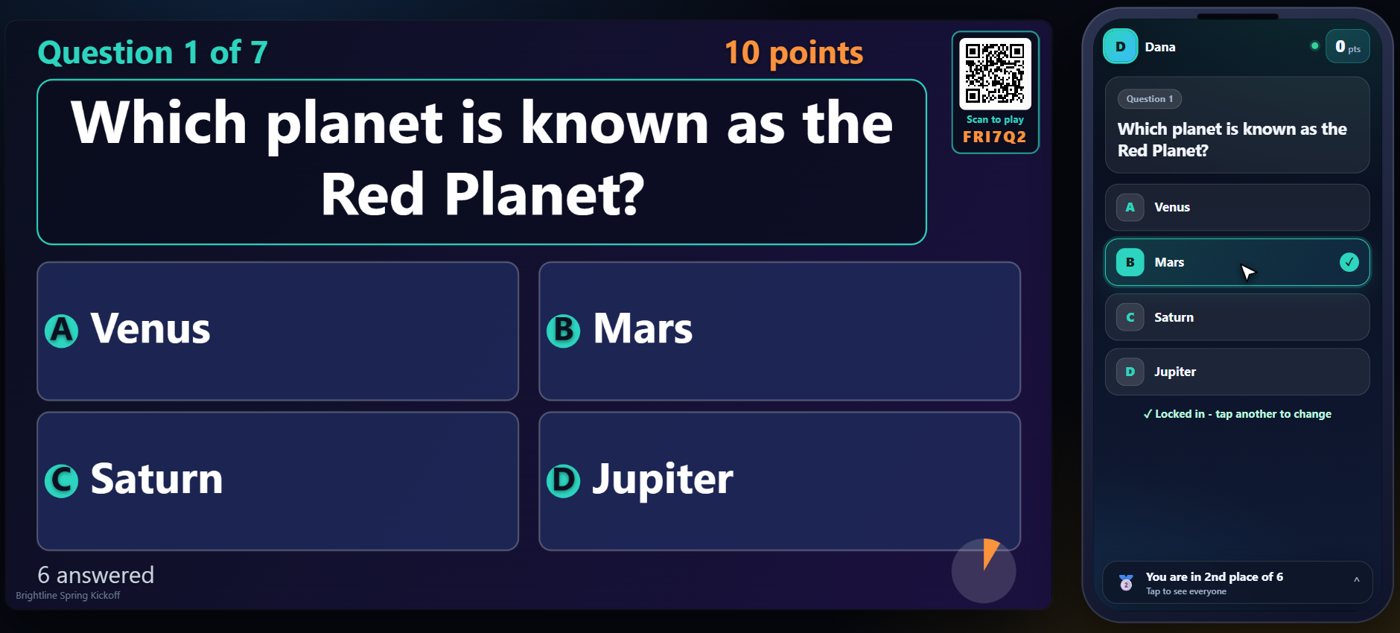
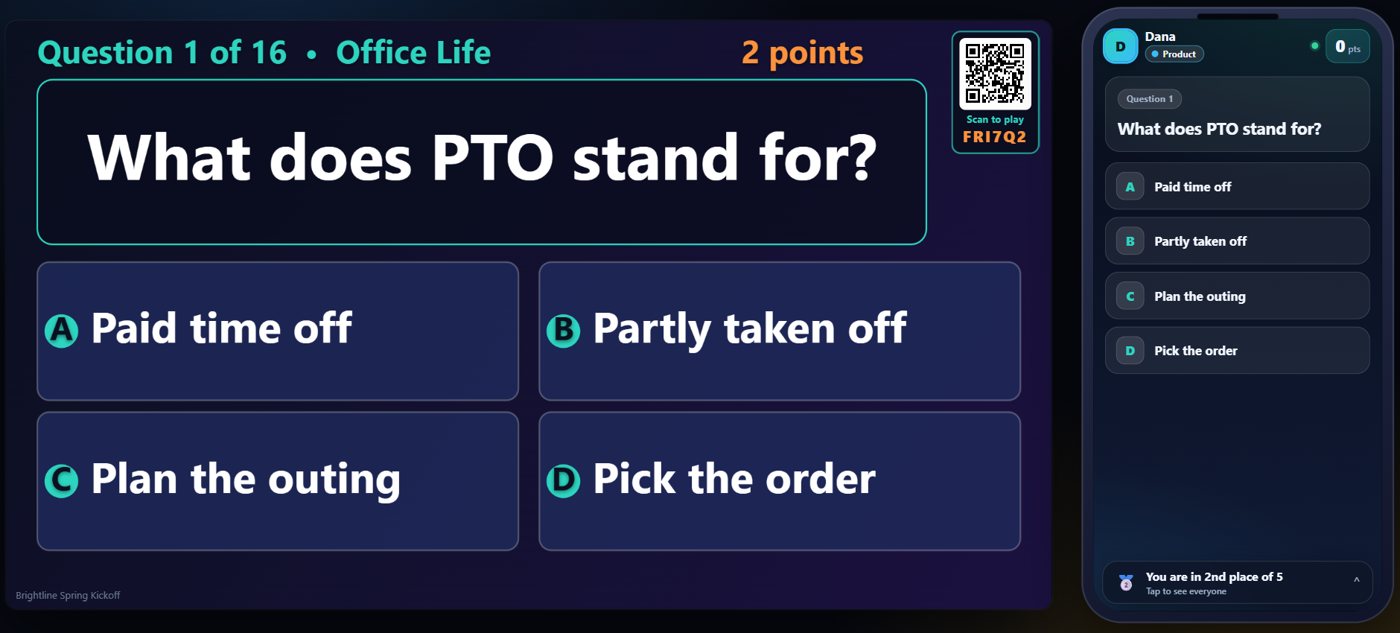
On the Live tab, start the show and move to the trivia step. The question is on the TV, and the choices appear on every phone. Players tap their answer, and teammates share a team score.
See who answered what
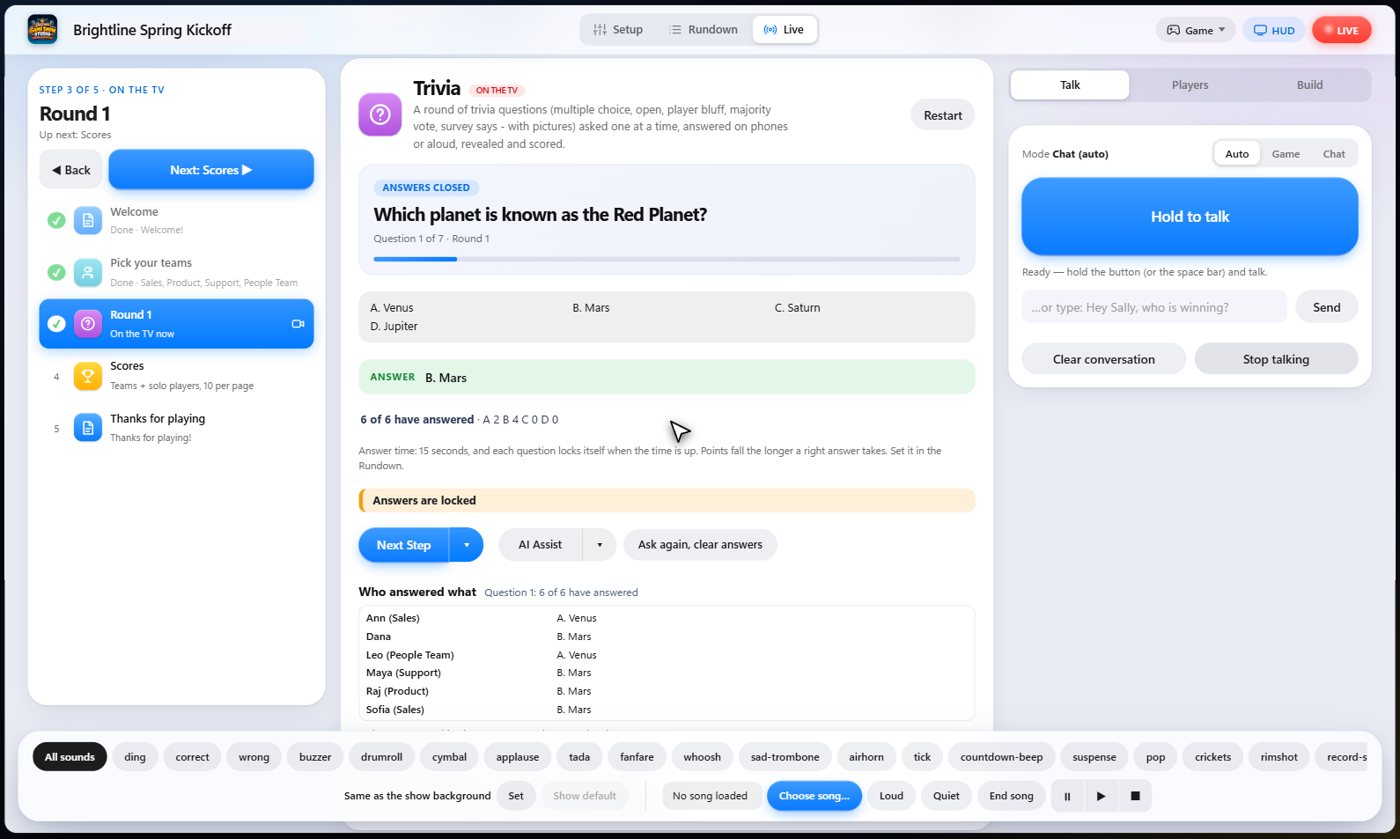
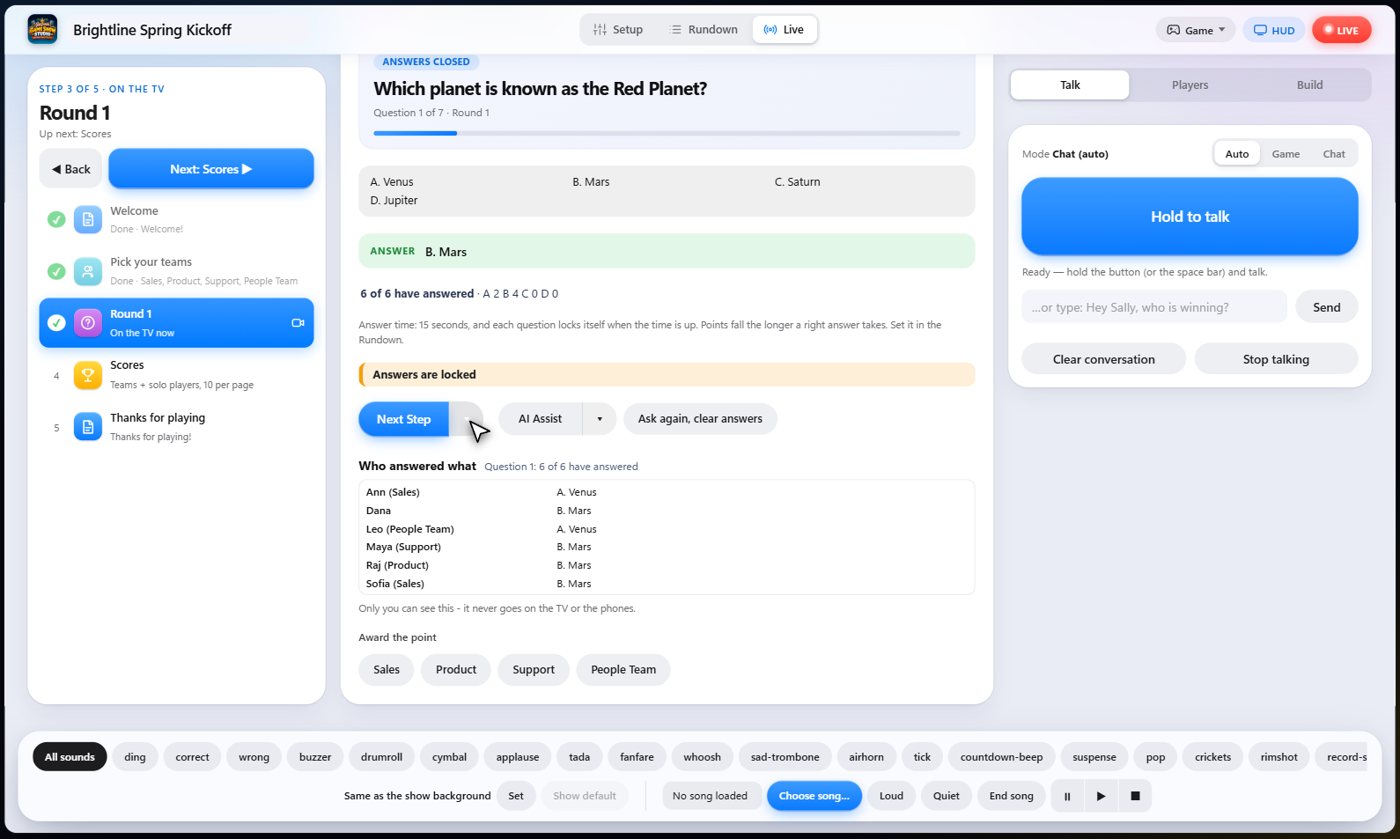
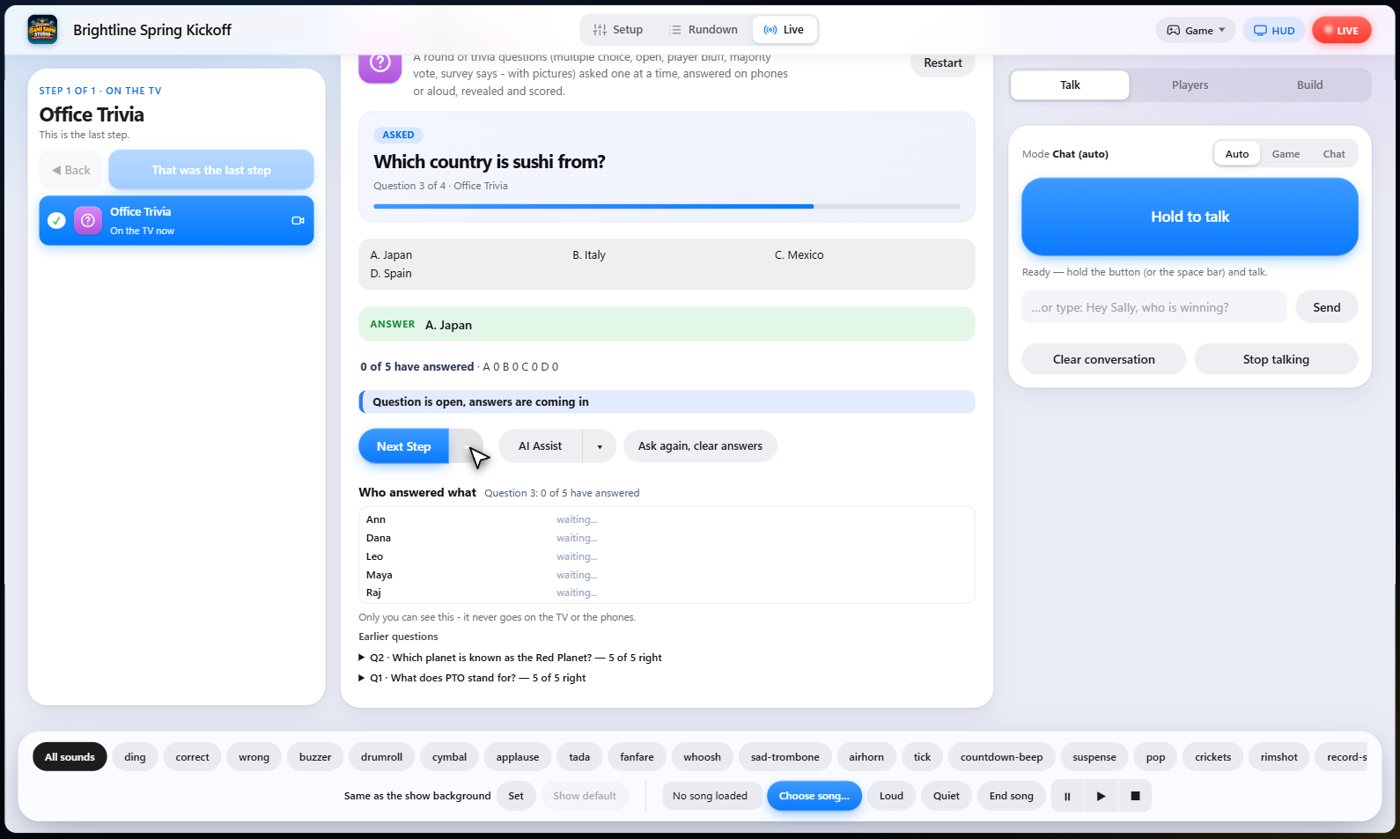
On your console, the Live tab shows how many have answered, and who picked what. This panel is for the host only. It never appears on the TV or on the phones.
The Next Step button
The big Next Step button does the next thing by itself: open the question, show the choices, lock the answers, reveal, then ask the next question. The arrow beside it opens the detailed controls: choose a category, ask a question, get wagers, swap in a reserve question, lock or unlock the answers, show a histogram, and reveal. A control that cannot be used right now is greyed out.
Reveal and score
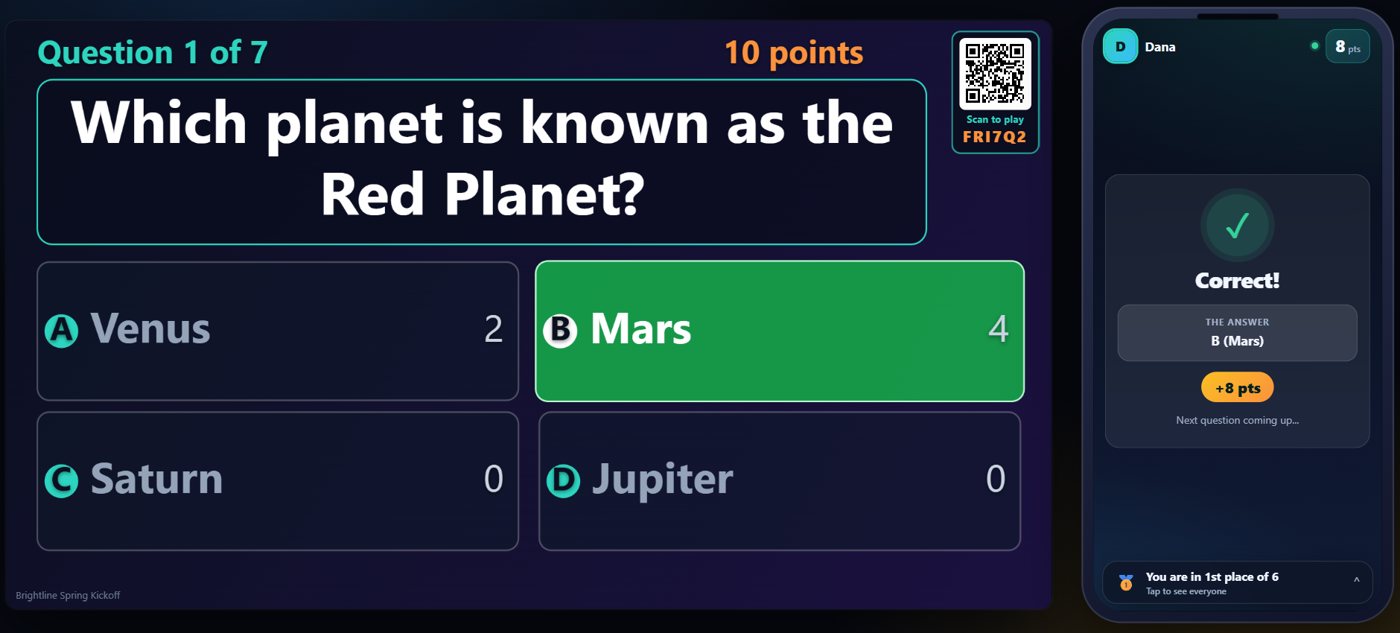
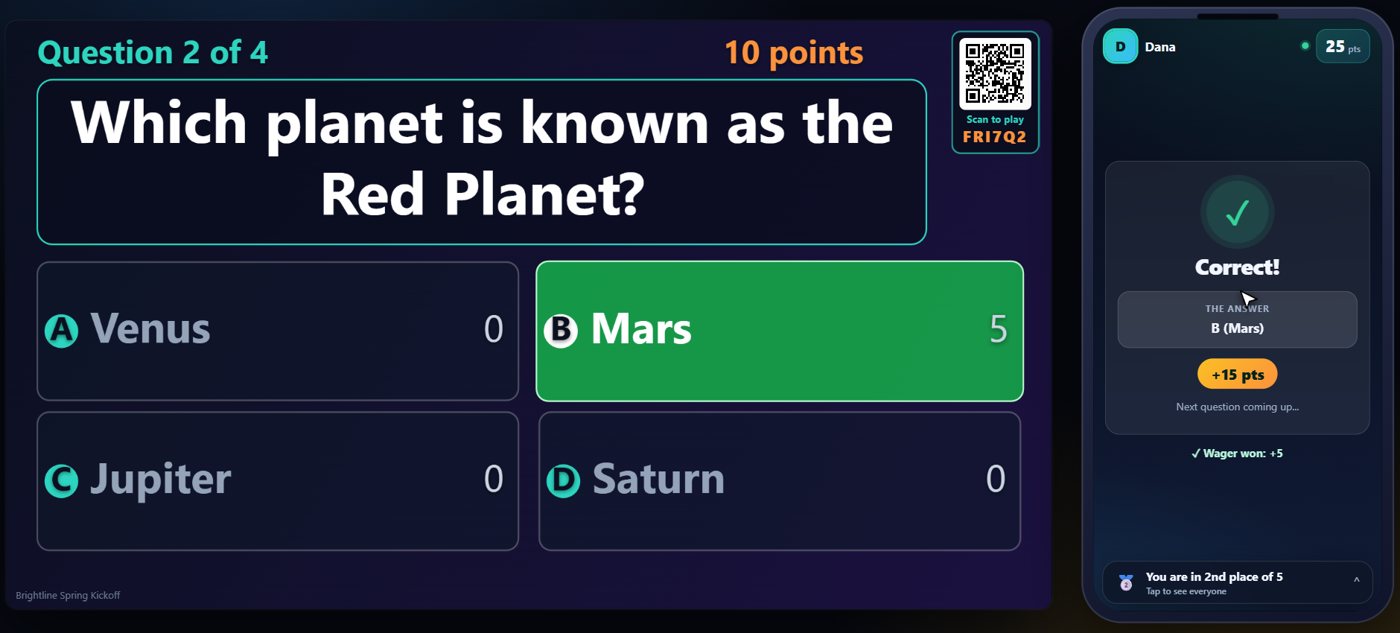
When you are ready, reveal the answer. The right choice lights up on the TV, each phone shows whether it was right, and points go to the teams automatically. The scoreboard shows who is ahead.
Tip Prefer to keep score by hand? Leave the points at 0 and add points yourself from the scoreboard.
Wagers: Wagers for the whole round
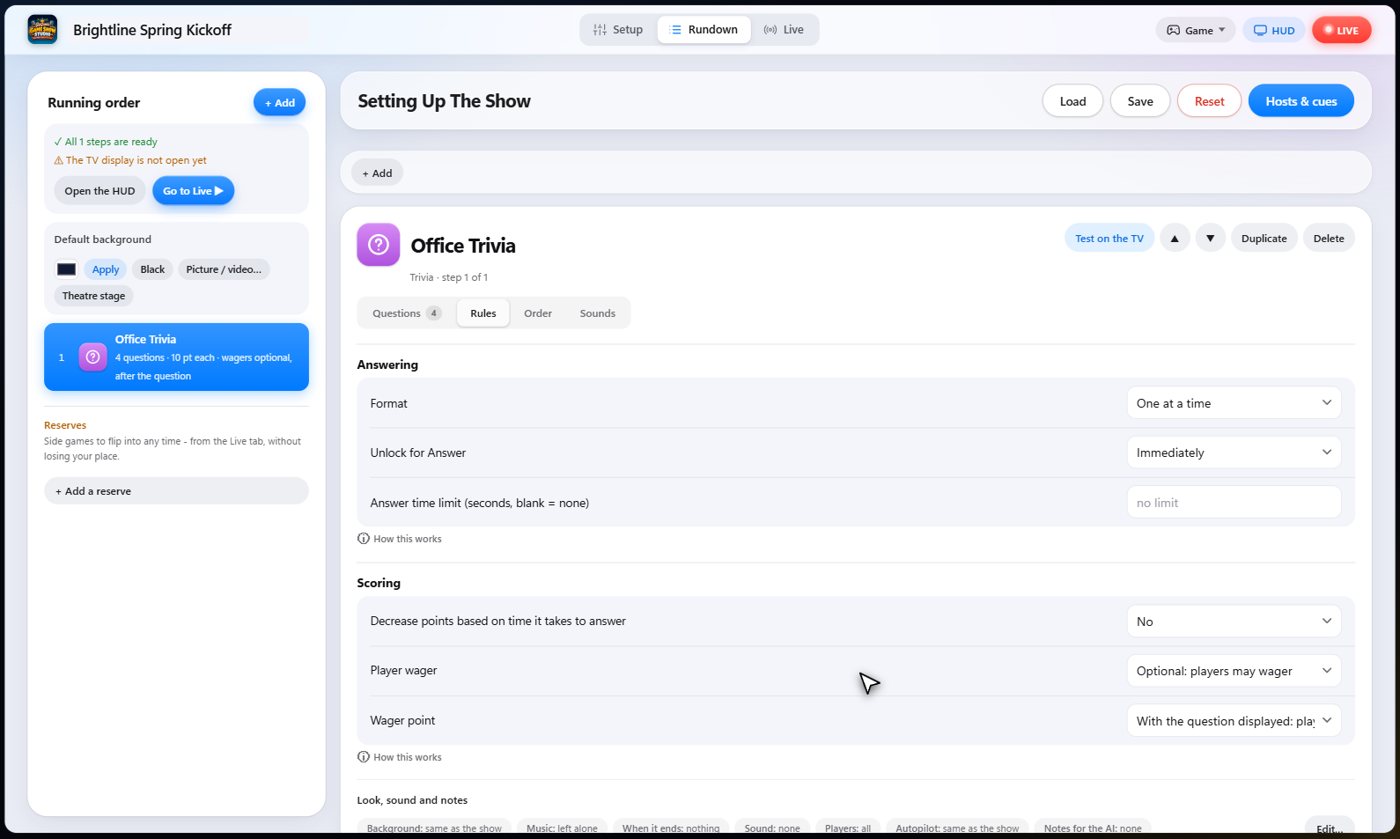
Open the Trivia step and go to Rules. Player wager has three choices. Off means no wagers. Optional means a player may wager some of their own points. Required means a player must wager, or cannot answer.
Wagers: When players wager
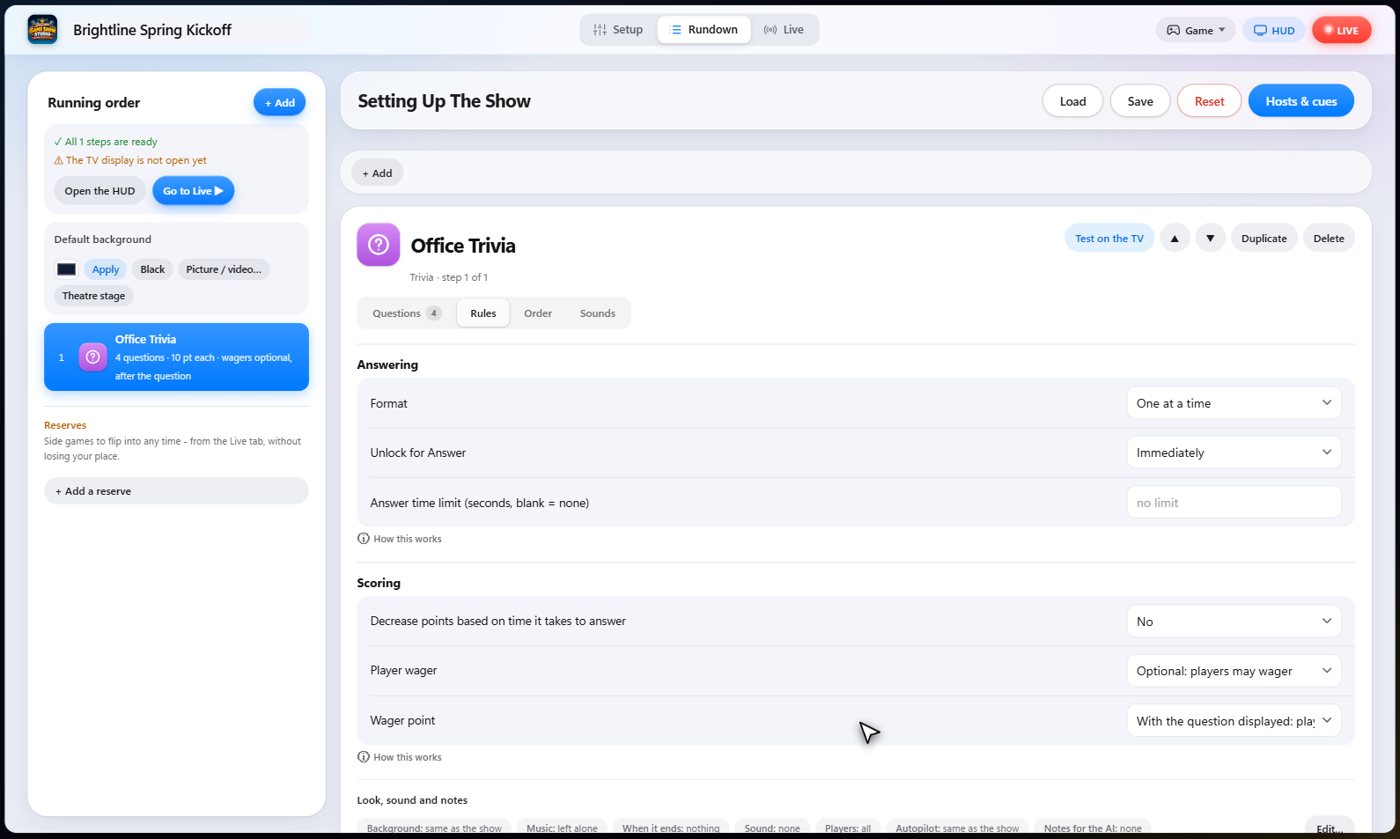
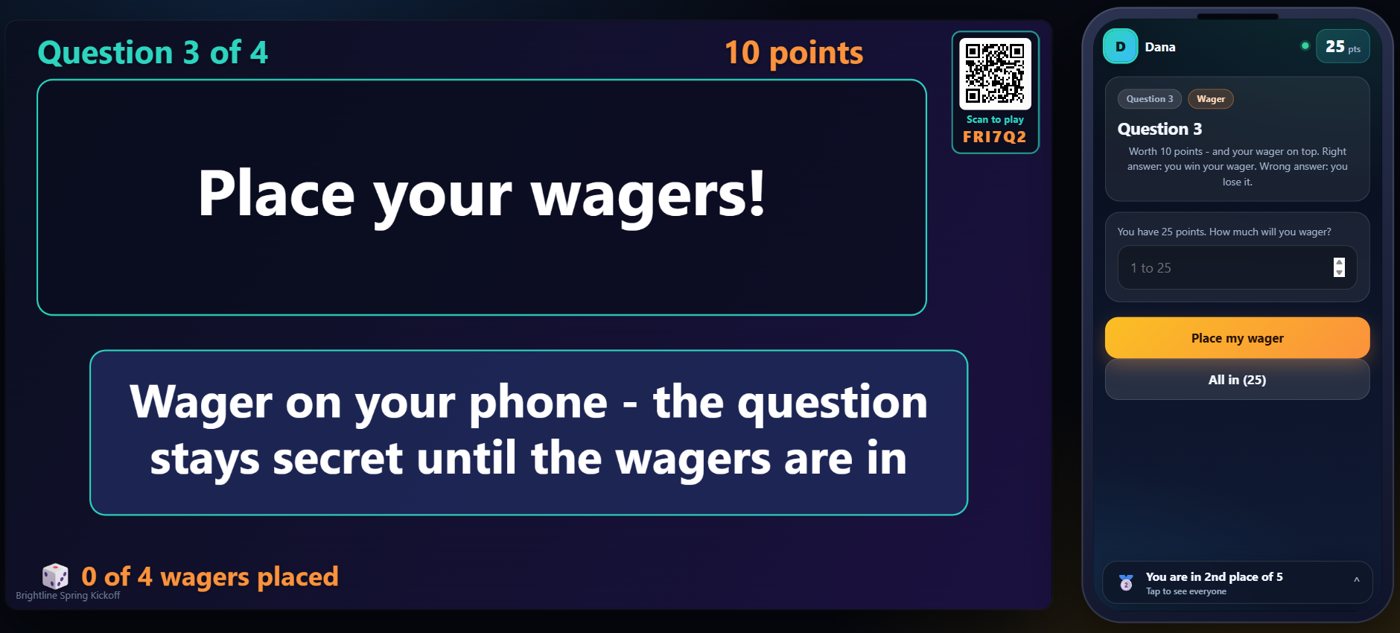
Wager point decides when they bet. With the question displayed, players see the question, but not its choices, and then wager. Before the question, they wager on the category alone, and the question stays secret until the wagers are in.
Wagers: A different rule for one question
Any single question can have its own rule. Open the question, and under Player wager for this question, choose Off, Optional or Required, and under Wager point, choose when. Every other question keeps the rule of the round.
Wagers: Points come first
Wagers use a player's own points, so the room needs some points first. A player with no points has nothing to wager, and is not held back by a required wager. If everyone is at zero points, a required wager is not asked for.
Wagers: Get wagers by hand
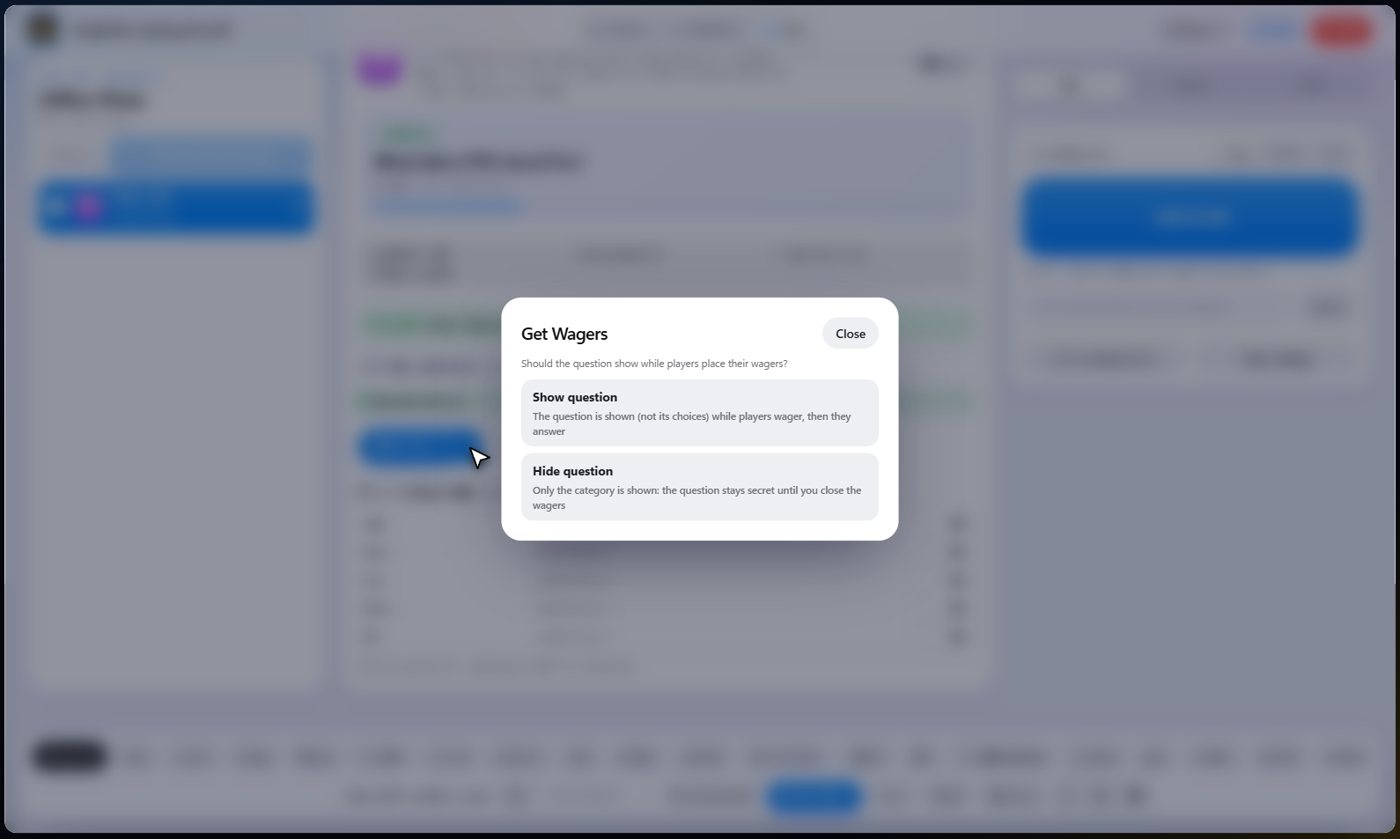
You can open the wagers on any question yourself. On the Live tab, open the Next Step menu and choose Get Wagers. It asks whether the question shows while players wager: Show question, or Hide question, where only the category shows.
Wagers: Players place their wagers
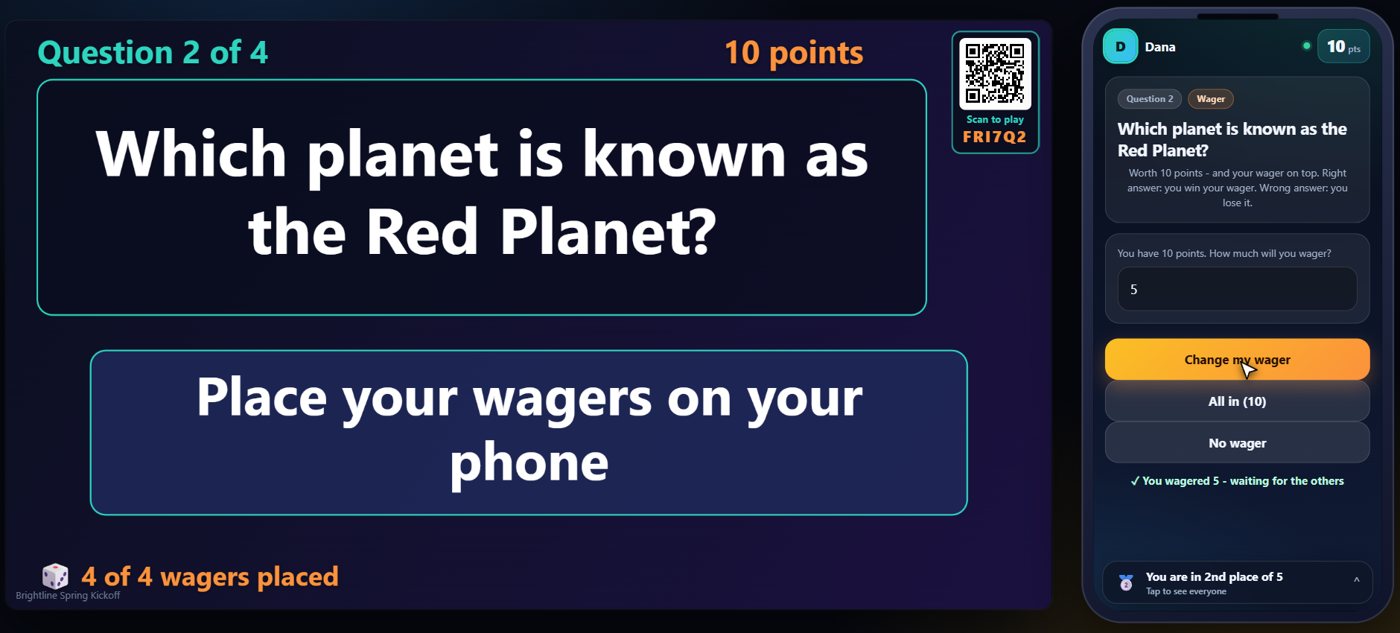
On their phones, players wager from none up to all of their points, or press All in. The TV shows how many wagers are in.
Wagers: Close the wagers
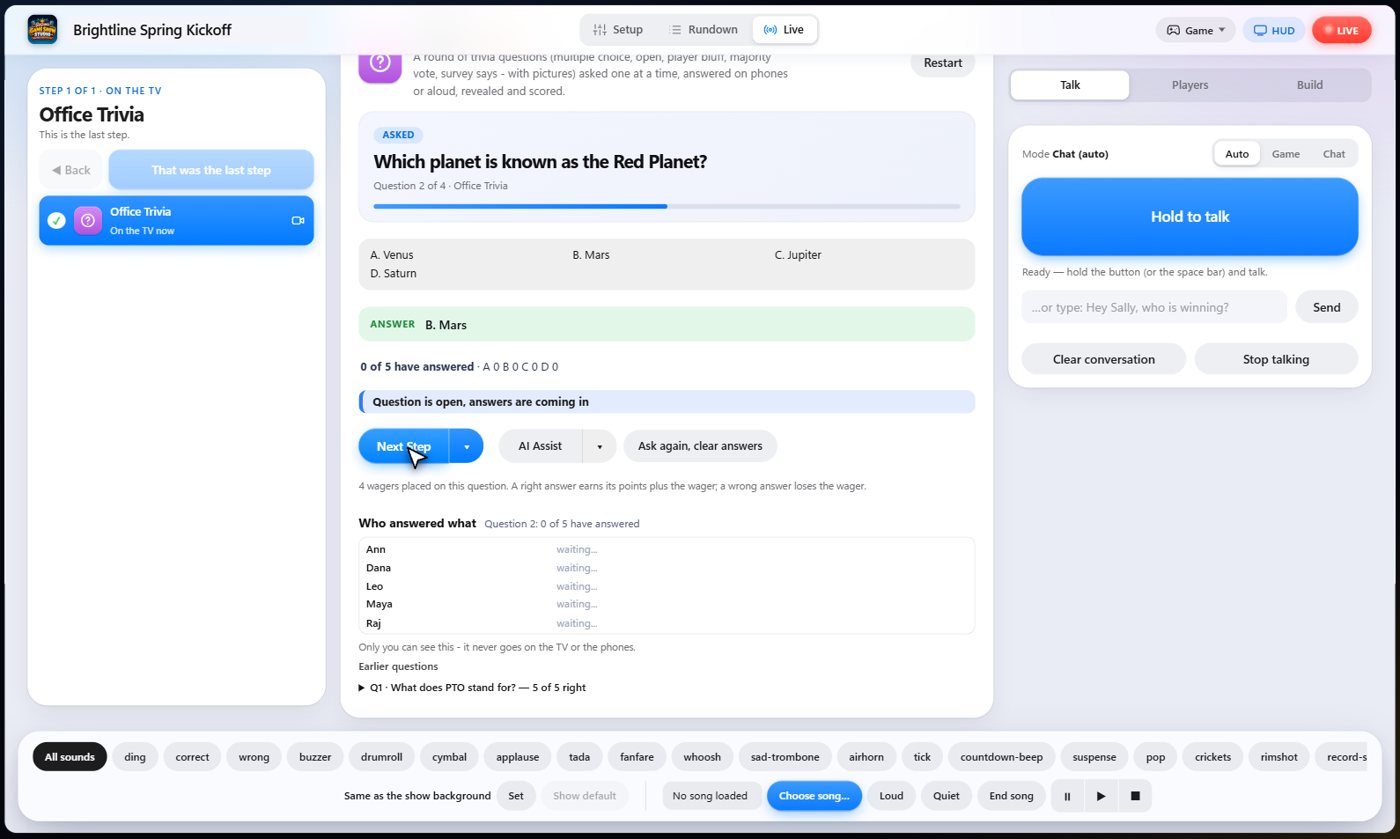
On the Live tab, the status line says Wagers are open, and counts the wagers in. When you are ready, press Close wagers, and the question opens for answers. Unlock for Answer works as usual, so you can choose when the phones open.
Wagers: Win or lose the wager
Players answer as usual. A right answer wins the wager on top of the points. A wrong answer loses it. Each phone shows the result.
Wagers: Required, before the question
A required wager has to be at least one point. Before the question, players wager on the category alone, and the question stays secret.
Wagers: You are in control
Get Wagers opens the wagers on any question, Close wagers ends them, and Unlock for Answer lets you choose when the phones open. A control that cannot be used right now is greyed out.
Categories and the grid: Choose by category
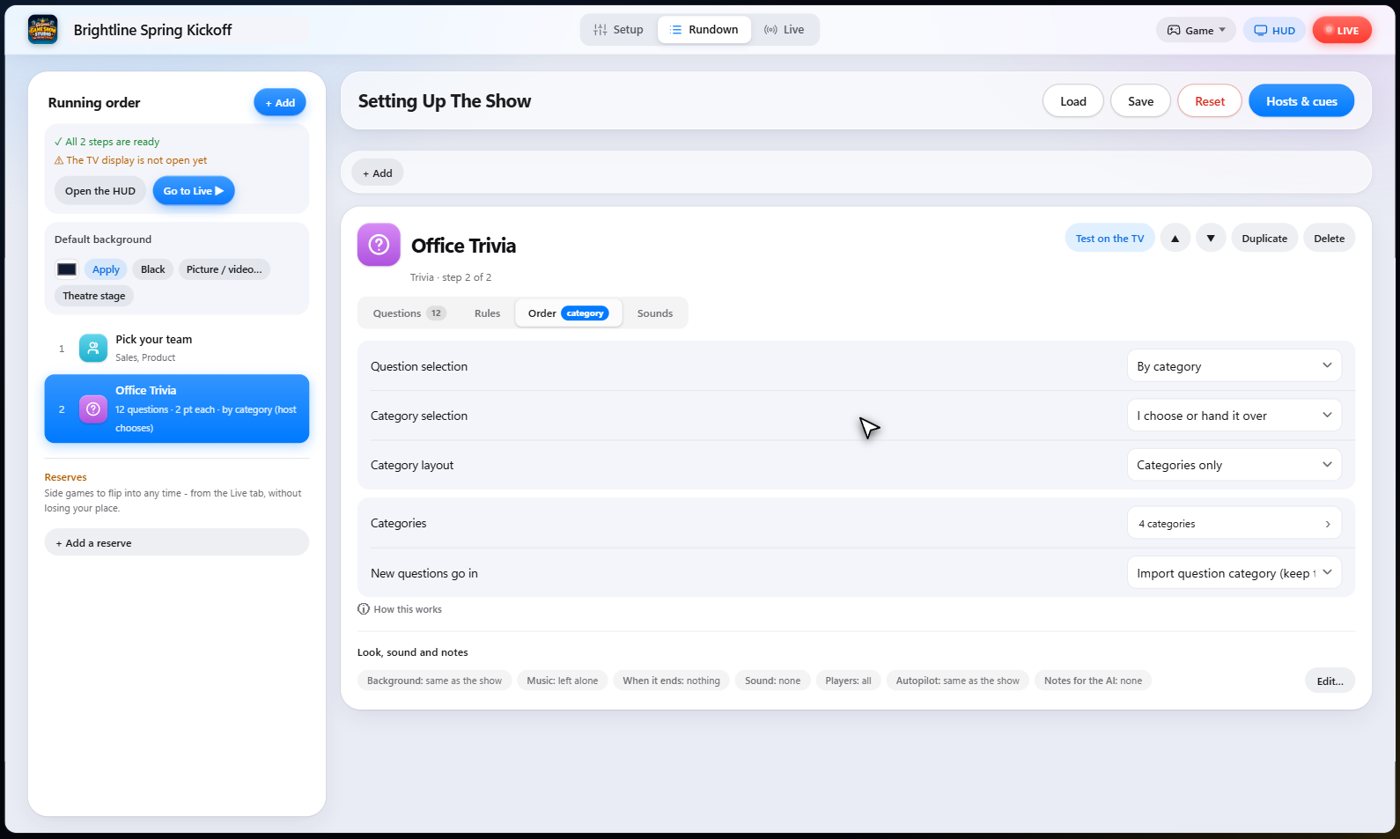
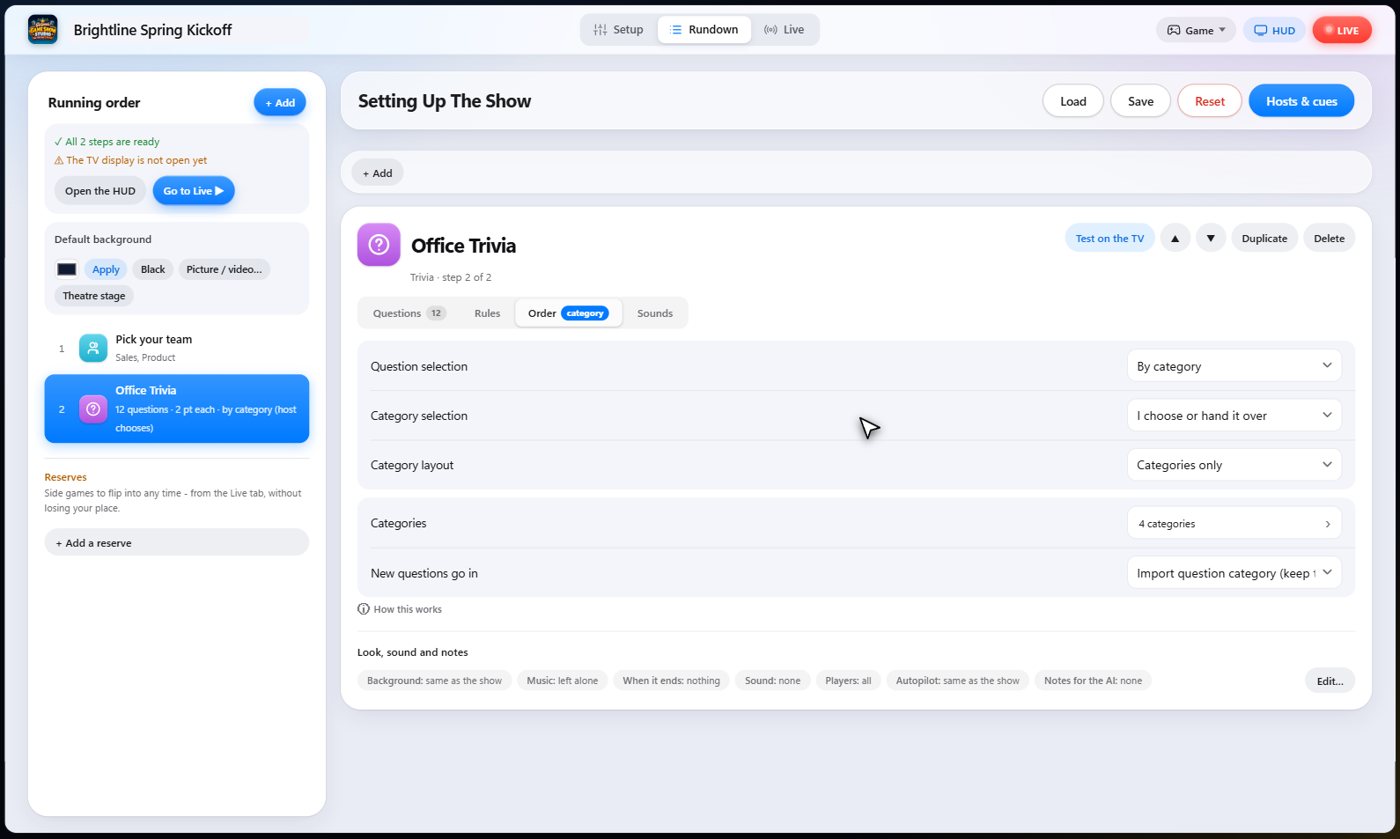
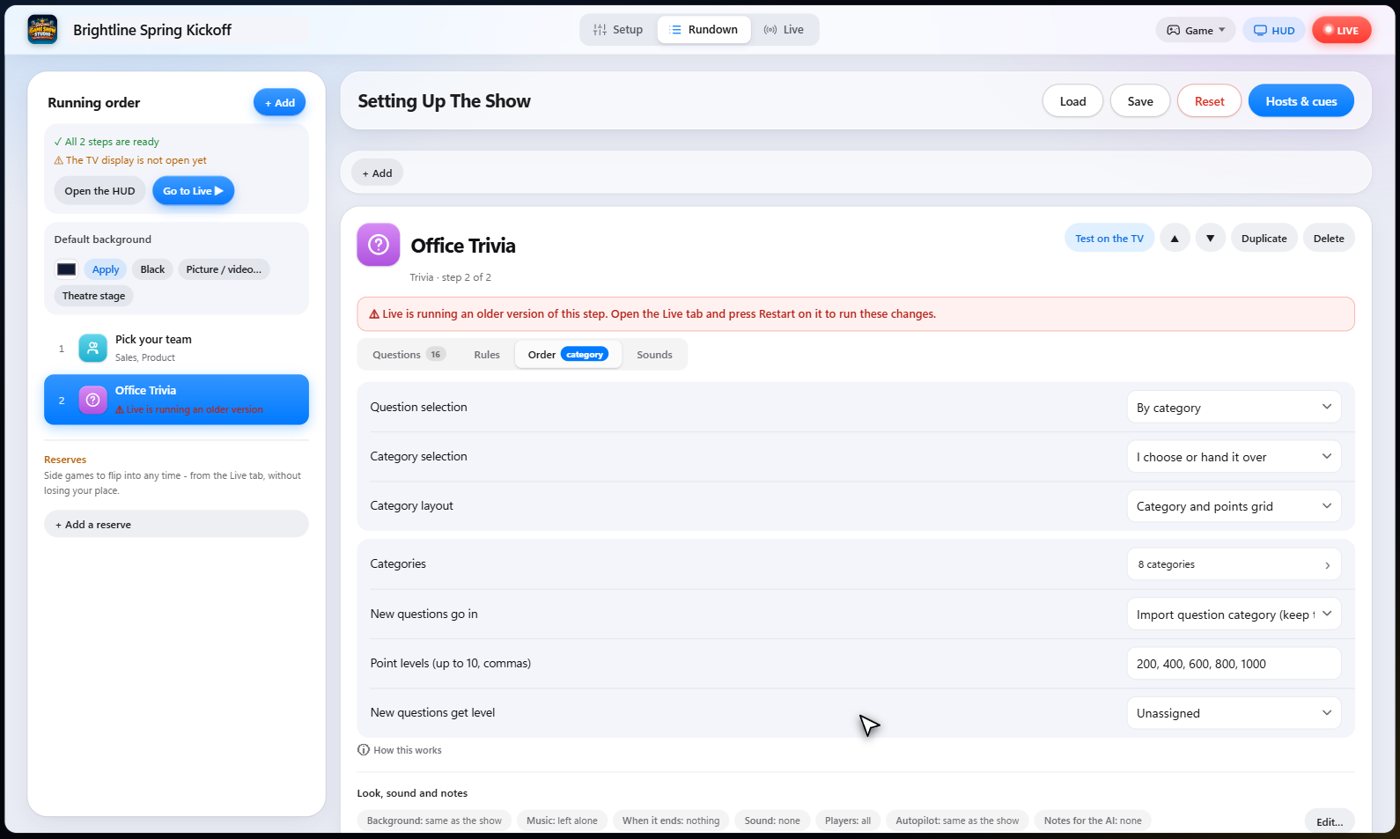
A plain trivia round asks its questions in order. To let a category choose the next question, open the Trivia step, go to the Order tab, and change Question selection to By category.
Categories and the grid: Who chooses
Category selection decides who chooses. Host controlled means you choose, or hand the choice to a player or a team. Last winner chooses means whoever won the last question chooses, and you can still choose yourself.
Categories and the grid: Category setup
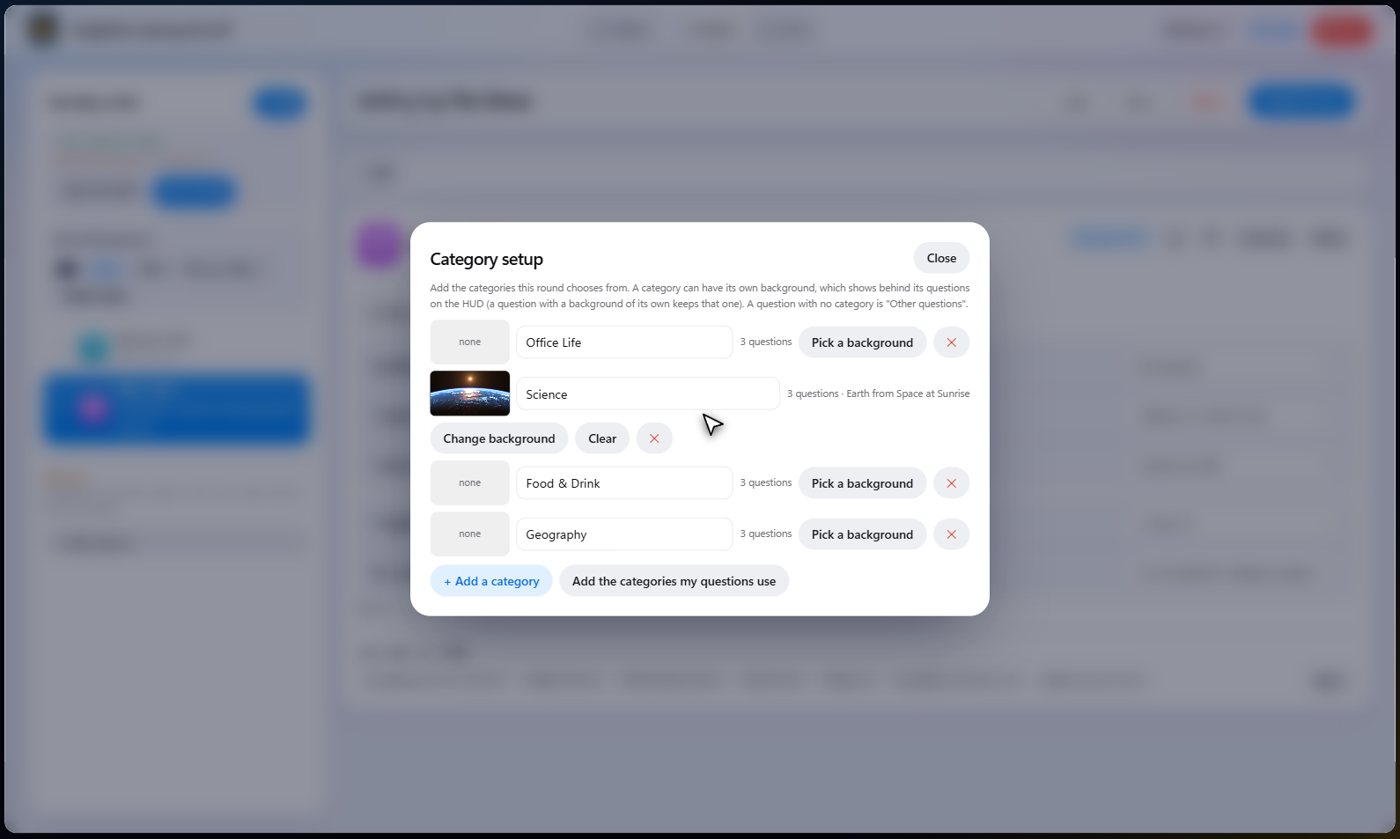
Categories lists the categories. Add one, rename it, or remove it, and give any category a background that shows behind its questions on the TV. The categories your questions already use are added for you. Questions from the library bring their category, and its background, along.
Categories and the grid: Each question has a category
Each question has a category of its own, and you choose it right on the question. The setting New questions go in decides where new and imported questions go: into the category they already have, into none, or into one you choose.
Categories and the grid: Hand the choice to a team
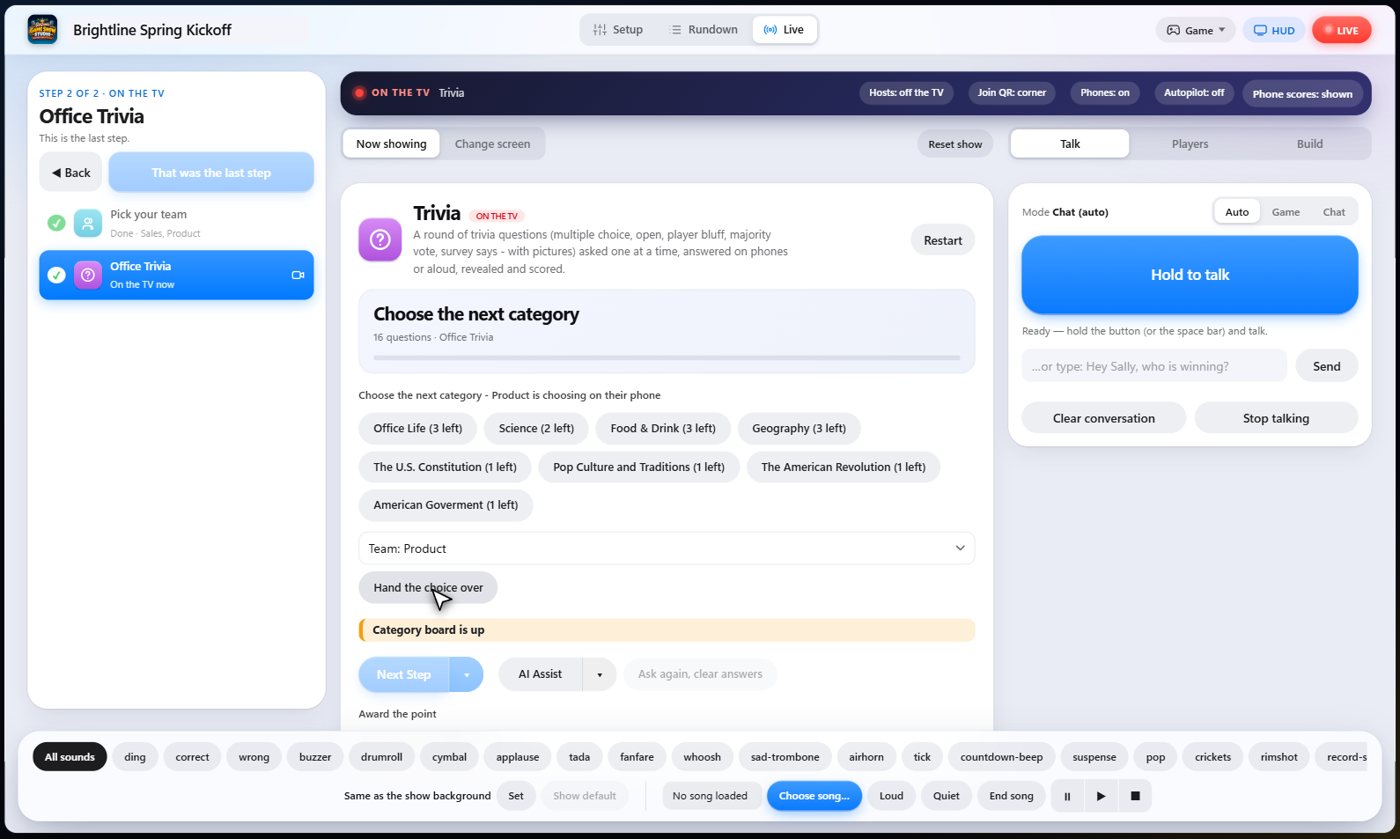
After each question the category board comes up when you press Next Step. You can choose yourself, or hand the choice to a player or to a team. They choose on their phone, and everyone else just sees who is choosing.
Categories and the grid: Choose on a phone
The TV says who is choosing. On their phone, that player sees their turn, and taps a category.
Categories and the grid: Two axes: the grid
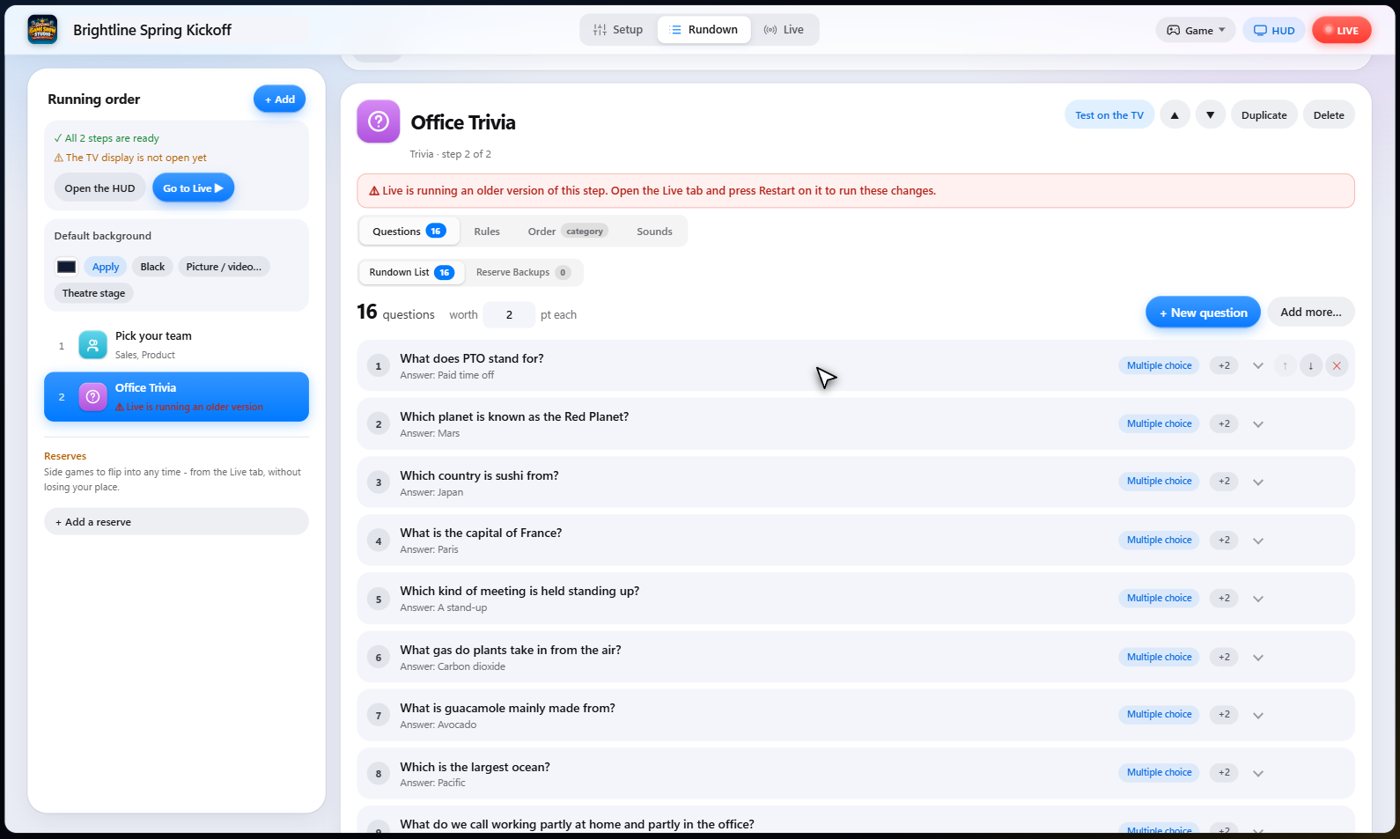
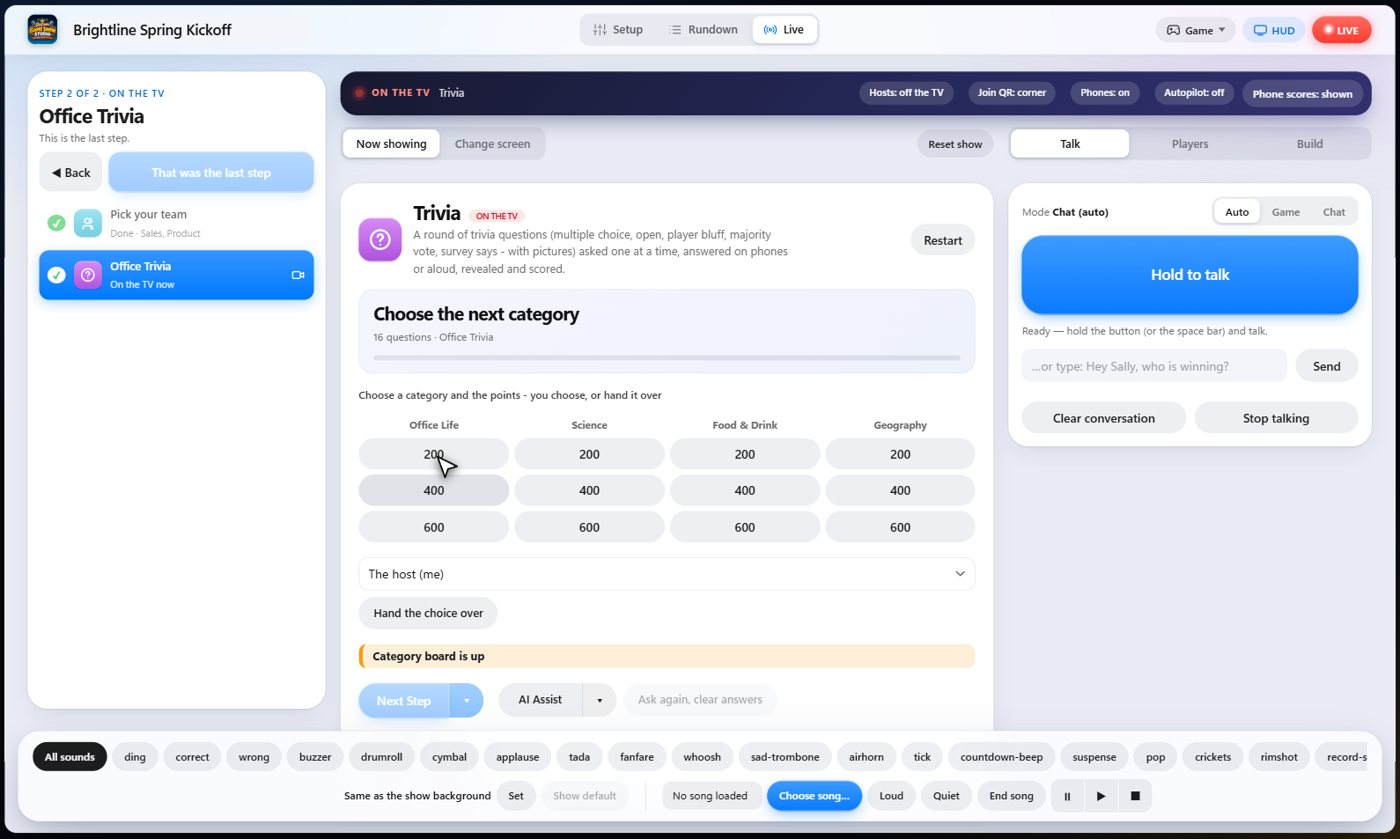
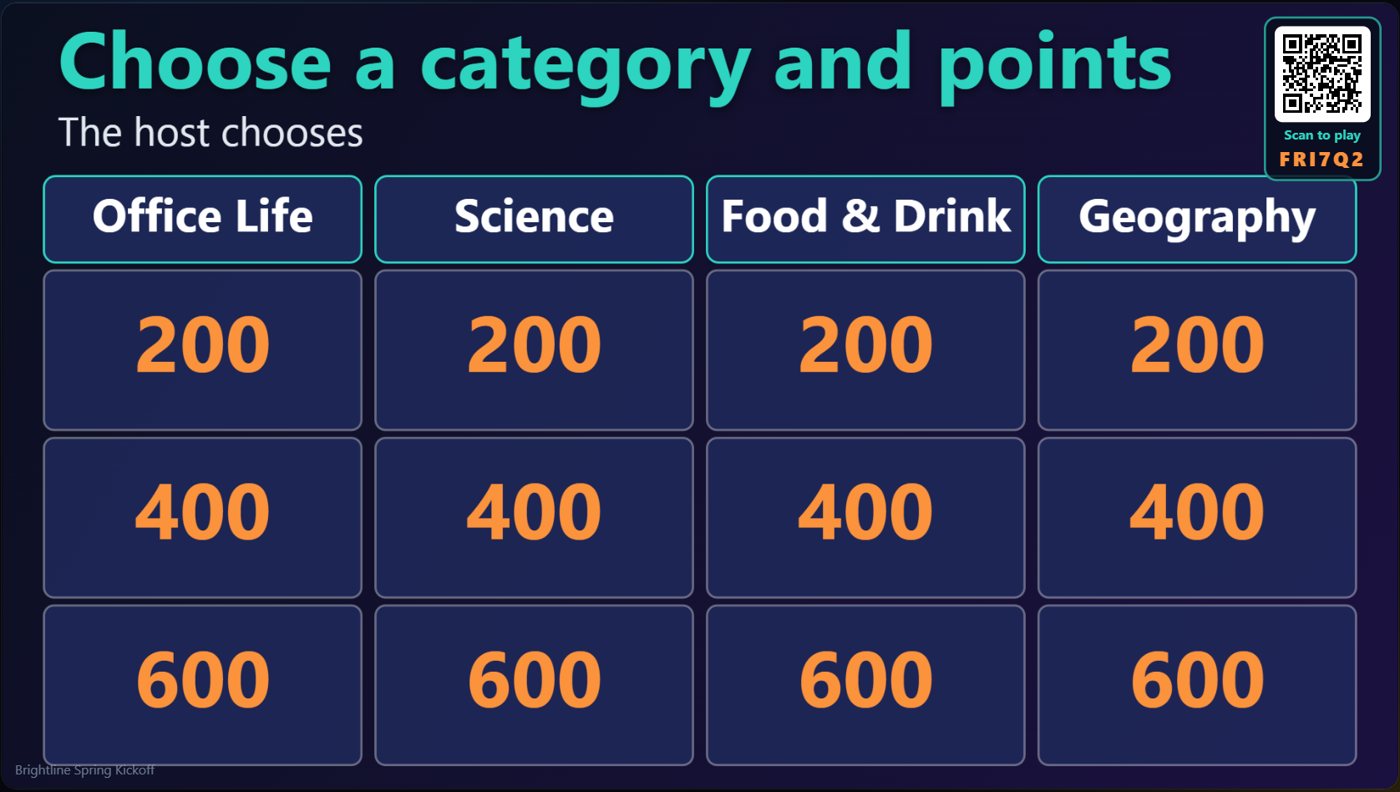
Category layout can also be Category and points grid, a board like a quiz show: a column for each category, and a row for each point level. Set the Point levels, and give each question a level. A question in the grid is worth its level in points. A question with no category or no level is not on the grid.
Categories and the grid: A level for each question
Each question has a Point level, chosen the same way as its category.
Categories and the grid: Play the grid
If the Live tab says the step is running an older version, press Restart, and confirm, to use the new settings. Then press Next Step. The board is a grid, and you press a square to ask its question. On the TV it is a grid too, and squares that have been asked fade out.
Tip You can hand the choice of a square to a player or a team as well. They tap a square on their phone.
Categories and the grid: The grid on the TV and phones
On the TV the grid shows every category and level, and a player who is choosing taps a square on their phone.
Keep going


Something missing or unclear? Check the FAQ or browse all guides.