
Watch: Run Your Show From Your Laptop (4:06) · All videos
The big picture: set up at home, run it at the event
Think of it in two parts. First you get ready at home, while you are online: you build your show and the app saves everything it needs onto your laptop. Then, at the event, you do not need the internet at all. Your laptop runs the show, and your guests join it from their phones over a small network that stays inside the room.
At the event you choose how the guests' phones reach your laptop: A) the venue's own Wi-Fi, or B) your own hotspot router, which is the safer choice. The picture shows both.
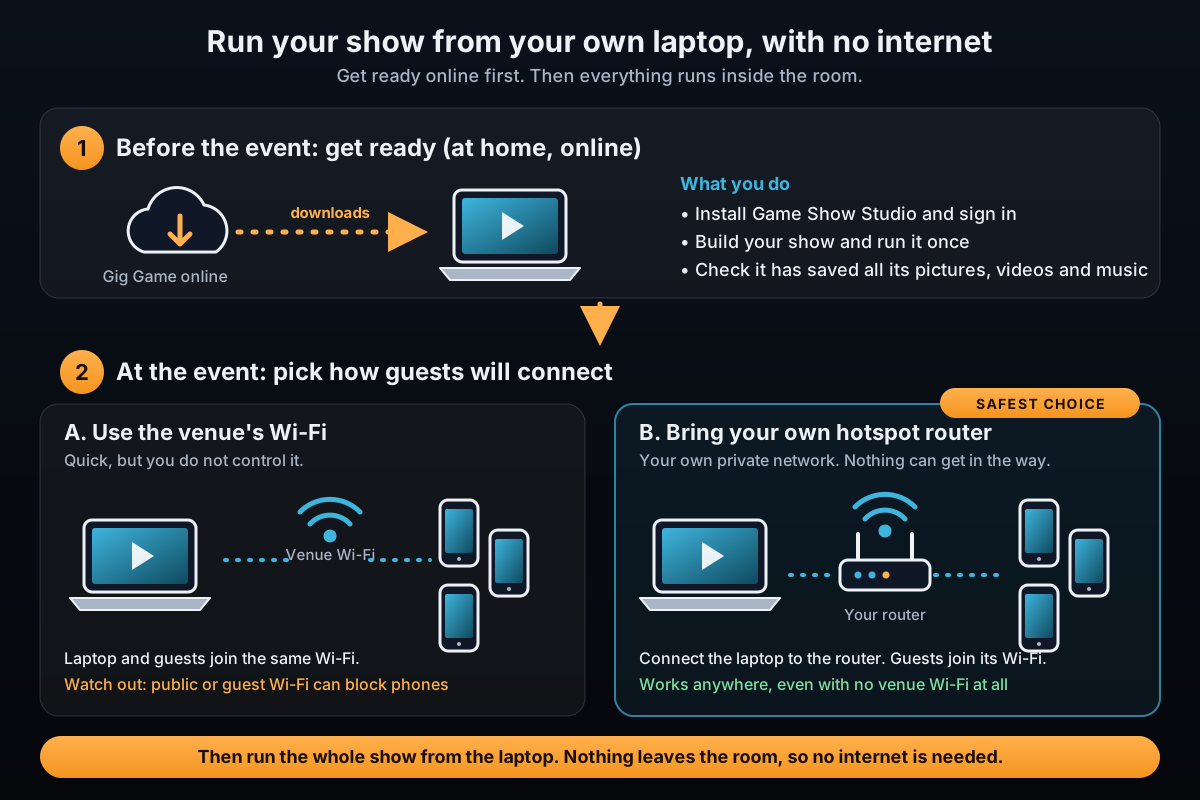
Before the event: get ready at home (while online)
Do all of this a day or two ahead, on a good internet connection. This is the only part that needs the internet. Once it is done you are ready for any venue.
- Install the desktop app on the laptop you will take to the event (see Download and install it, below).
- Sign in with your Gig Game username and password and type the 5-digit security code. You then stay signed in for 30 days with no internet needed.
- On My Games, press New game, give it a name and build your show on the Rundown, as you would online. Pick a game template if you want a quick start.
- Press Start show and run through the whole show once, so every picture, video and question it uses is saved onto your laptop. Each game's card says what is saved.
- Press the ... menu on the game's card and choose Check for missing pictures and videos. Fix anything it lists.
- If you use your own music, add the songs in Setup under Music, My computer. They stay on the laptop.
- Do not forget the things that do need the internet: the AI cohosts talking with you and writing questions, Spotify and eBay prices will not work at the event. Write any questions you need ahead of time.
Tip Finish your preparation before you leave home, and charge the laptop. A show you have already run once on the laptop is a show that will run at the event.
At the event: choose how guests connect
Guests do not need an app or an account. They join from their phone's browser, but their phone has to reach your laptop. For that, the laptop and the phones must be on the same Wi-Fi network. You have two ways to do it:
- A) The venue's Wi-Fi. Connect your laptop to the venue's Wi-Fi and ask your guests to join the same one. It needs no extra equipment, but many venues have a guest or public Wi-Fi that stops phones talking to other devices on it, and you cannot control how busy or reliable it is. If your guests cannot join, switch to B.
- B) Your own hotspot router (the safer choice). Bring a small portable Wi-Fi router, or a phone hotspot, and turn it on. Connect your laptop to it and ask your guests to join it. Nobody else is on that network and it does not depend on the venue, so it works everywhere, even in a venue with no Wi-Fi at all.
Tip If you only do one thing: bring your own hotspot router and test it at home first. Then you never have to trust the venue's Wi-Fi.
Tip Your router does not need an internet connection for the show to run. The guests only need to be on its Wi-Fi.
Tip Give the Wi-Fi a simple name and password and put them on a card or on the TV, so guests can join it quickly.
Run the show from your laptop
With your laptop and the guests' phones on the same network, run the night exactly as you practiced it. Nothing is sent over the internet: the laptop is the host console, the TV display and the game server, all in one.
- Connect the laptop to the venue's Wi-Fi or to your hotspot router. Wait until Windows says it is connected.
- Open Game Show Studio and sign in if it asks. It works offline once you are signed in.
- On My Games, press Start show. If Windows asks whether to let Game Show Studio use the network, allow it on private networks.
- Open Settings and look at Phones join at. It must be the network your guests are on (the venue Wi-Fi or your hotspot). If it is not, choose the right one and press Use this address.
- Press HUD on the game's card and put the TV display on the TV or projector.
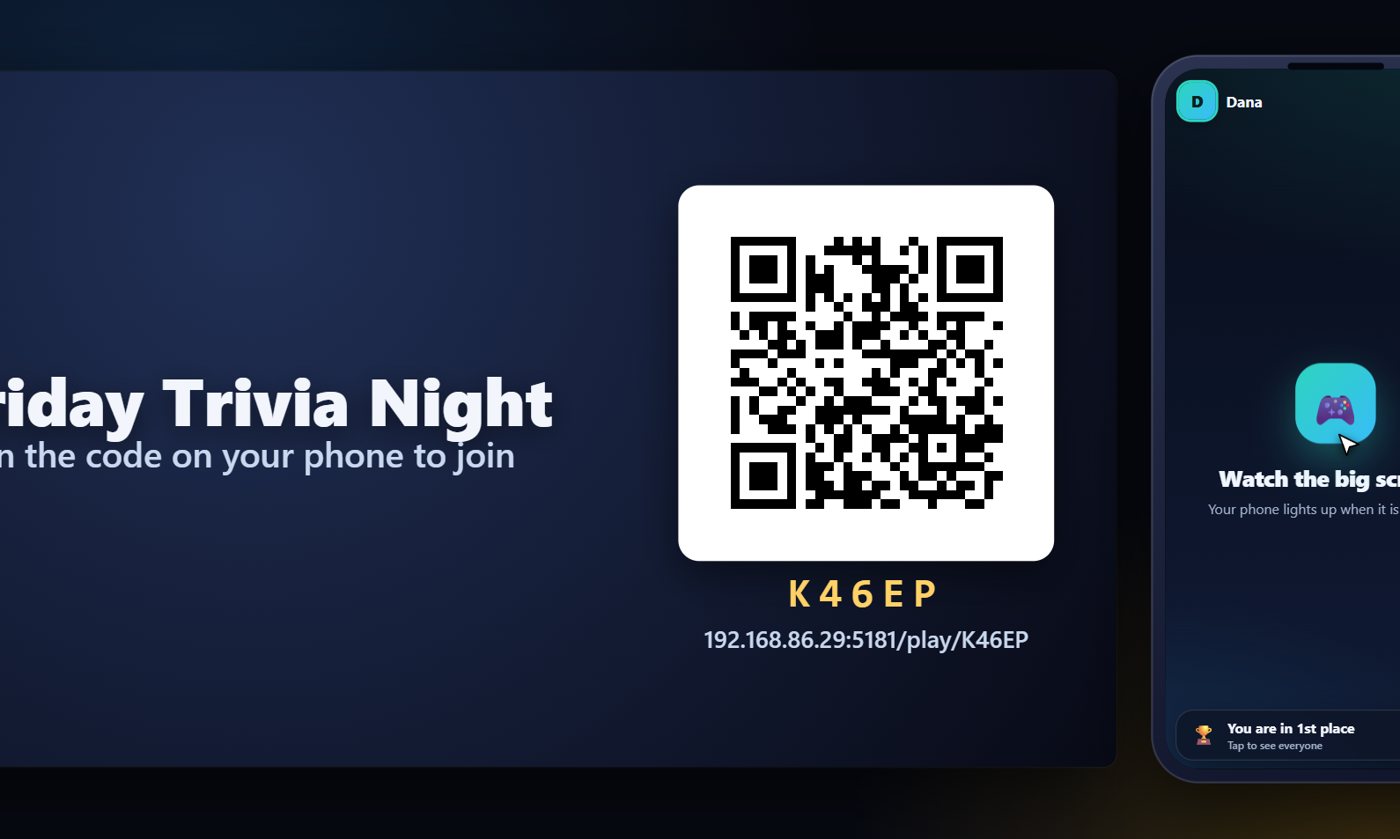
- Press Players join to show the QR code and join code. Guests scan the QR code, or type the address and code, pick a name and they are in.
- Press Start The Show and run the night. The console's top bar shows Offline, and that is fine.
Tip Try it on the day with one phone before the guests arrive: scan the QR code and make sure you get to the join screen.
Tip If a guest cannot join, check their phone is on the same Wi-Fi as your laptop (and not on mobile data).
What the desktop app is
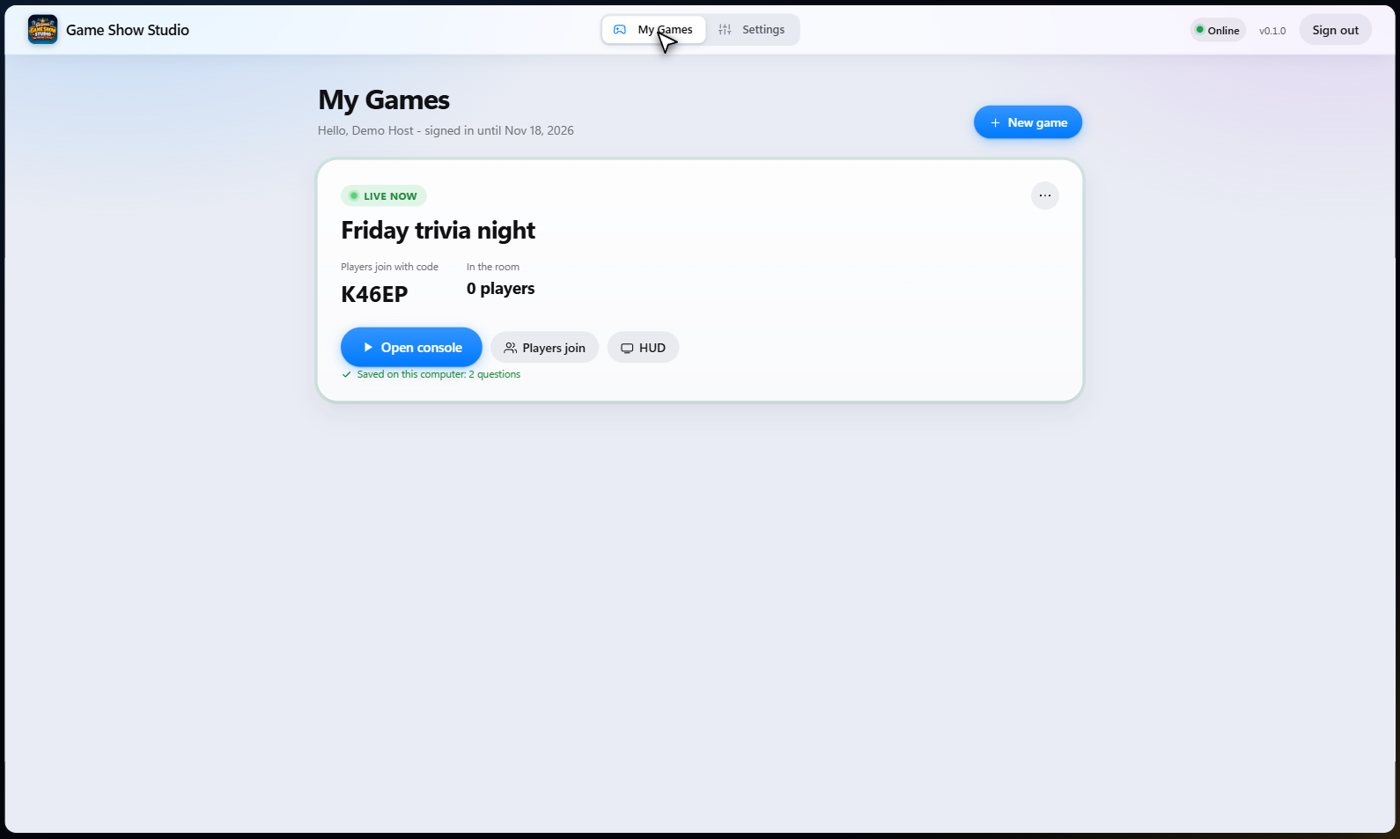
The desktop app is the same Game Show Studio, running on your own computer. Your shows are saved on that computer, the guests' phones join over your own Wi-Fi (or your phone's hotspot) instead of over the internet, and once you have signed in you can run a show with no internet at all.
Some things do need the internet, and the app tells you when you are offline: signing in, the AI cohosts talking with you and writing questions, Spotify, eBay prices and the shared library. Everything else works without it.
Tip The online version needs the internet for everything but needs no install, and guests can join from anywhere. The desktop app is the one to pick for a venue where the internet is unreliable.
Download and install it
The installer is on Gig Game's Downloads page: open Game Show Studio and choose the download for Windows. It needs Windows 10 or 11 (64-bit). The installer also sets up Microsoft WebView2, which the app's window uses, if your computer does not have it.
- Open Gig Game, go to Downloads and choose Game Show Studio.
- Press the Windows download and run the installer.
- If Windows says it protected your PC, press More info, then Run anyway. The installer is not code-signed yet, so Windows asks about every new program like it.
- Choose whether to add a desktop icon, then start Game Show Studio.
Tip Installing a newer version over an older one keeps your shows, media and settings.
Sign in once
Sign in with your Gig Game username and password. You are then sent a 5-digit security code by email or text; type it to finish. After that you are signed in for 30 days, and you can run shows with no internet the whole time. Settings shows how many days are left.
- Open the app and type your Gig Game username and password.
- Type the 5-digit security code you are sent.
- You land on My Games.
Tip To start the 30 days again, and to pick up your latest plan and player limit, open Settings and press Resync authentication while you are online. Check with Game Show Studio online only looks; it does not restart the 30 days.
Tip Plan your night: sign in while you are online at the venue or at home, not for the first time on the way to the show.
Start a show
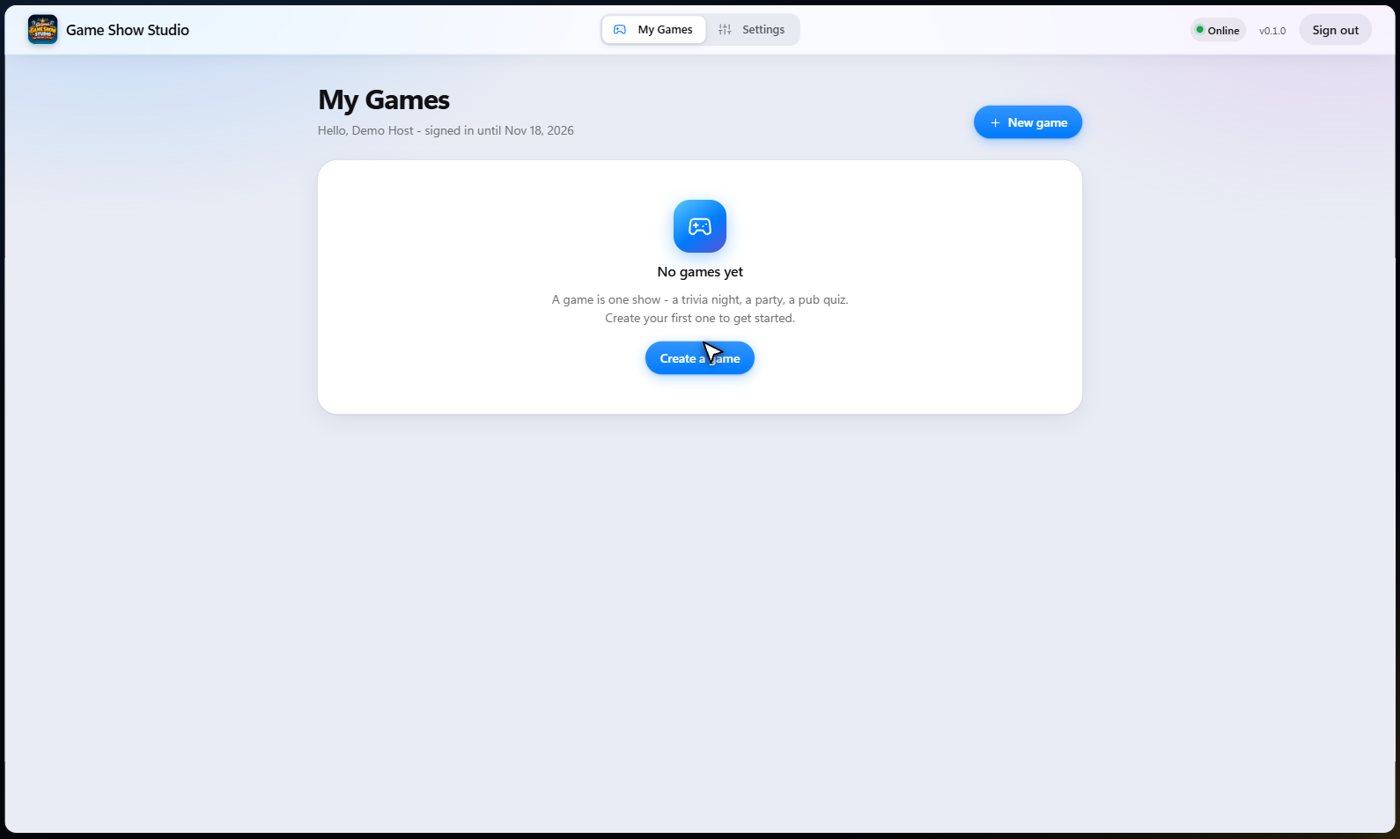
My Games lists your shows. A game is one show: a trivia night, a party, a pub quiz. Press New game and name it, then Start show. The host console opens in the app's window; the Live card then shows the join code and has buttons for the players' join screen and the TV display (HUD). Only one show runs at a time.
- On My Games, press New game, give it a name and press Create.
- Press Start show. The host console opens.
- Press HUD on the game's card and open the TV display, then put it on the TV or projector (or a second screen).
- Press Players join to see the QR code and the join code to show your guests.
Tip The ... menu on a game's card has Pair a tablet as a second console, Stop new players joining, Get a new join code, Regenerate QR code, Check for missing pictures and videos, End the show and Delete game.
Tip A new game starts with Sally as your AI cohost. You can change the hosts in Setup, as in the online version.
How guests join
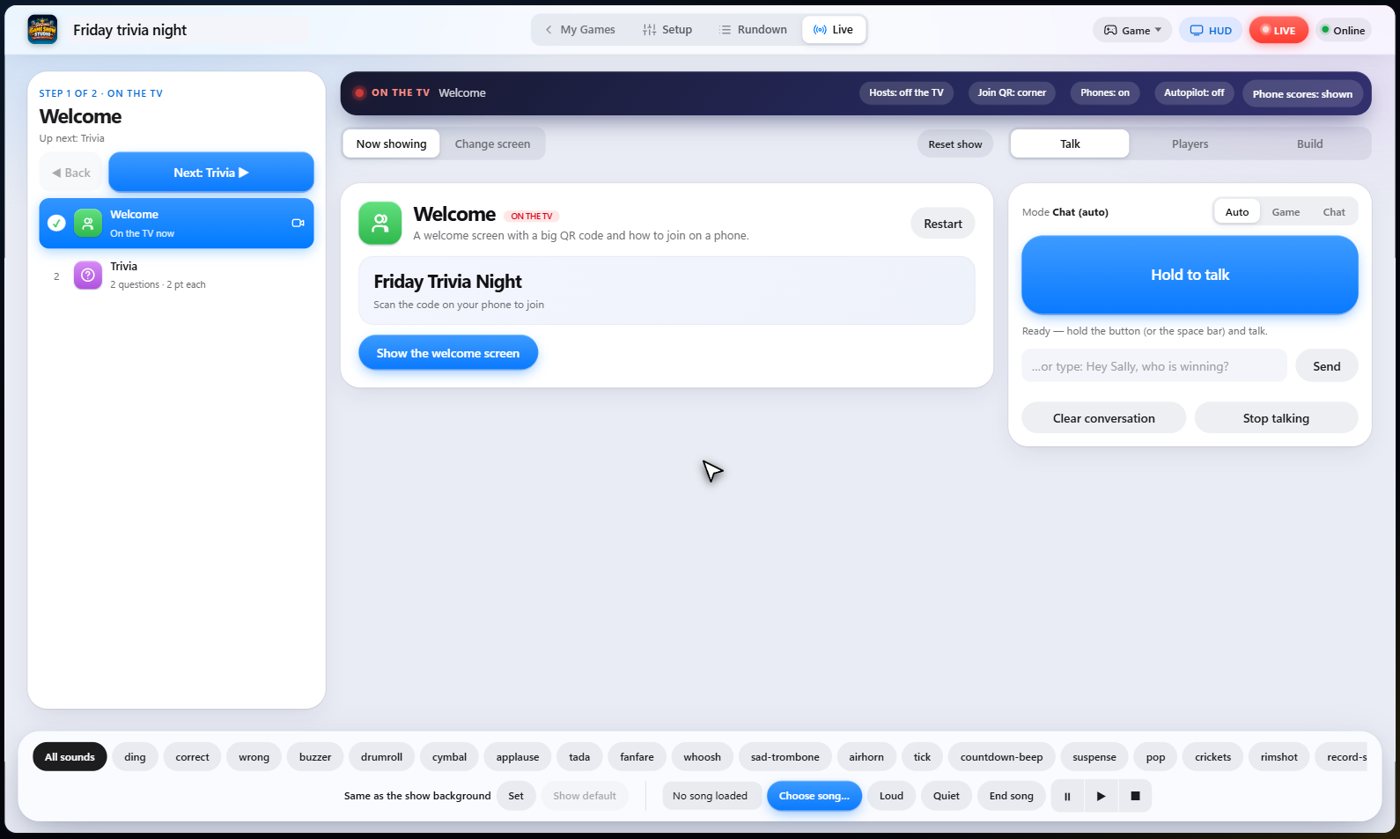
The QR code on the TV holds your computer's address on the network, and guests join from their phone's browser with no app and no account: they scan the code (or type the address and join code shown), pick a name and they are in. Their phone must be on the same Wi-Fi as your computer, or on your computer's hotspot.
Tip The first time you run a show, Windows may ask whether to let Game Show Studio use the network: allow it on private networks, or phones cannot reach it.
Tip If guests cannot connect, open Settings and look at Phones join at. If that is not the Wi-Fi or hotspot they are on, choose the right network from the list and press Use this address.
Tip If your computer moves to a different network, the game's card warns that the QR code may need to be regenerated. The TV also checks every few seconds and shows the new address on its own.
What works with no internet
With no internet you can run any show you have built: the rundown, trivia from your own questions, bingo, drawing games, polls, the wheel, photos, the reaction wall, the scoreboard and your own pictures, videos and music. The console shows Online or Offline in its top bar.
Each game keeps a copy on your computer of the online pictures, videos and questions it uses, and its card says what is saved. While you are online, check that a show has everything it needs, and use Check for missing pictures and videos on the game's ... menu. Offline, a game shows only what it has kept.
These need the internet: signing in, the AI cohosts talking with you or writing questions, Spotify playlists, eBay prices, and searching the shared library of backgrounds and sounds.
Tip Run through the show once while you are online before you go to a venue without internet.
Your own music
Songs from your own computer work in the desktop app too. In Setup, open Music and choose My computer to add songs; they stay on your computer and nothing is uploaded. You can then use them in Name that tune, music bingo and the background music.
Updates
When you open the app and you are online, it checks for a newer version. If there is one, a banner says so, with the release notes. Press Update: the app downloads it, closes, installs it and opens again. Your shows, media and settings are kept.
Tip An update only starts when you press Update, so you can choose Not now and update after the show.
Removing it and your data
Uninstall Game Show Studio from Windows Settings, Apps. At the end the uninstaller asks whether to delete your saved shows, media, music list and sign-in too. Choose No to keep them: they are used again if you reinstall. Settings shows the folder they are in, under Saved on this computer.
Tip Choosing Yes cannot be undone.
Keep going

Getting started
Your account, the TV, how guests join, and your first show in minutes.

A tour of the parts
What Setup, the Rundown and Live are for; the TV, the phones, hosts and cues.

Backgrounds, music and media
Search the video library for a looping background; your own pictures, music and sound effects.

Your AI cohosts
Choose and name them, give them a personality, tell them about the show, set how they behave.
Something missing or unclear? Check the FAQ or browse all guides.