
Watch: Run Your Show From a Phone or Tablet (3:41) · All videos
What it is
The Host Remote is a page on your phone or tablet that runs the show on the TV: it starts the show, moves through the steps, and shows every key of the game you pick. Every key has its name and a picture on it, so it is easy to use in a dark room.
Launch it from the game console
In the game console, press Remote in the top bar. A window shows a code. On your phone or tablet, on the same Wi-Fi, scan it with the camera. You can also find it in Setup, under TV and players, as Host Remote Control. Both open the same window.
- In the game console, press Remote in the top bar (or open Setup, then TV and players, and press Host Remote Control).
- On your phone or tablet, on the same Wi-Fi, scan the code with the camera.
- The remote opens, ready to use.
Tip Keep the code to yourself: it signs the device in as the host.
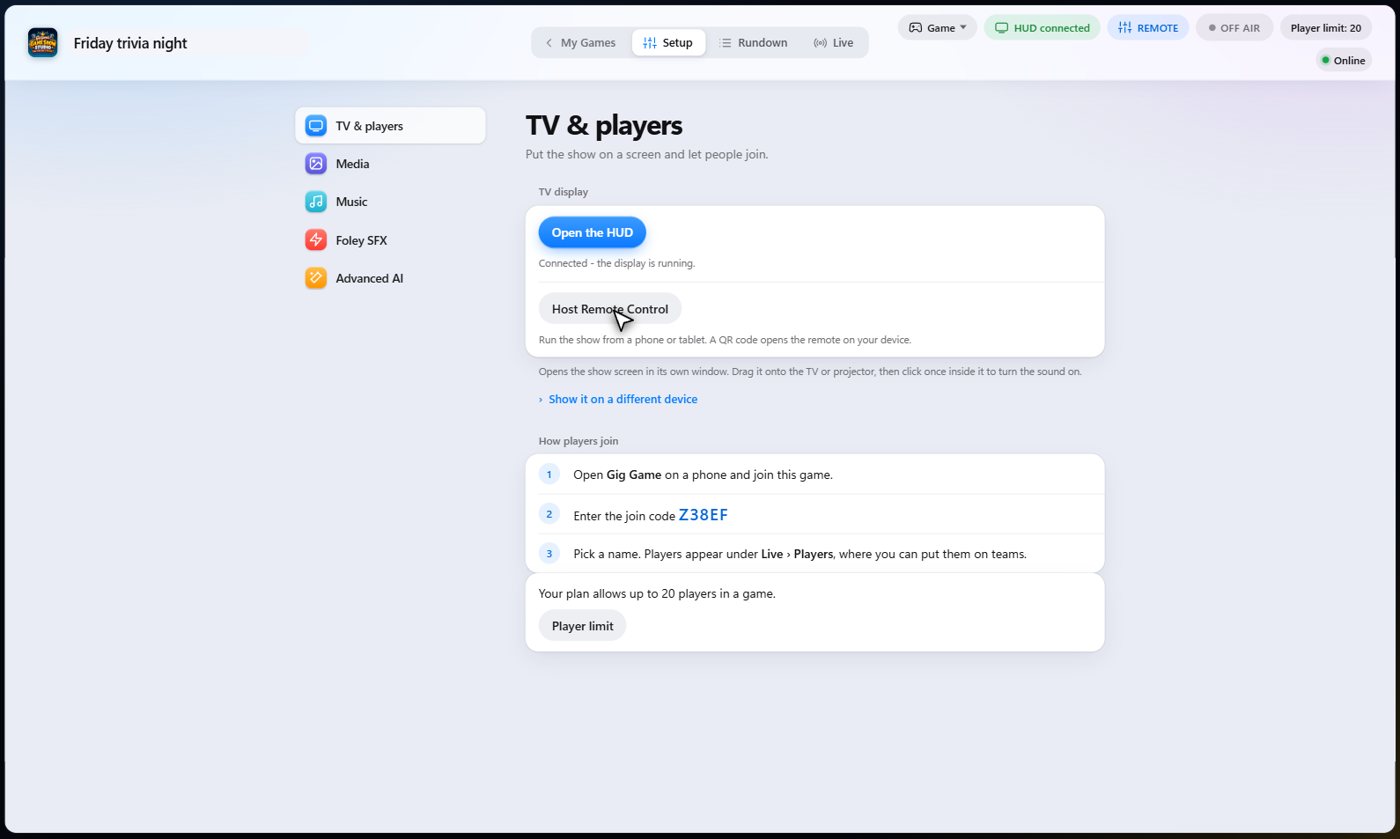
Scan the code
Your phone or tablet opens the remote, ready to use. There is nothing else to set up.
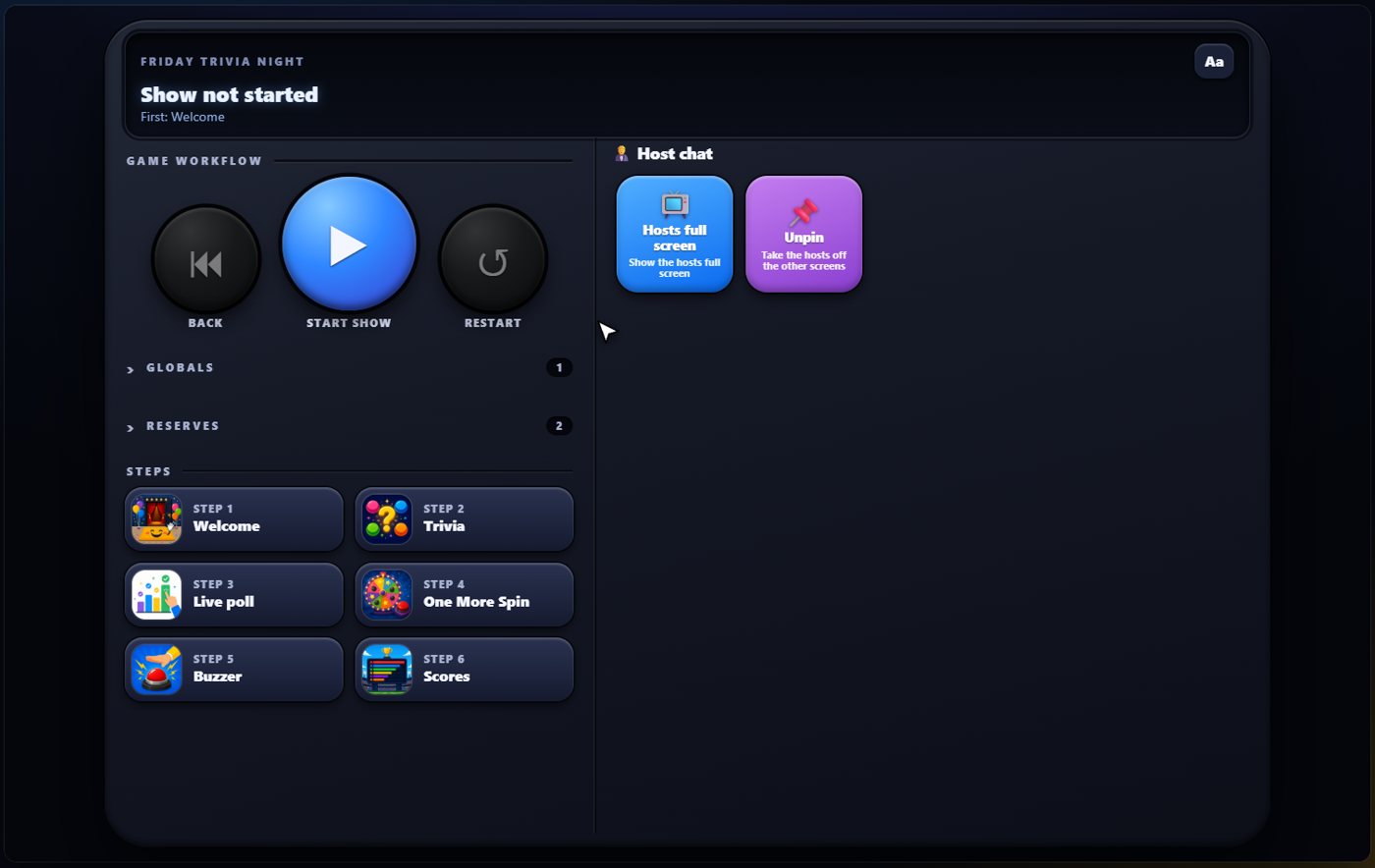
The window, the lists and the steps
The window at the top shows where you are in the show and what comes next. Under it are the keys that move through the show: back, next, and restart. Globals are keys that work at any time, and Reserves are your side games. Each list opens with a tap. Below them are all your steps, in order, each with the picture of its game.
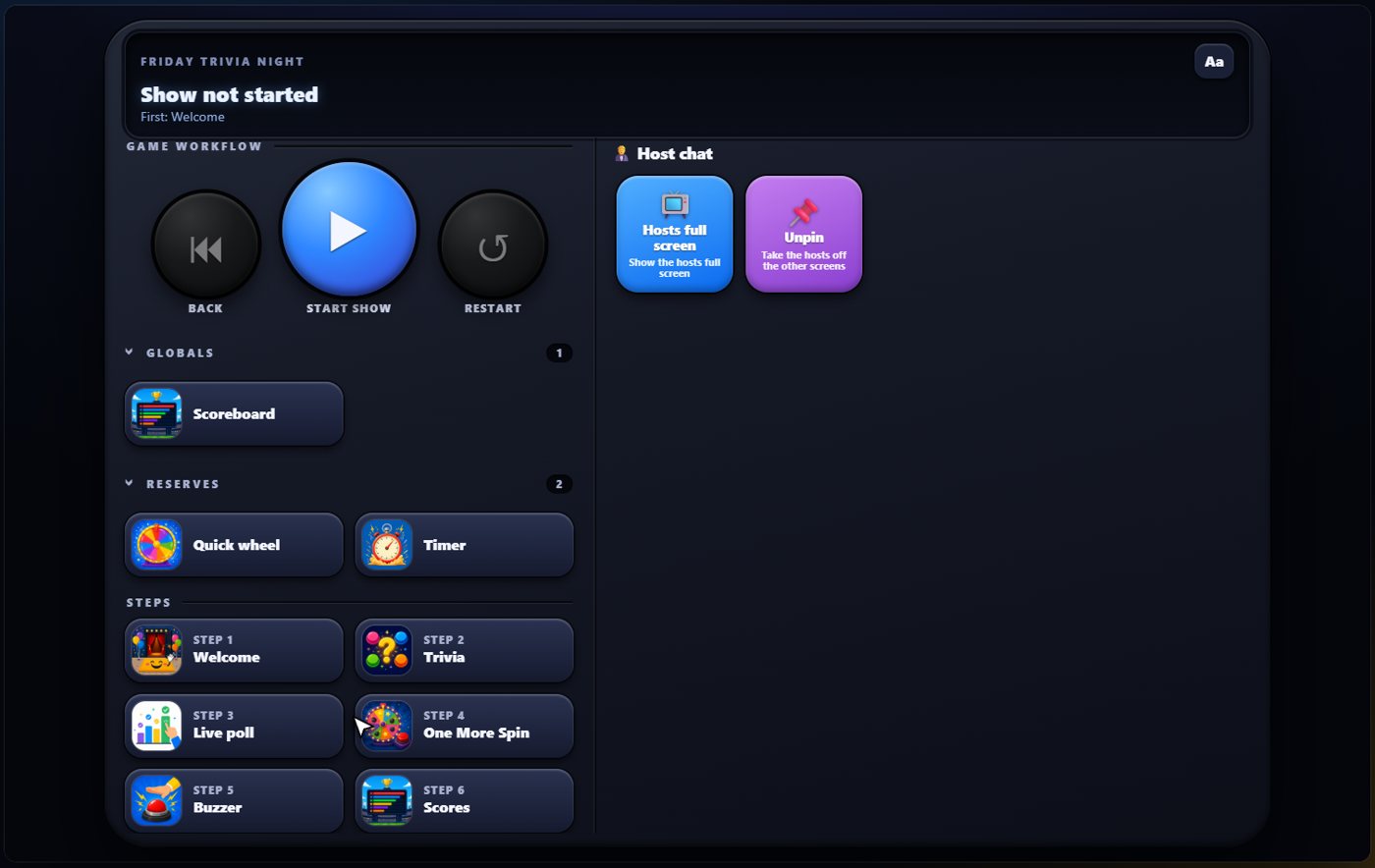
Start the show
Press Start show. The first step goes up on the TV, and its picture gets a golden border, so you always know what is on screen. In the list, finished steps are marked Done, and the step on the TV is marked On now. Press Next step to move on.
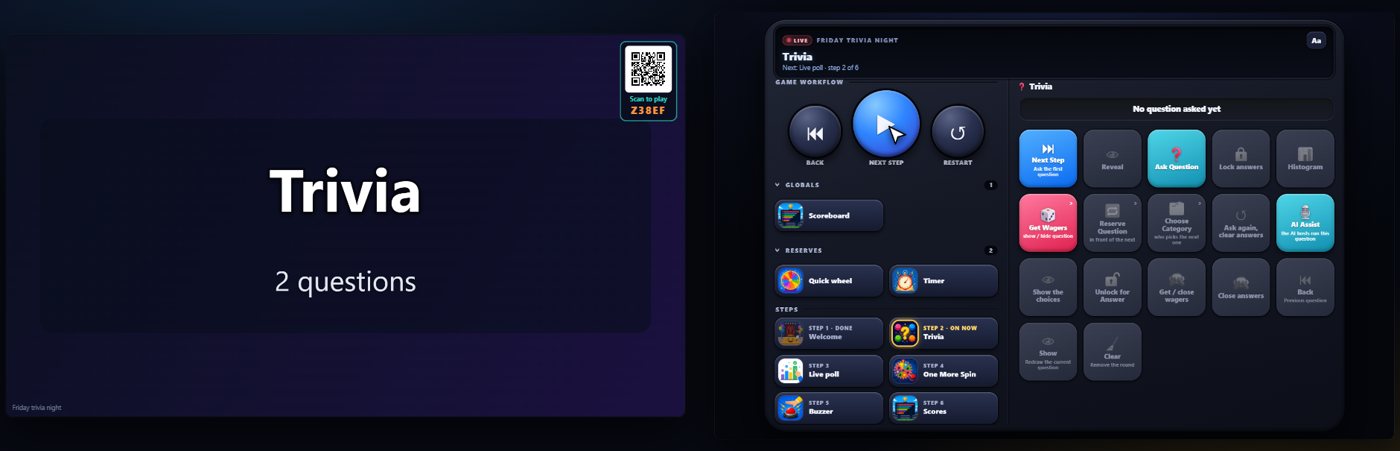
The keys of the game on the TV
When a game is on the TV, its keys are on the right. In Trivia, the main key always does the next thing: put a question up, lock the answers, reveal, then the next question, and the question appears on the guests' phones. The line above the keys says what is happening. Keys that do not apply right now are greyed out.
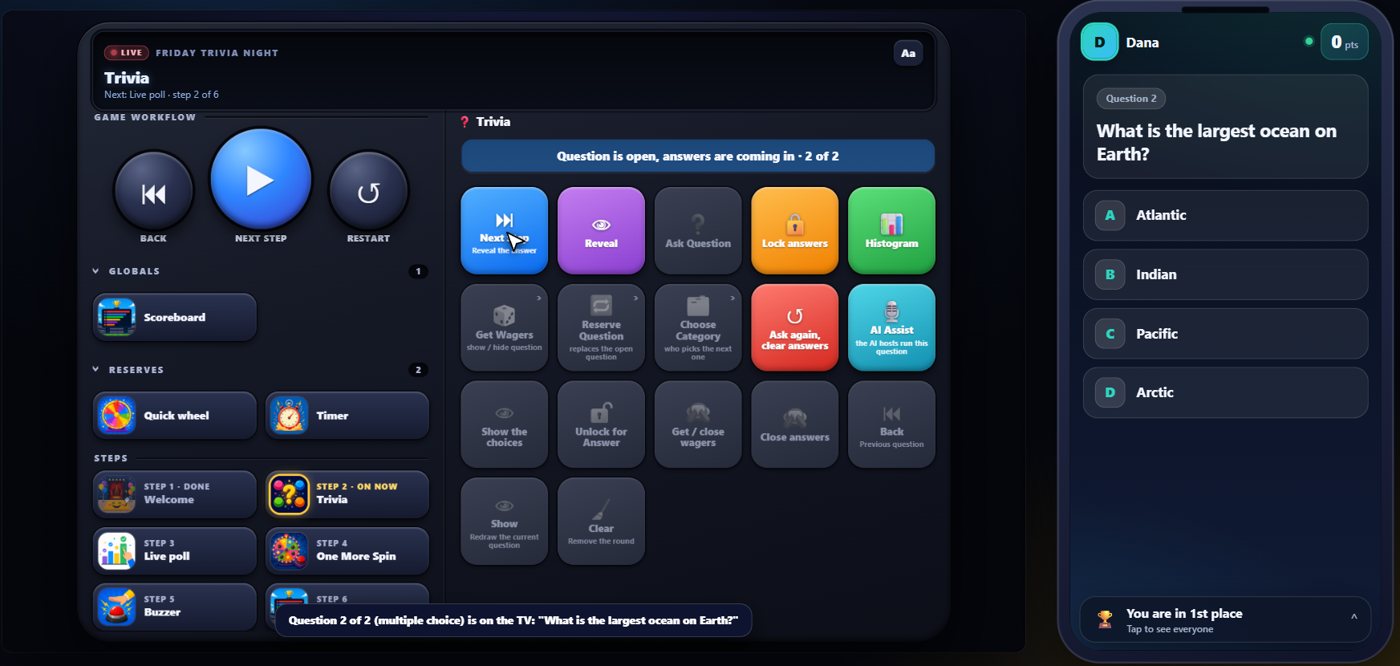
Tap a step, then HUD
Tap any step to see its keys, even before it is on the TV. Keys that do not apply yet are greyed out. Press HUD to put the step on the TV, and its keys come alive. Nothing is asked of you first, so a stray tap only opens a step's keys and never changes the show.
- Tap a step in the list.
- Look at its keys: the greyed ones cannot be used yet.
- Press HUD to put it on the TV.
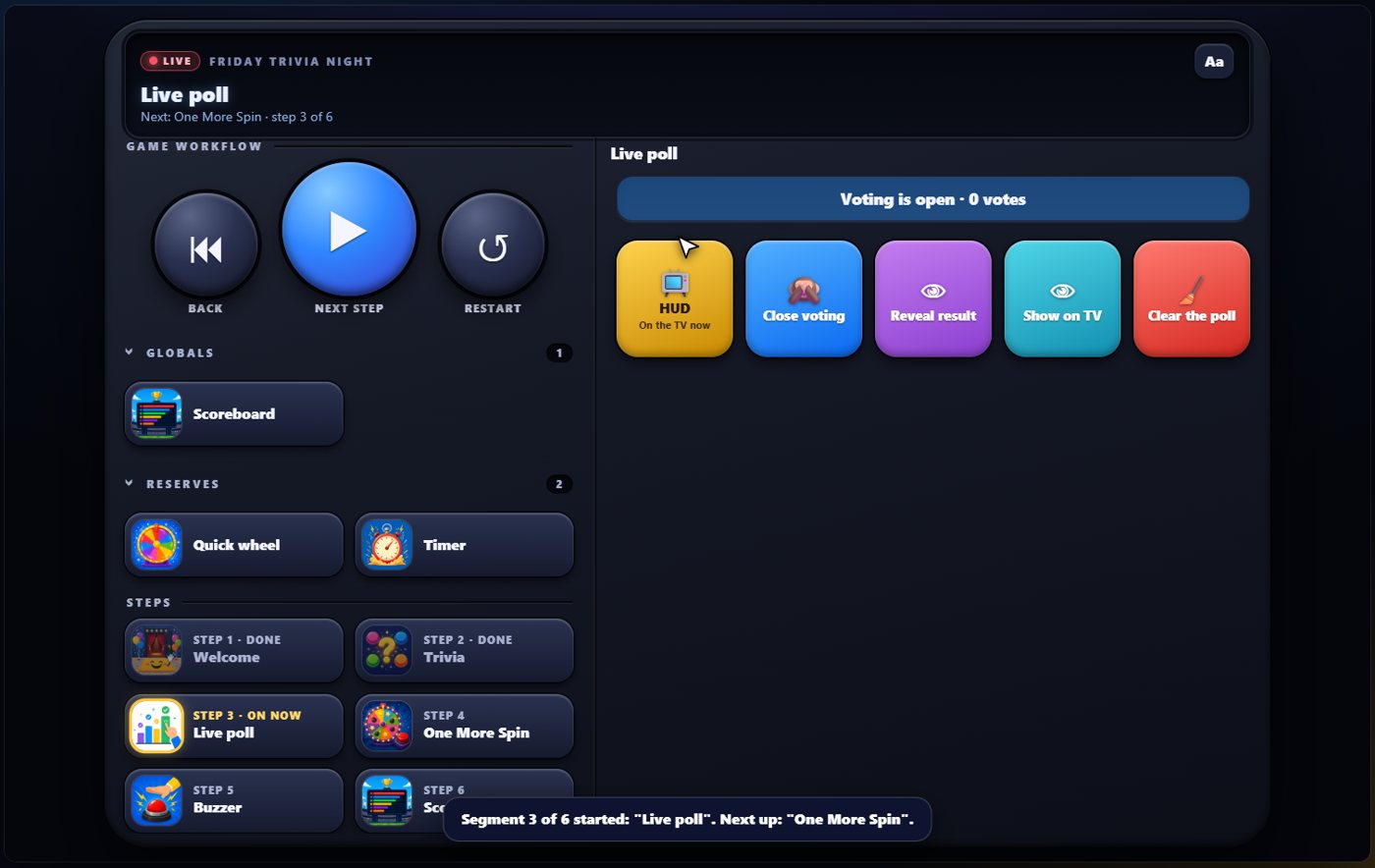
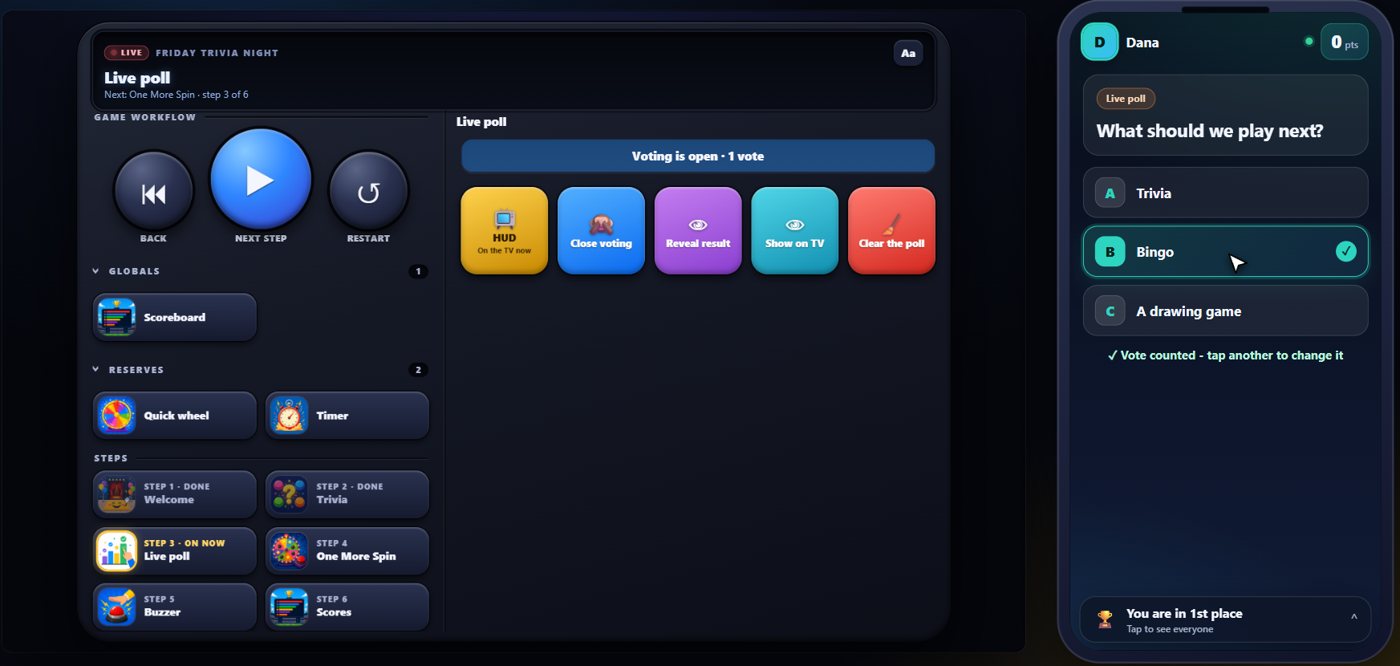
A poll, from the remote
Tap the live poll, press HUD, and the remote shows the keys for the poll: close the voting, reveal the result and show it on the TV. Guests vote on their phones, and the count on the remote goes up as the votes come in.
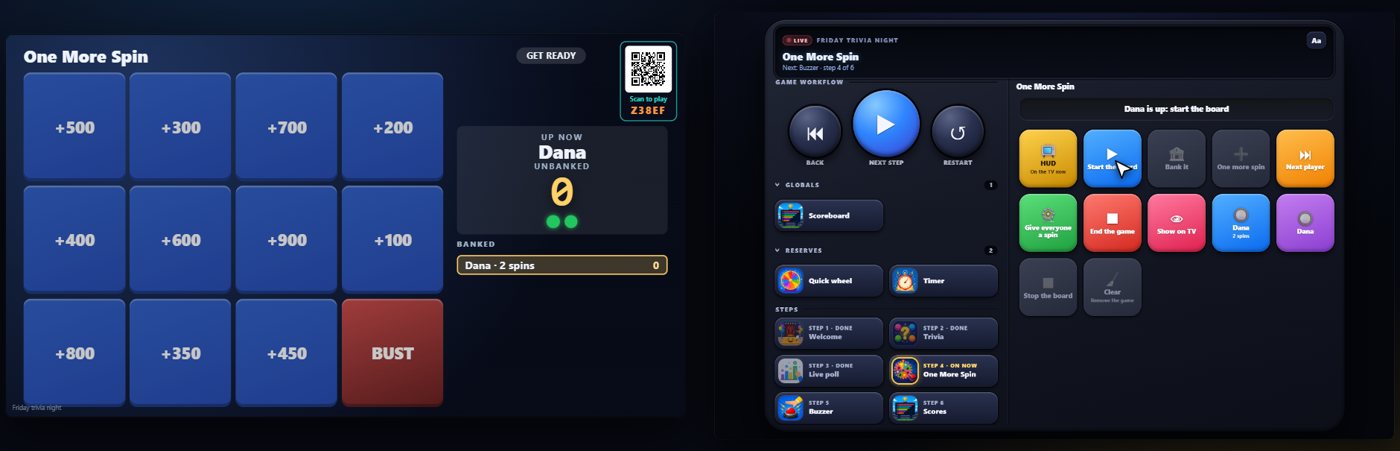
Keys for any game
Every game brings its own keys, including all the games in the Add menu. For One More Spin there are keys to bring a player up, start and stop the board, bank, and spin again. The keys that do not apply right now are greyed out, and Show on TV puts the game back on the screen if you have flipped away from it.
The buzzer
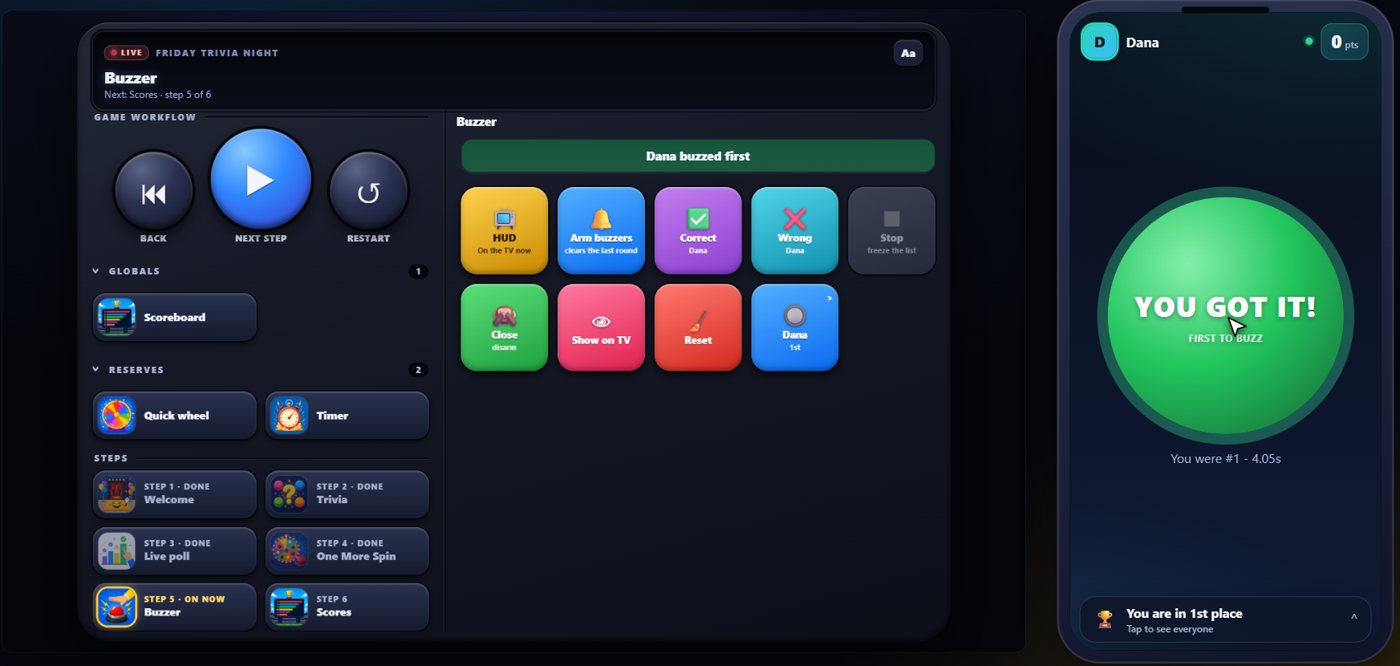
The buzzer has its own keys too. Press Arm buzzers, and the guests' phones show the big button. When a guest presses it, the remote shows who buzzed first. Correct and Wrong mark the answer, and Close switches the buzzers off again.
Reserves and Globals
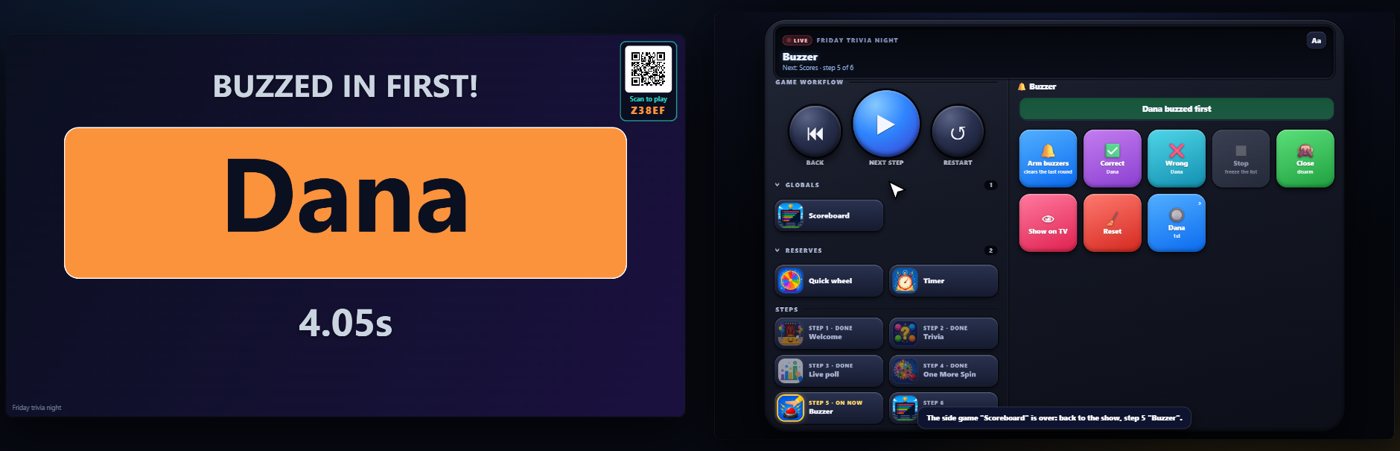
To flip in a side game, tap one in Reserves and press HUD. It goes onto the TV without losing your place, and Back to game returns you to the step you left. Globals work the same way: tap the scoreboard, press HUD, then go back to the game.
Make it easy to use
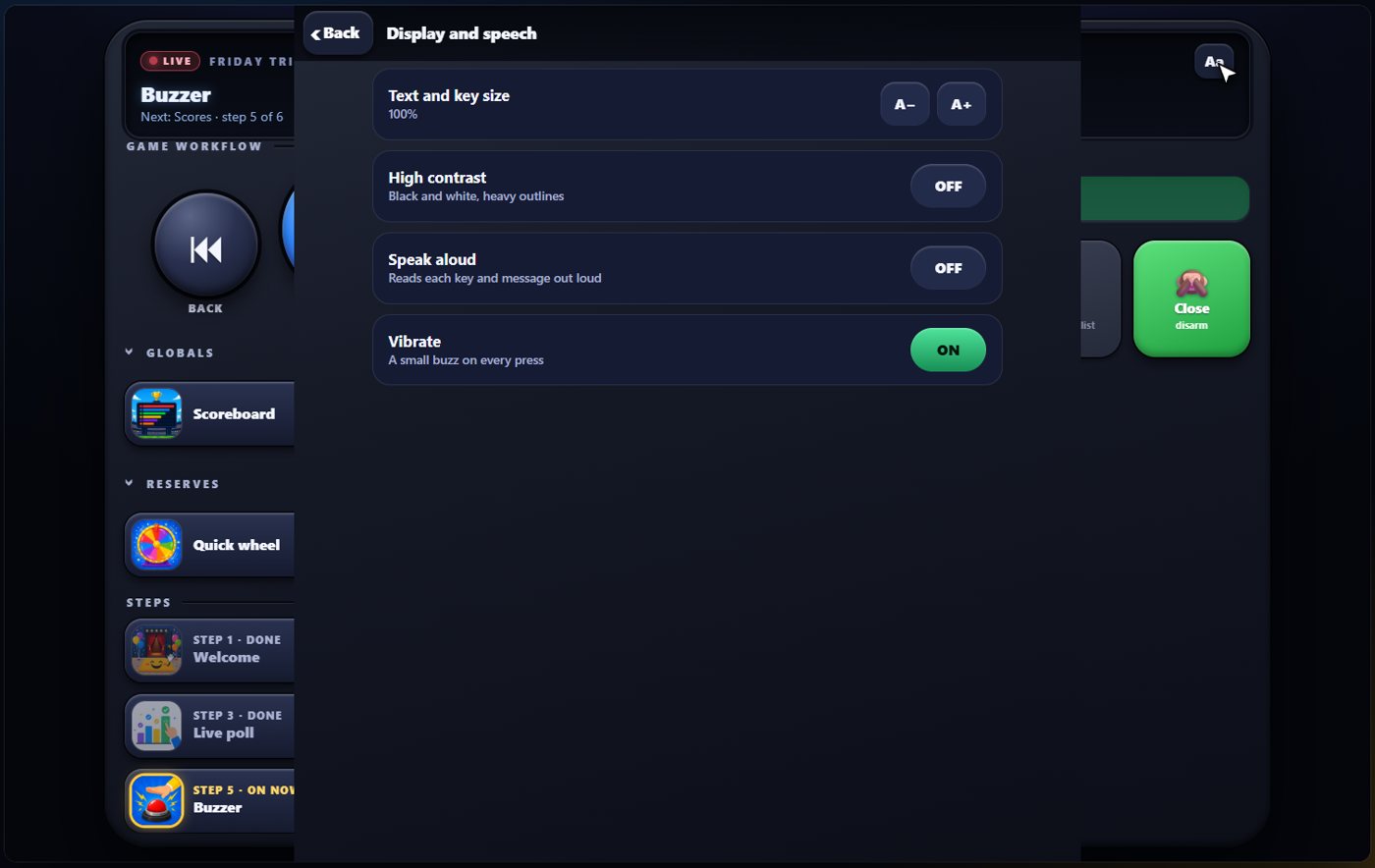
The Aa button opens settings for this device: bigger text, a high contrast mode, spoken keys, and vibration.
Tip Keep the remote on the same Wi-Fi as the show. If it says it is not paired, press Remote in the game console again and scan the new code.
Keep going

Run the night by voice
Talk to your cohosts to change screens, ask questions, reveal answers, play sounds and jump around.
Build your show
The Rundown: add, arrange, check and save steps; reserves; defaults for every step.

The desktop app
Run the whole show from your own computer, even with no internet: install it, sign in, start a show and get guests in over your Wi-Fi.
Something missing or unclear? Check the FAQ or browse all guides.