
Watch: Pictures, Videos, Music and Sounds (4:39) · All videos
Search the video library
Press Picture / video, open the Background videos tab and type a word. Type birthday and the birthday videos appear. Hover over one to watch it, then press Use and it plays behind every step.
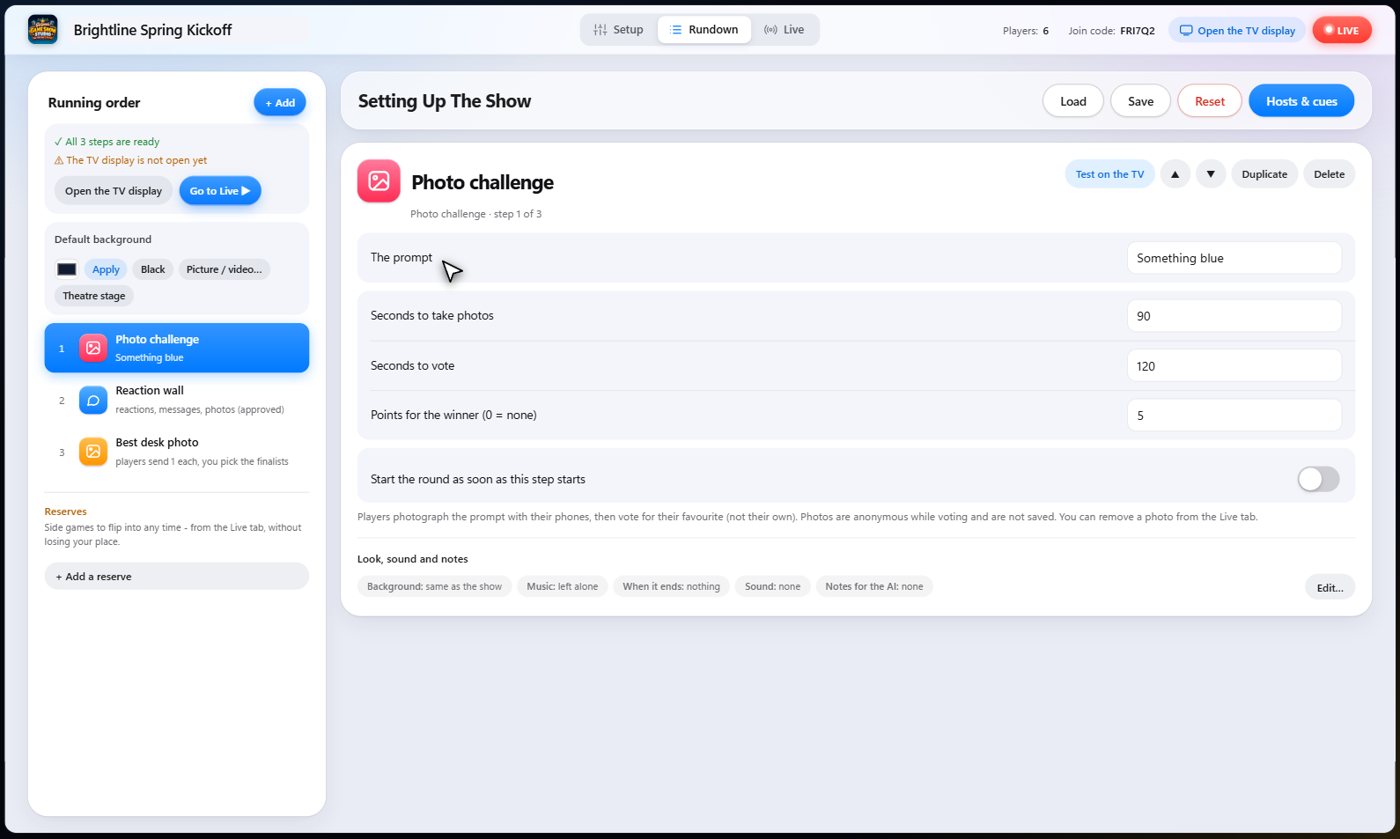
- In the Rundown, find Default background (every step) under the step list.
- Press Picture / video and open the Background videos tab.
- Type what you want in the search box, such as birthday, beach or space.
- Hover over a video to watch it, then press Use.
Where else to look
The chooser has tabs: your own videos and pictures (My videos & pictures), Themes (a matching scene for each part of a show), Background videos and Pictures. Choose a theme to set each step's background to the matching scene.
Tip A background can be the show's default, or belong to one step only, or even one trivia question.
What it looks like on the night
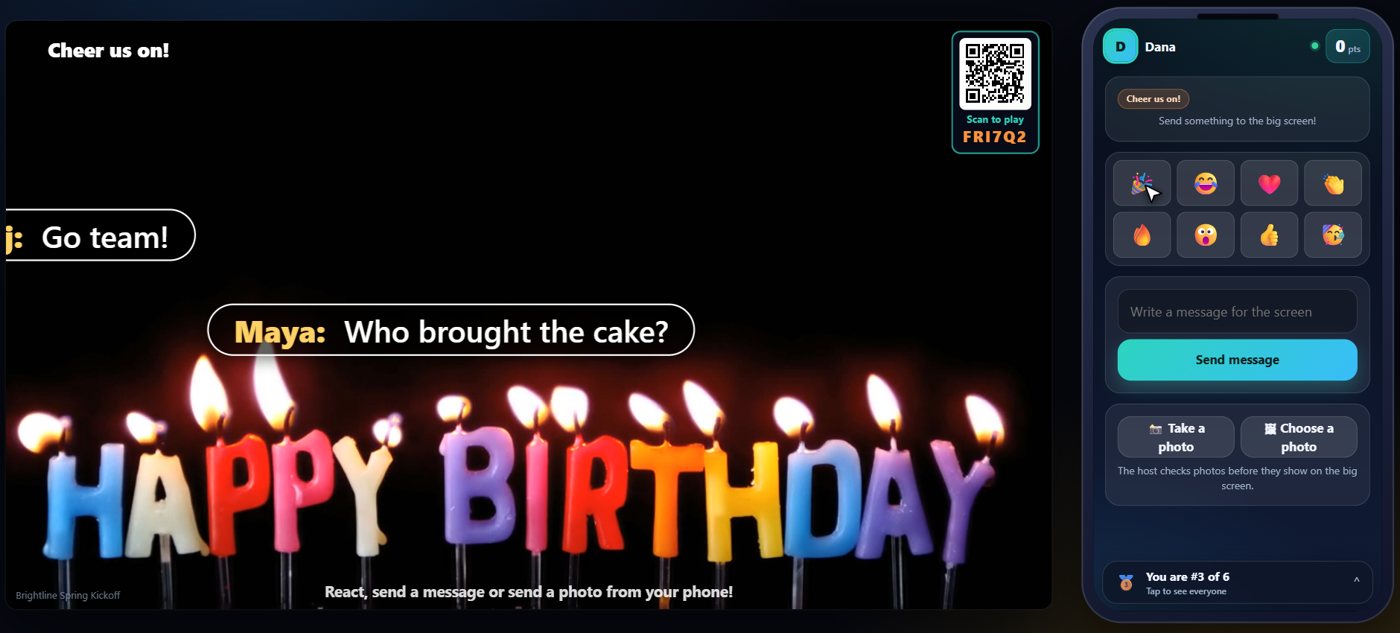
The background plays behind whatever is on the TV. Reactions, messages and photos on the reaction wall sit on top of it, so a looping video makes the wall far more fun.
Your own pictures and videos
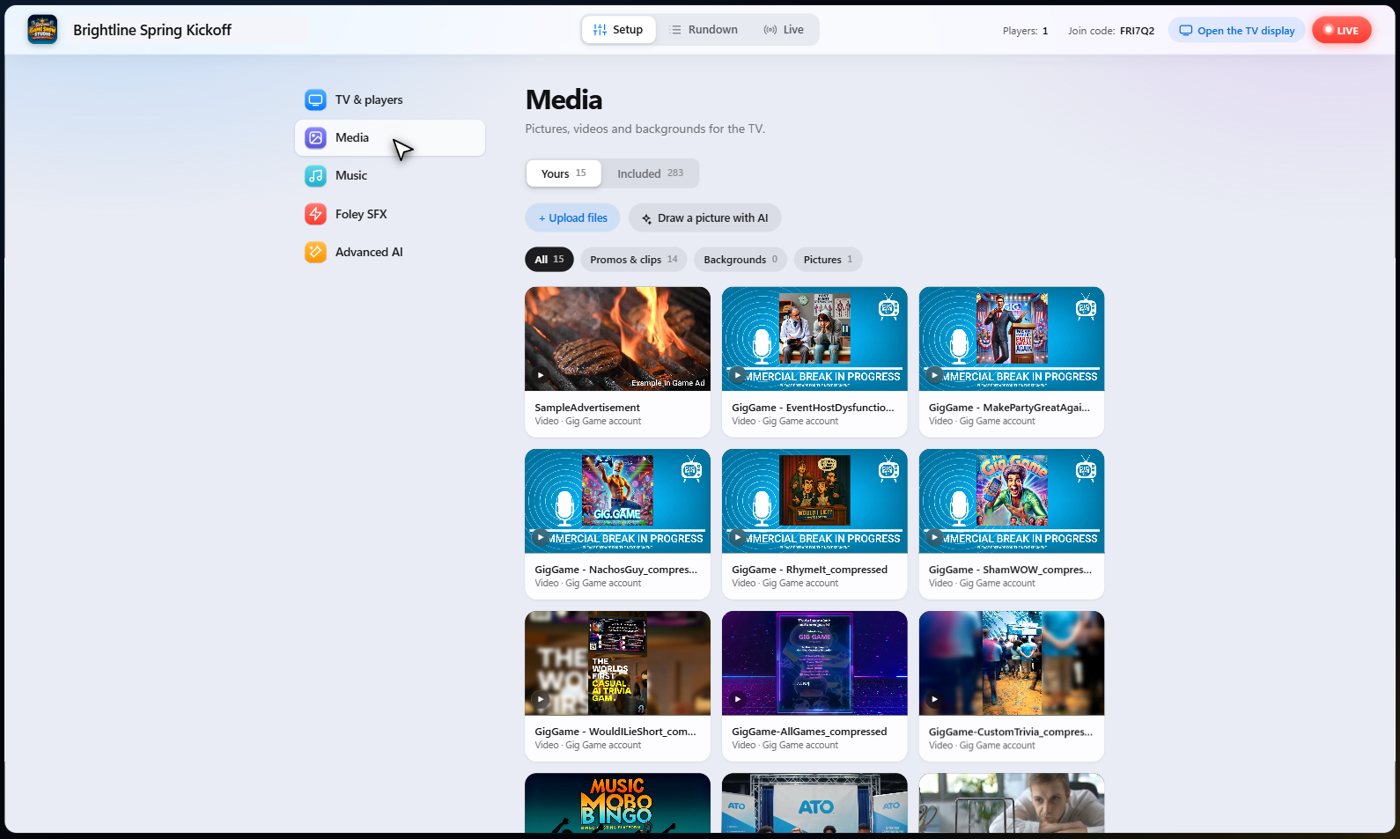
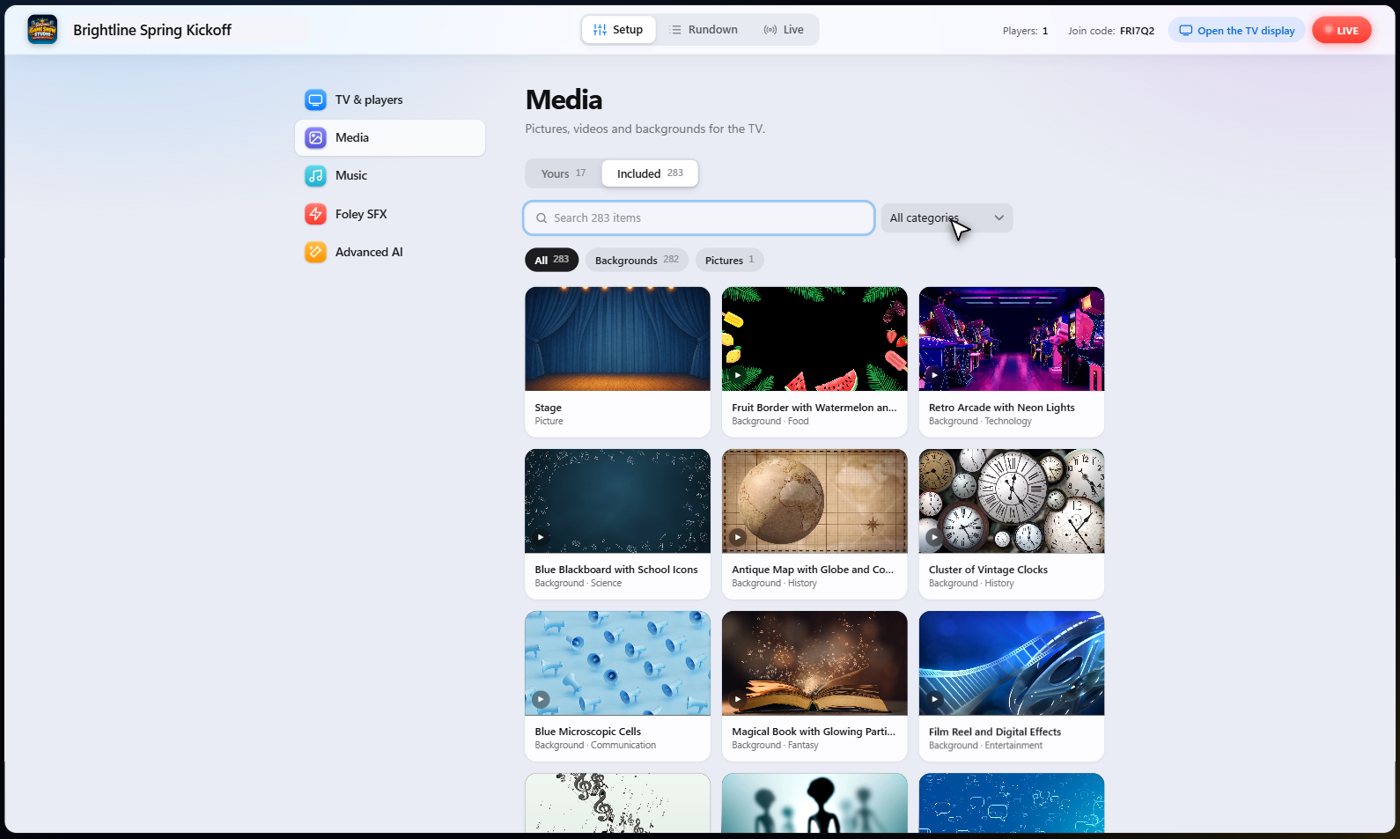
Setup keeps your own libraries: pictures and videos in Media, songs in Music, and sound effects in Foley. Each one keeps what comes with the app (Included) apart from what you add (Yours).
Upload your own
In Media, open Yours and press Upload files. Choose pictures (jpg, png, webp or gif, up to 15 MB) or videos (mp4 or webm, up to 80 MB). Each file gets a name you can change, and a video is either a promo or clip, or a Background that loops behind a step. Promos from your Gig Game account appear here too. You can also have the AI draw a picture from a description; that costs a little.
- Open Setup, then Media, then Yours.
- Press Upload files and choose your files.
- Rename them, and for a video choose Promo / clip or Background (loops).
- Press Upload.
Browse, search and remove
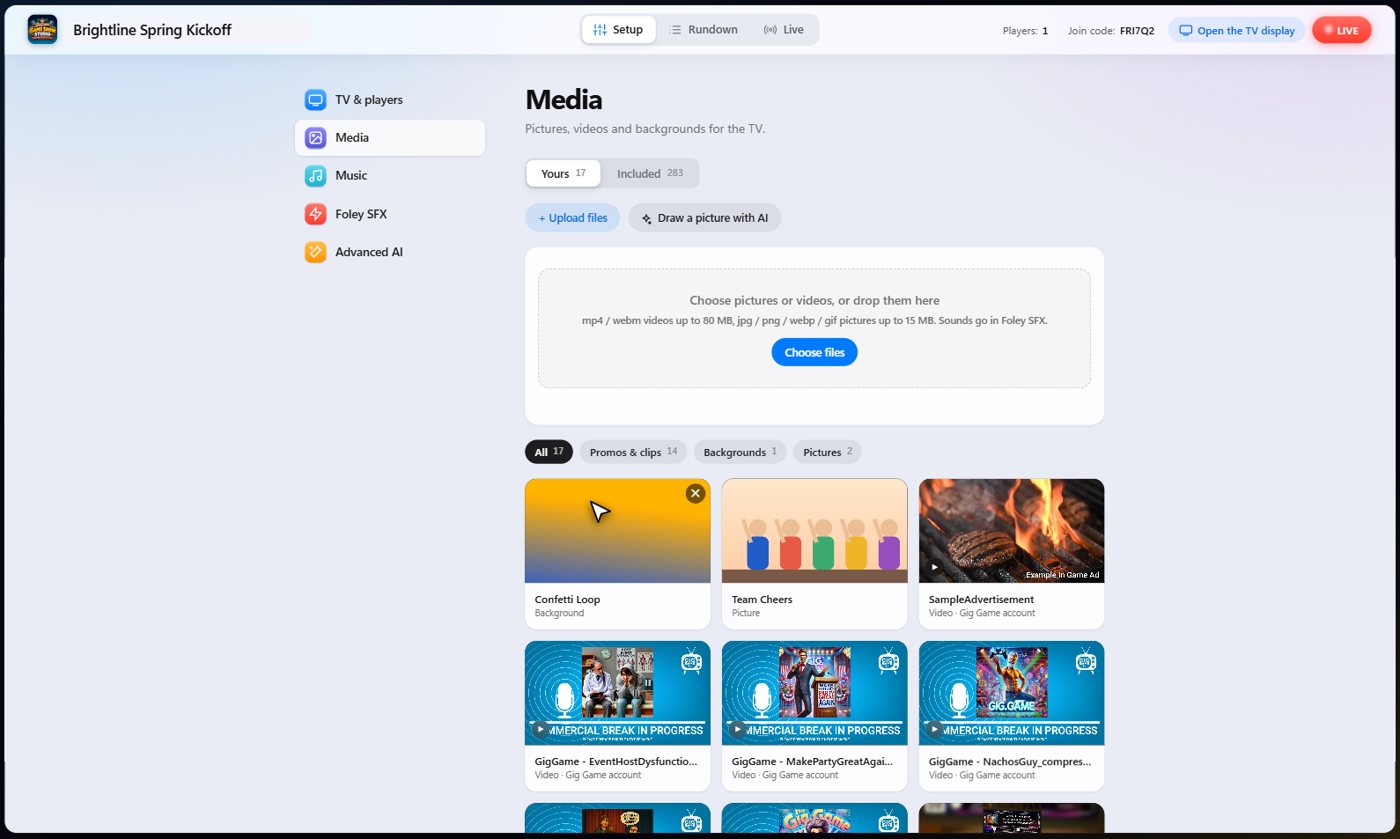
Your uploads appear as cards; the buttons above them sort by Promos and clips, Backgrounds and Pictures, and a video plays when you hover over it. The Included tab has the library that comes with the app, with a search box and a category list; it cannot be changed. To remove something you uploaded, press the cross on its card and confirm.
Music
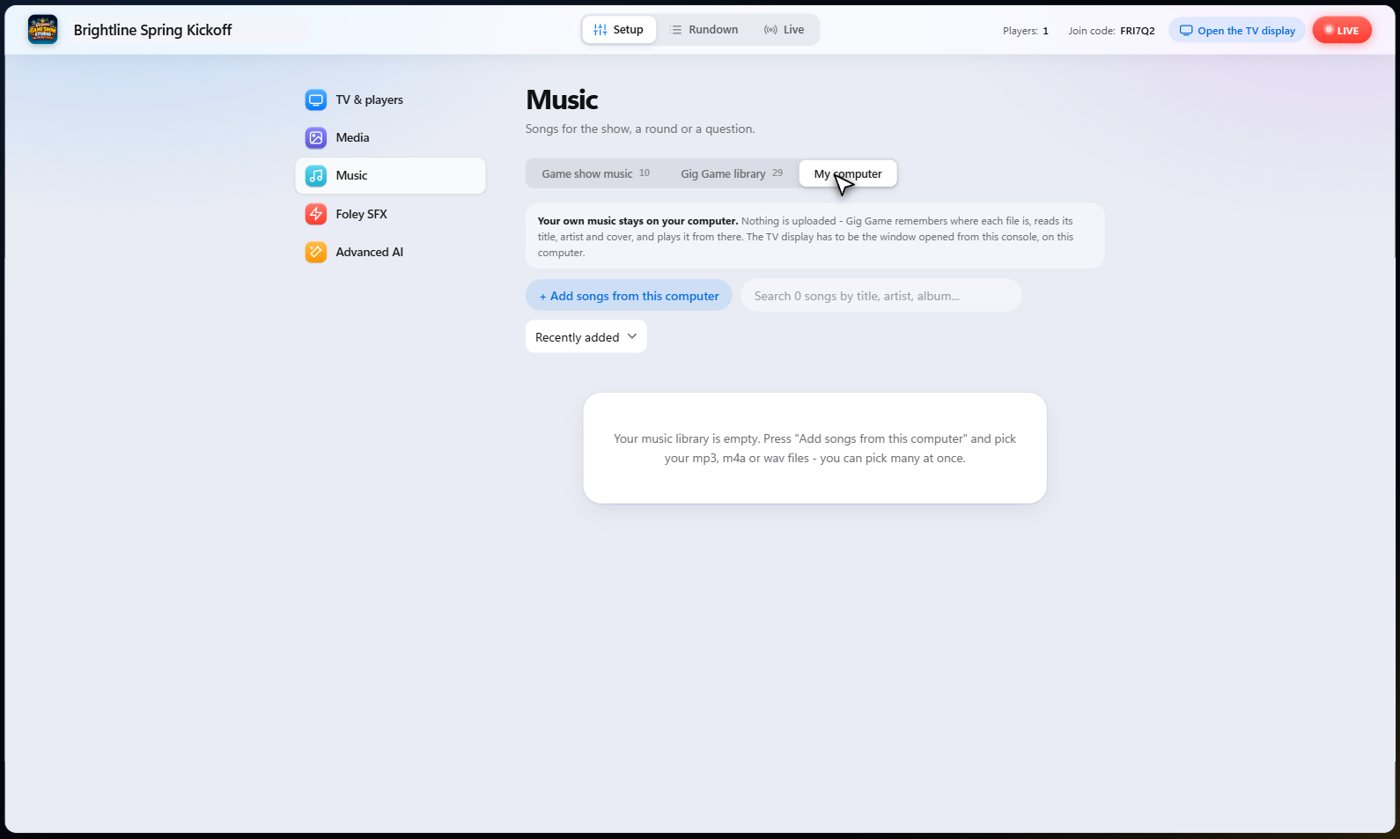
Music has three tabs: Game show music (ready-made tracks for rounds, thinking, the winner and the lobby), the Gig Game library (songs that each have an intro, a loud loop, a quiet loop and an ending), and My computer, for songs you own. Music from your own computer stays on your computer; nothing is uploaded. Spotify songs are added from the music chooser inside a step.
Sound effects
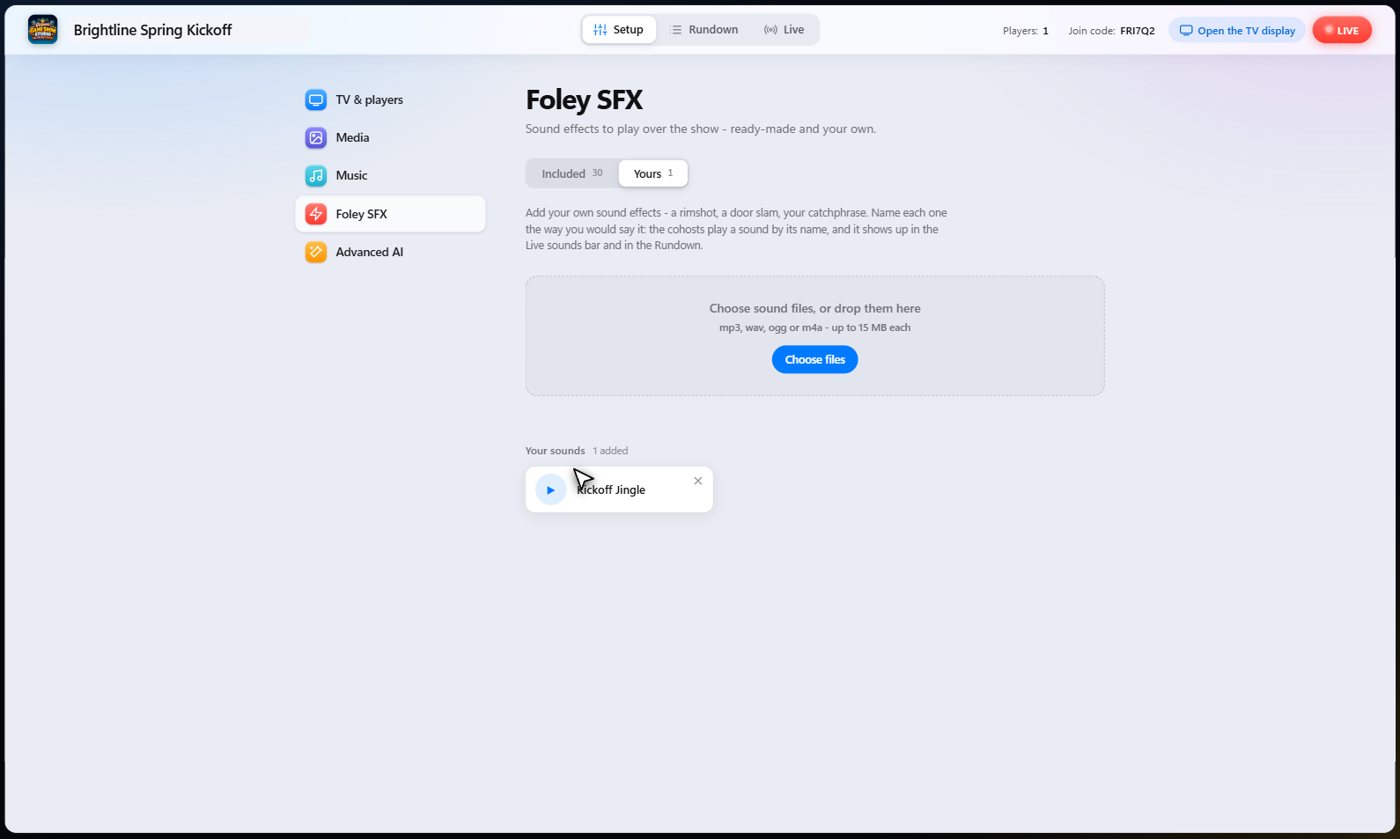
Foley holds sound effects. The Included tab has the ready-made ones; on Yours you can upload your own (mp3, wav, ogg or m4a, up to 15 MB). Name each one the way you would say it, because the cohosts play a sound by its name. Press Try to hear it before you upload.
Use them in a step
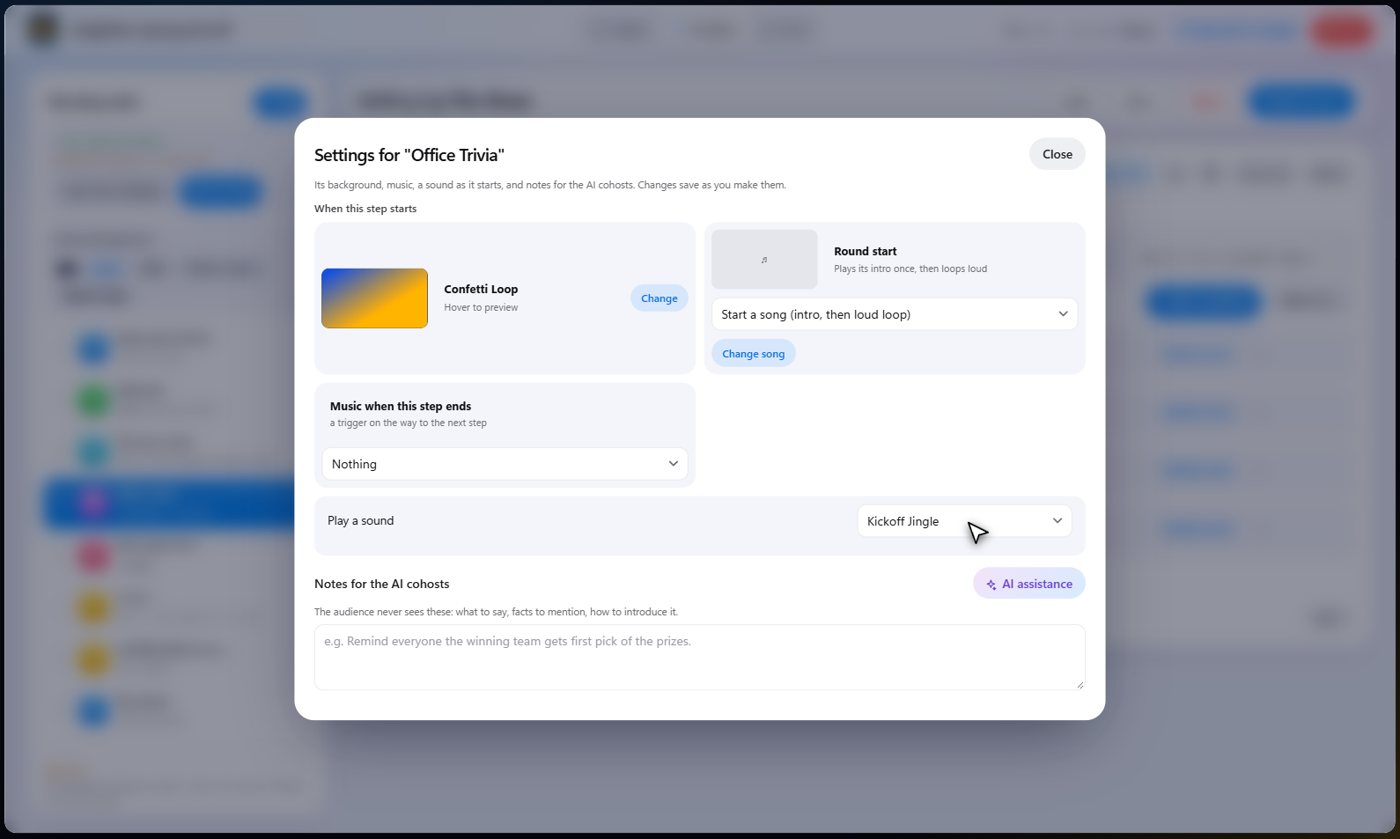
Open a step in the Rundown and press Edit under Look, sound and notes. A step can have its own background, music that starts with it, and a sound. Press Choose under Background and pick from your own videos and pictures, the themes, the background videos or the pictures. For music, choose Start a song, then Choose song: the chooser has Platform songs, Game show music, Spotify and From my computer.
- Open a step and press Edit under Look, sound and notes.
- Press Choose under Background and pick one, or press Same as the show to clear it.
- Under Music choose Start a song, then Choose song.
- Pick a sound from Play a sound.
Music and sound effects
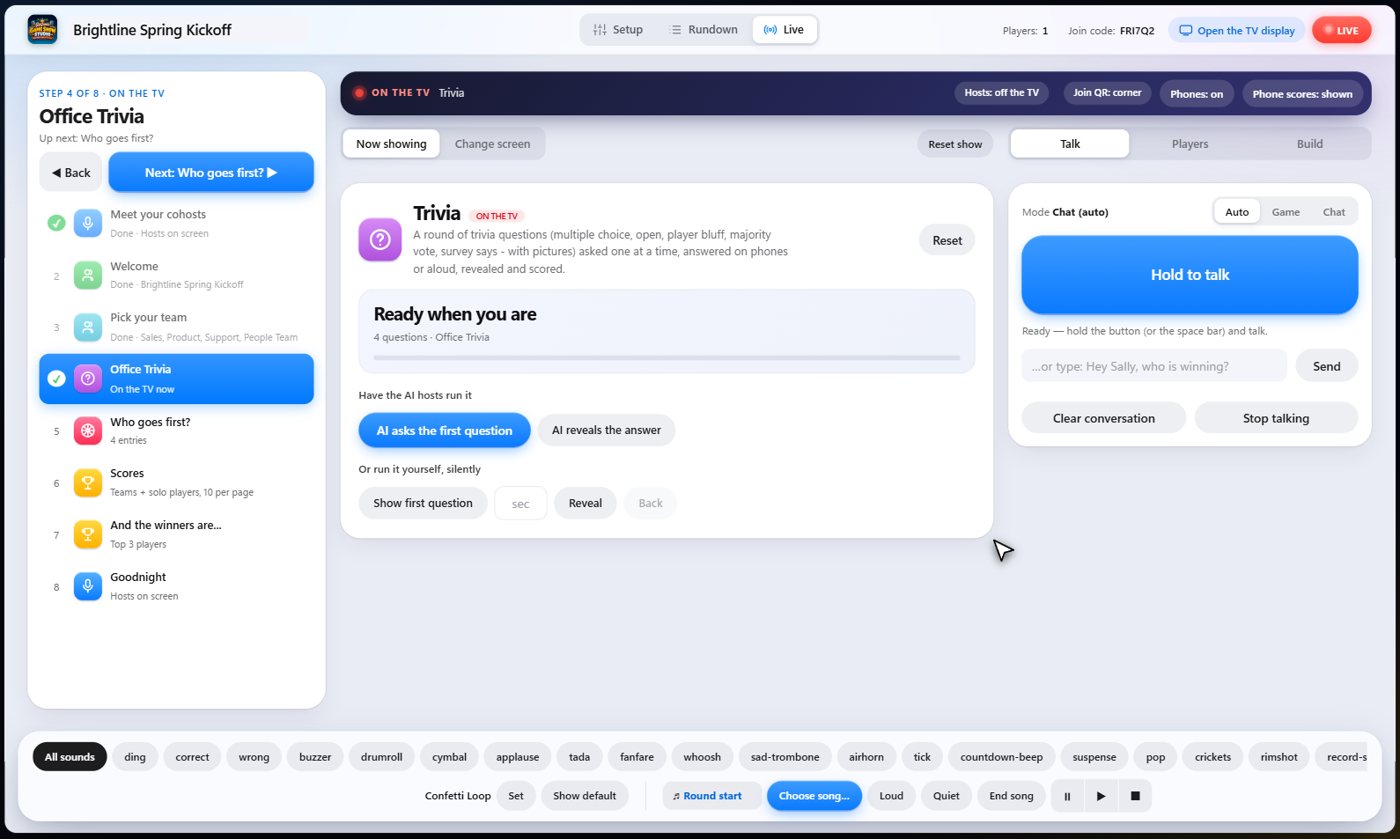
Ready-made game show music and thirty sound effects come with the app. A step can start a sound as it begins, and the sound bar along the bottom of the Live tab plays any of them on demand. Ask a cohost for applause, a drumroll or a song and it plays. The music picker also has a Spotify tab: add a public playlist or search for songs there, and use them in music trivia and music bingo.
Animatronic Voice Control
If an animatronic (a talking prop) listens on one audio channel, Animatronic Voice Control keeps it from hearing anything but the voices. The voices always play on both channels. Choose Left Channel and the music, sound effects, video sound and song clips play on the right channel only. Choose Right Channel and they play on the left only. Off, the default, plays everything on both channels as before. It applies on the TV display, and a change takes effect straight away, even while music is playing (the song starts again from its beginning).
- In Setup, open Advanced AI and find Animatronic Voice Control in the Live tab block.
- Choose Left Channel or Right Channel, whichever side the sound should stay off.
- Choose Off to put everything back on both channels.
Tip Spotify cannot be moved. If you play a song through a Spotify player, it plays on both channels, because Spotify's own player controls its sound. Use a song from the Music library or one of your own uploads instead when the channel matters.
Tip Set the left and right outputs of the computer running the TV display to the speakers or the animatronic, one on each side.
Keep going


Something missing or unclear? Check the FAQ or browse all guides.