
Watch: Keep It Quiet (2:27) · All videos
What it is
In Keep It Quiet, one guest performs a funny challenge while everyone else must stay silent. A noise meter on the TV counts every outburst as a strike.
Add it to your show
It is one step in your Rundown, like any other game. Add it where you want it to play.
- Open the Rundown tab and press Add.
- Choose Keep It Quiet from the menu. It joins the end of the list and opens on the right.
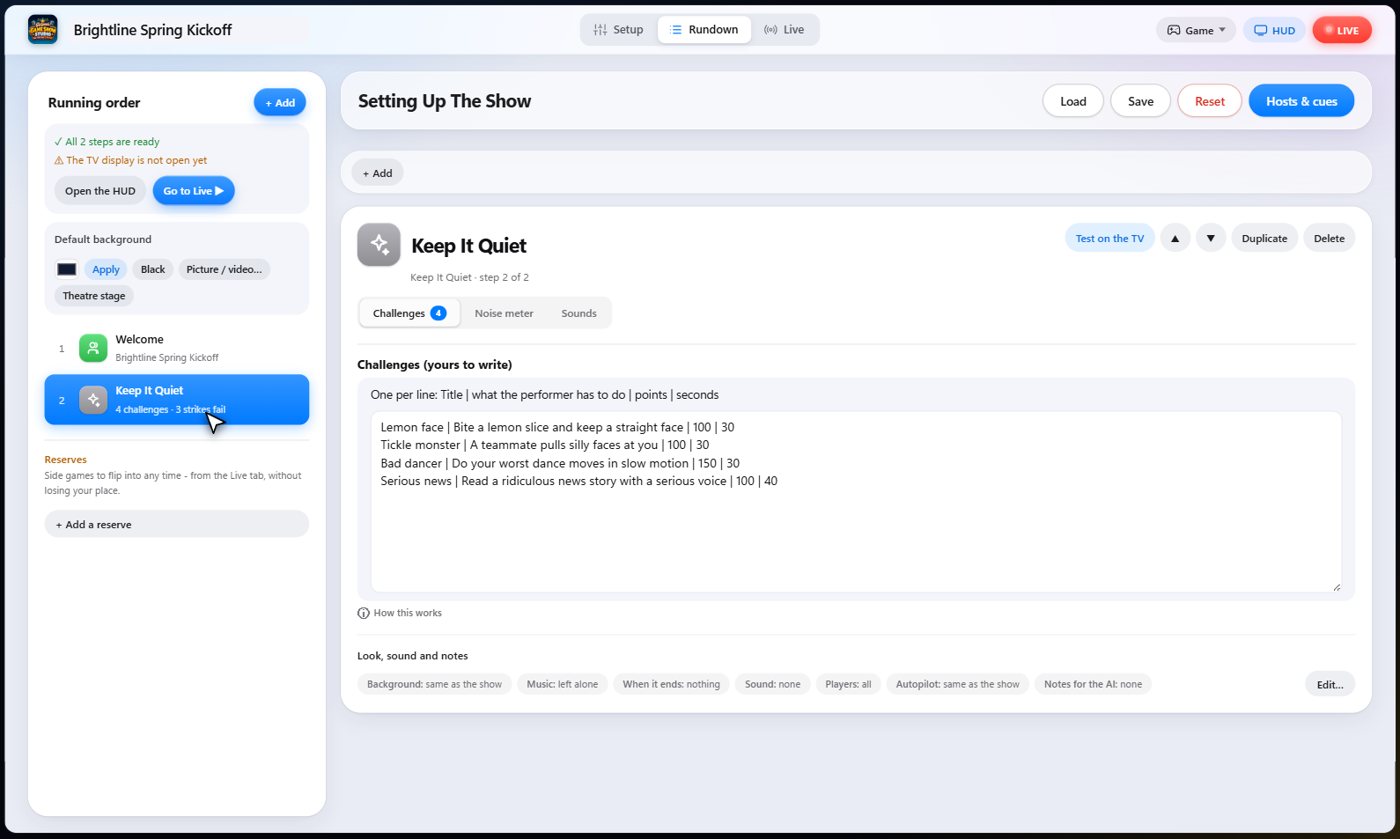
Set it up
The settings hold your challenges, one per line: a title, what to do, the points, and the seconds, separated by bars.
Choose how loud counts as noise, how many strikes fail the challenge, how much each strike takes off the reward, and the share the performer earns for their bravery.
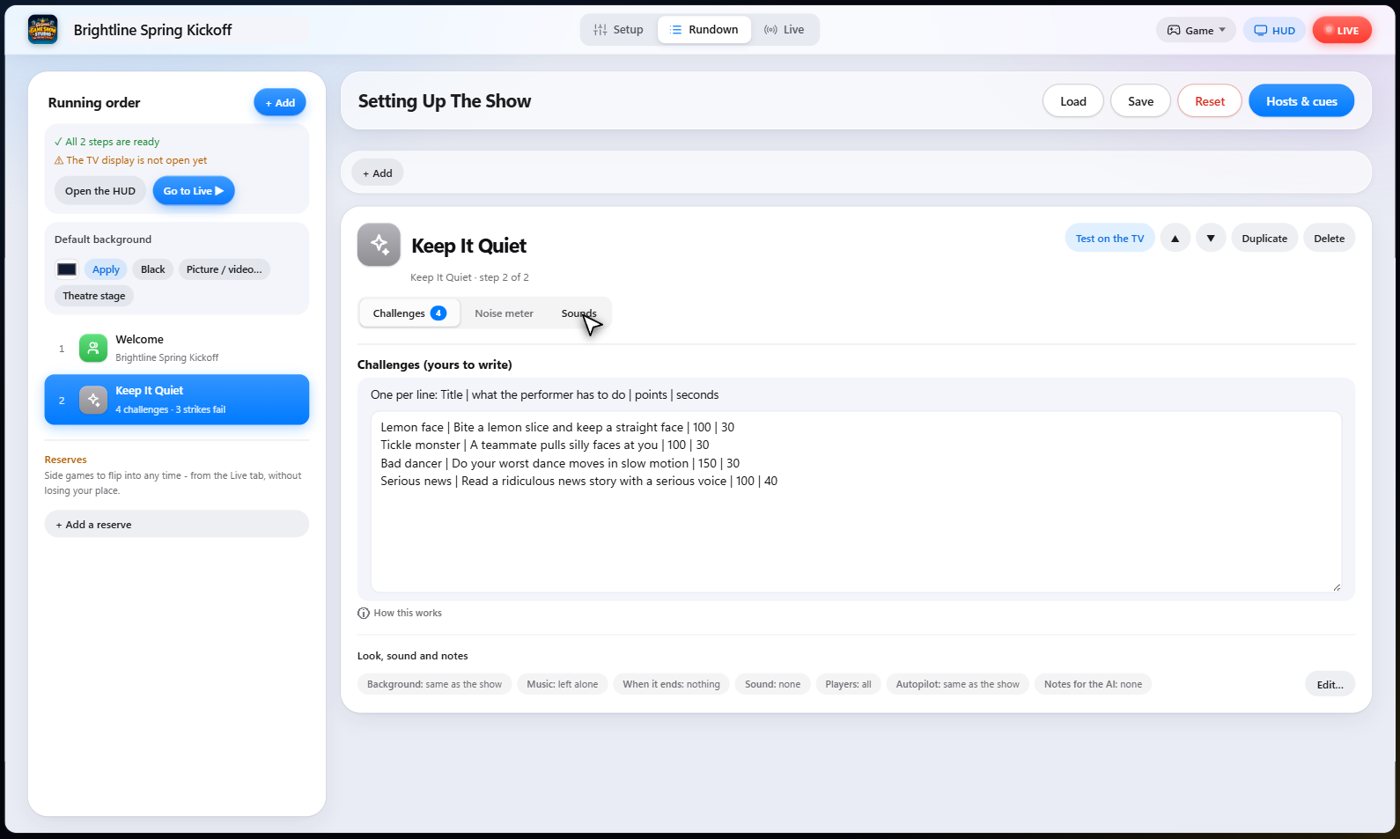
The Sounds tab picks the sound effect for each moment of the game.
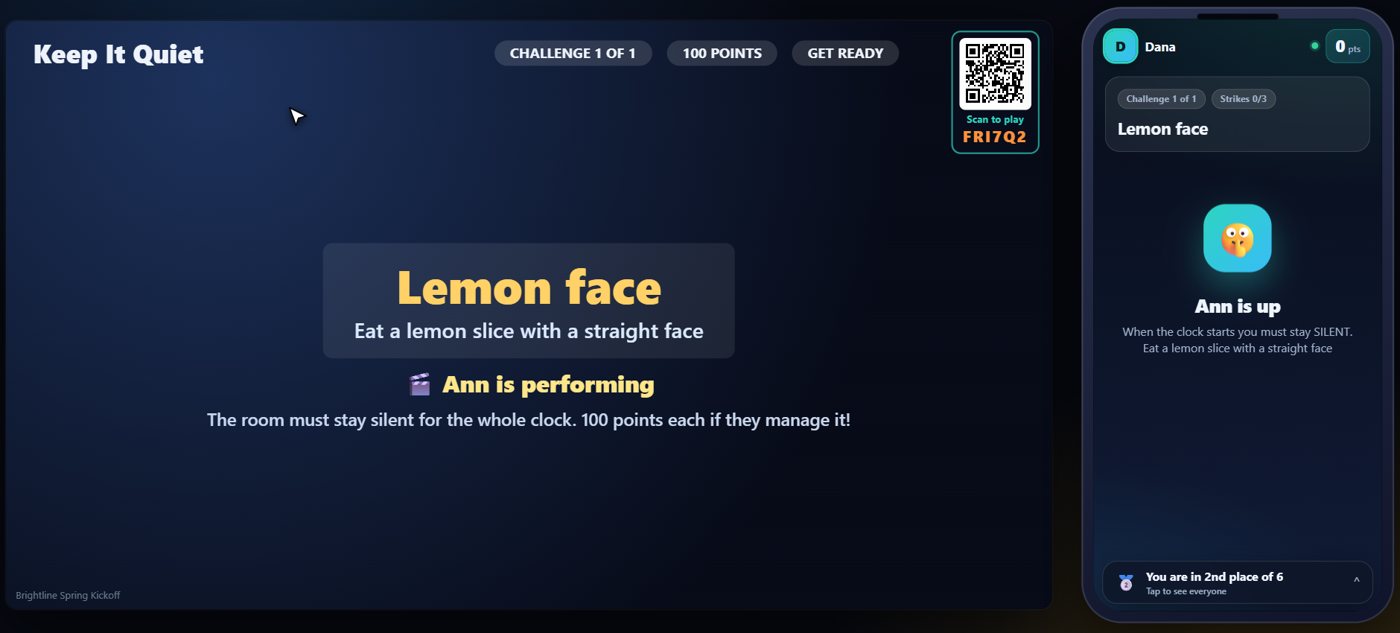
The challenge and the performer
The TV shows the challenge and the performer. Only the performer's phone says they are the performer. Everyone else is told to keep quiet, and their phone shows the challenge.
The room goes quiet
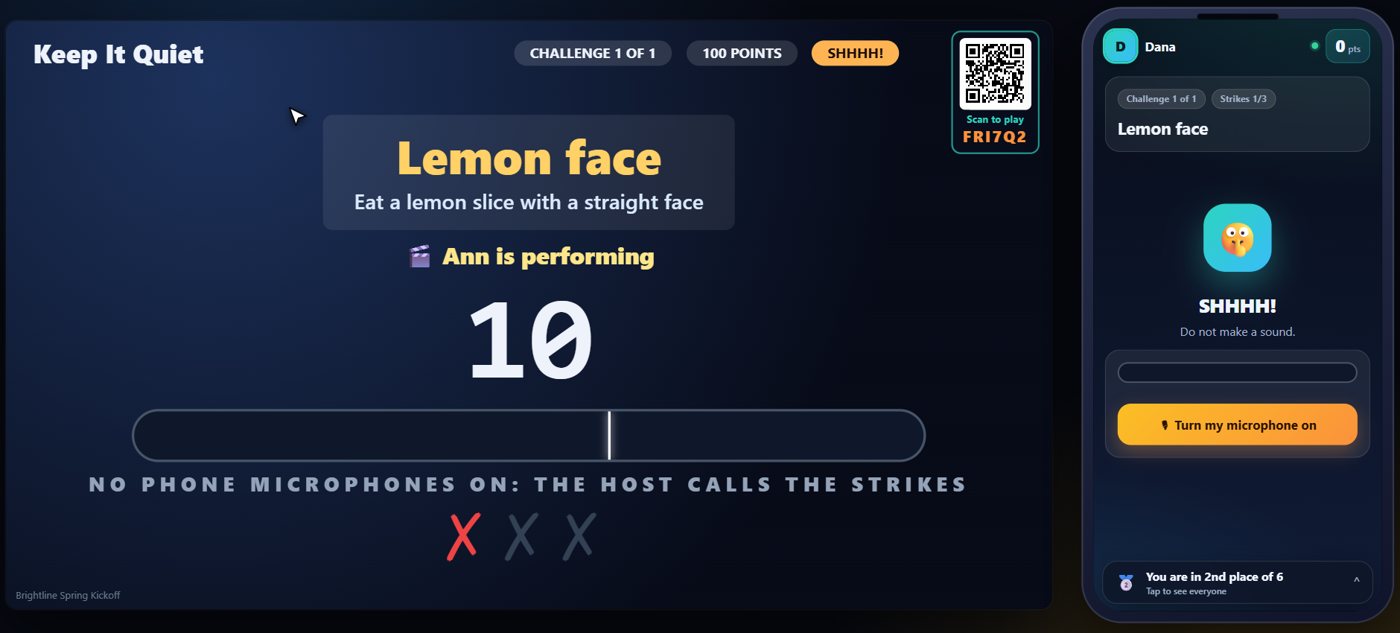
When you start the clock, the room goes quiet and the noise meter on the TV starts listening. A guest can switch their phone's microphone on to help. The phone only measures how loud the room is. It does not record or send any sound.
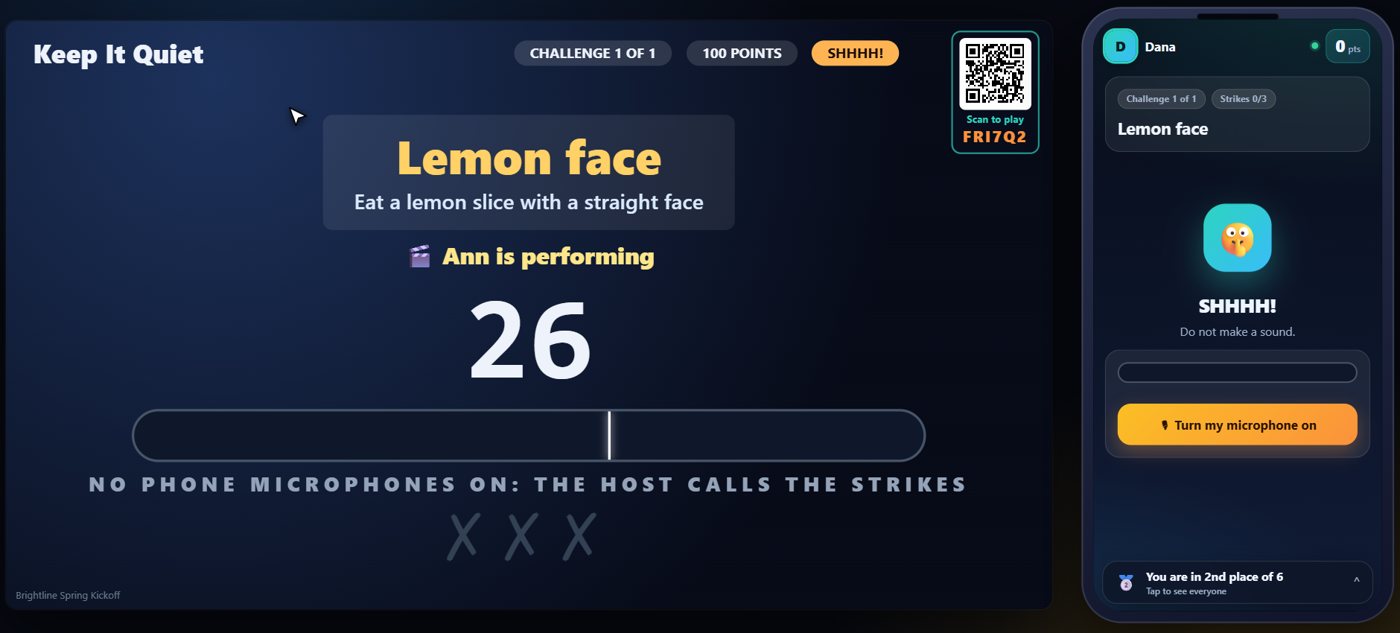
Strikes
Every burst of noise above the line is a strike, and three strikes fail the challenge. If the microphones can not hear, you can call a strike yourself, or forgive one.
The score
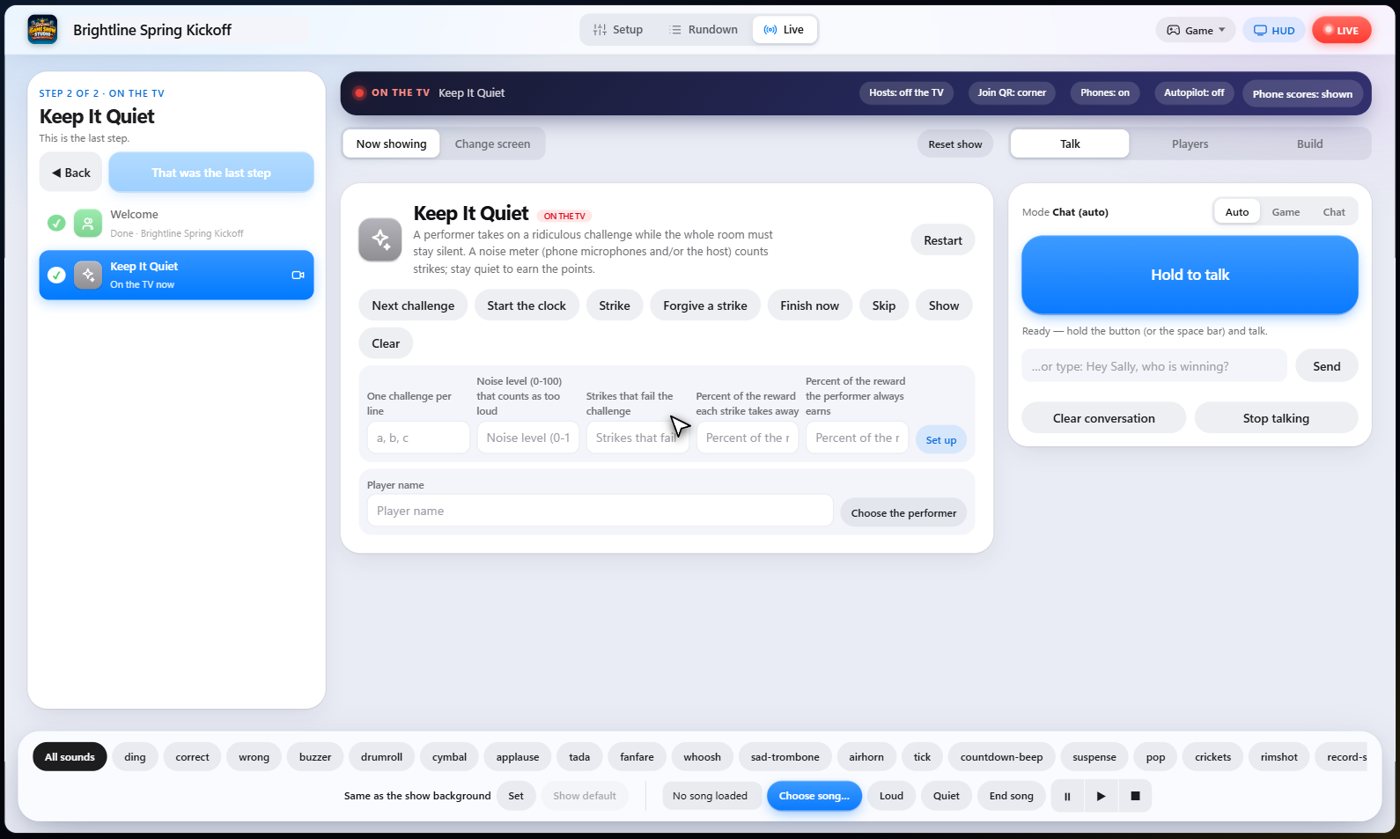
When the clock runs out, or you finish early, the challenge is scored. A quiet room earns full points for every quiet guest, each strike takes off a share, and the performer always earns a bravery bonus.
Your controls on the Live tab
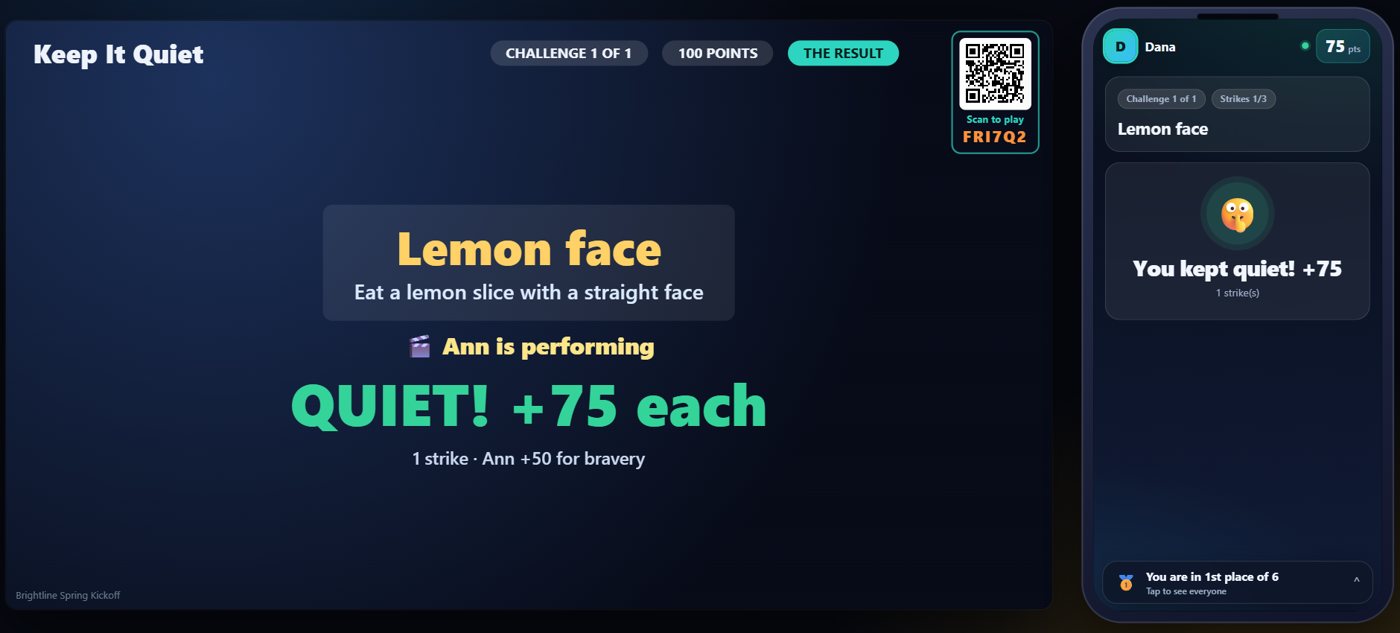
On the Live tab, Next challenge shows a challenge and picks a performer, Choose the performer names one, Start the clock begins the quiet, Strike and Forgive a strike adjust the count, Finish now scores it, and Skip drops a challenge.
Tip The same keys are on the Host Remote, so you can run Keep It Quiet from a phone or tablet.
How it ends
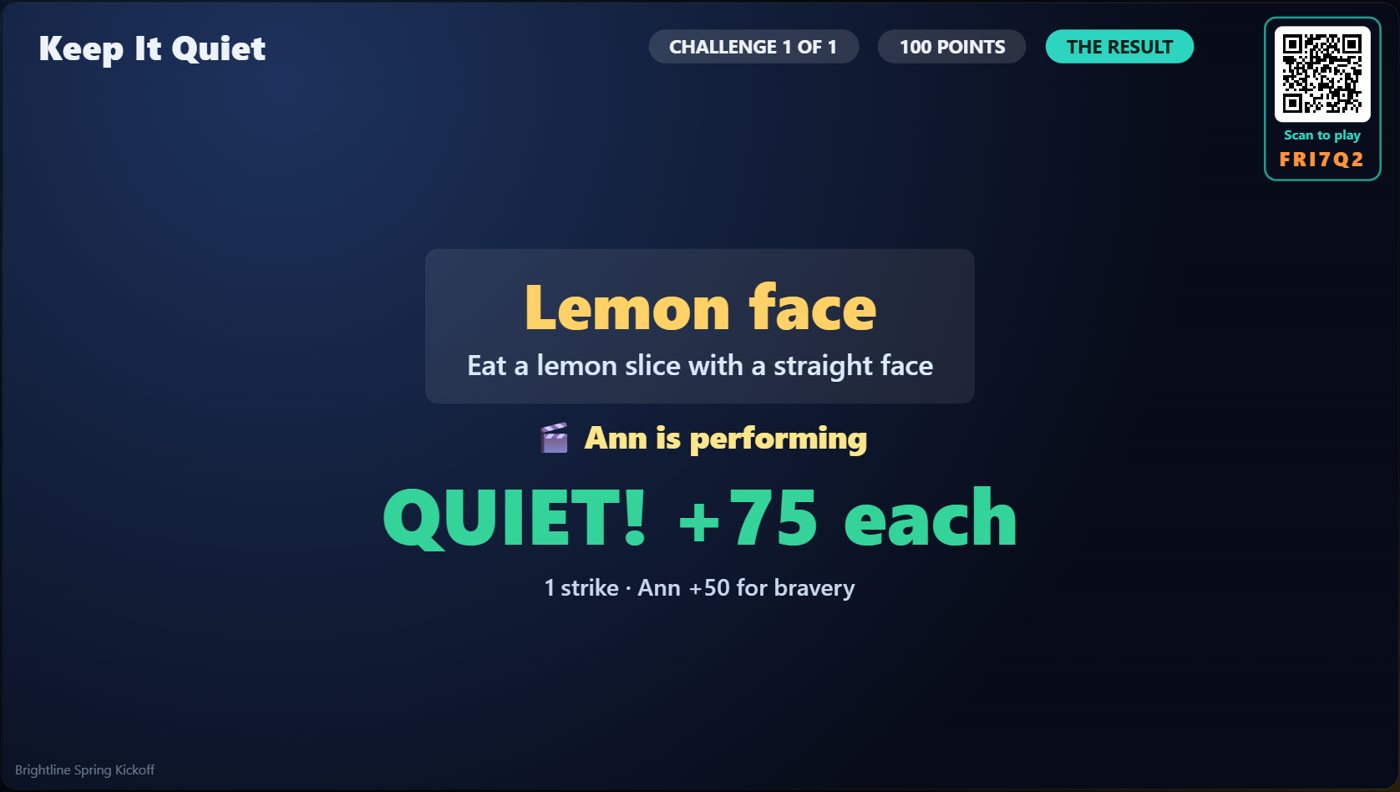
The TV shows the result, with the strikes and the points earned.
Keep going

Build your show
The Rundown: add, arrange, check and save steps; reserves; defaults for every step.

The Host Remote
Run your show from a phone or tablet: start it, tap any step to see its keys, put it on the TV, and flip in a side game.

Your AI cohosts
Choose and name them, give them a personality, tell them about the show, set how they behave.
Something missing or unclear? Check the FAQ or browse all guides.